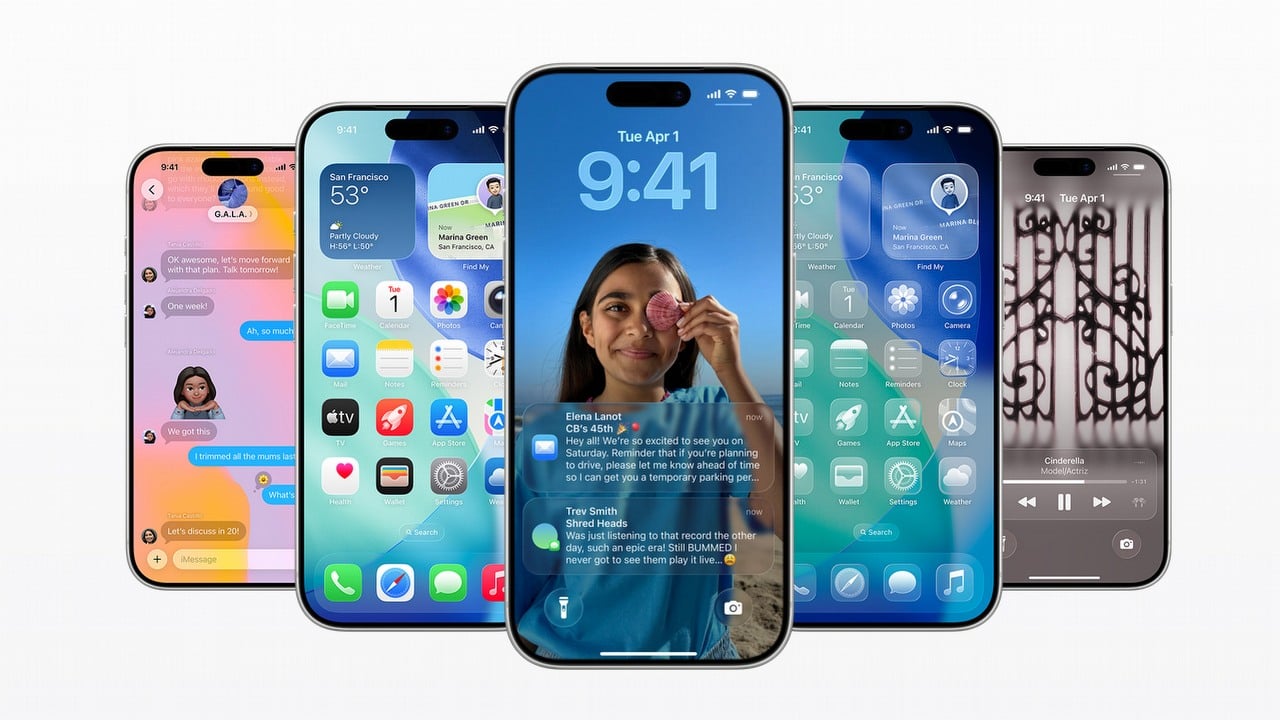
On September 15, 2025, Apple launched iOS 26, which includes improved notifications, innovative features powered by AI, and greater personalization options for your iPhone. A key highlight of the update is a completely redesigned lock screen. If you’re not sure how to change your wallpaper with the new system, this guide will walk you through setting a new photo and adding the cool spatial effect.
How to change your wallpaper in iOS 26 and add 3D effect
Here’s a simple step-by-step guide to changing your wallpaper on iOS 26 after the latest update:
- Wake your iPhone and tap on the Lock Screen.
- In the bottom-right corner, tap the “plus” button.
- At the top of the screen, select a folder or category.
- Pick the photo you’d like to use and confirm your choice.
- If you’d like to add a 3D spatial effect, make sure to enable it before finalizing. Keep in mind, the 3D feature works best with photos that have depth of field.
- To do this, tap the small icon next to the three-dot icon and switch on the effect.
iOS 26 is available for iPhone 11 and newer.
On September 9th, Apple introduced a range of new products, but the iPhone Air is particularly noteworthy. It’s incredibly slim and, for the first time in ten years, an iPhone without stereo speakers. However, since many people use headphones these days, this isn’t a major drawback. Plus, it’s nice not to worry about accidentally broadcasting sound from the phone’s speakers in public.
Read More
- Netflix’s Little House On The Prairie Reboot: Release Date, Cast & Everything We Know
- Off Campus Season 1 Soundtrack Guide
- Silver Rate Forecast
- Prime Video’s New R-Rated Spy Thriller Is Officially No.1 On Streaming Despite Poor Reviews
- Gold Rate Forecast
- Brent Oil Forecast
- EUR ZAR PREDICTION
- YouTuber arrested after viral AI bodycam videos spark real police complaints
- EUR USD PREDICTION
- Inkford Hermitage Chest Locations In HSR (Honkai: Star Rail)
2025-09-19 11:32