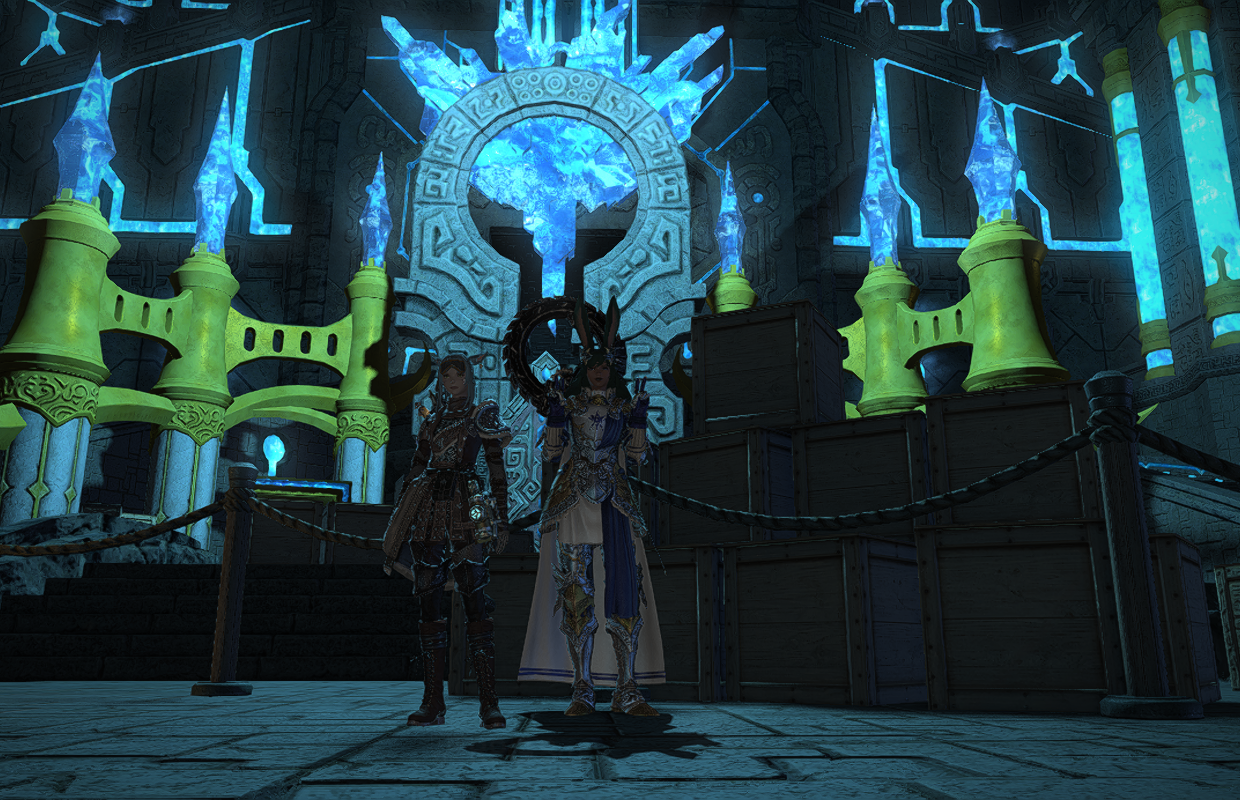
Playing Final Fantasy XIV on the Steam Deck is usually a good experience, but the game has changed a lot recently with improved graphics and new content. It’s been tricky to recommend, though, because of how accounts work. The game treats the Windows version and the Steam version as completely separate, so they don’t work together. This means if you own the base game on one platform, you’ll need to buy any expansions again for the other – you can’t combine or transfer them between the Steam and Windows versions.
This guide explains how to play Final Fantasy XIV on the Steam Deck in 2026, whether you own the game directly or through Steam. I’ll share my recommended settings for the best experience. If you currently play on a console or were considering the Switch 2 but are concerned about subscription costs, you’ll find this especially helpful.
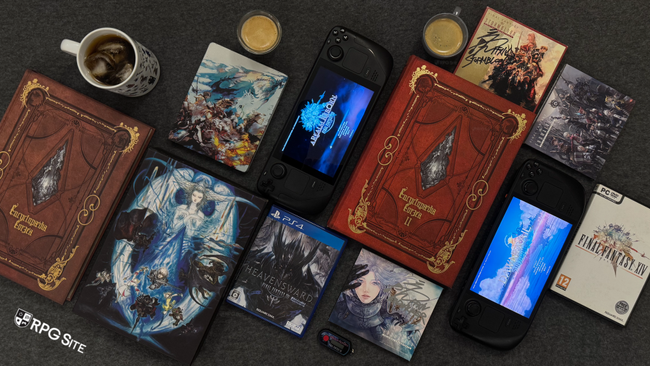
I’ve been playing Final Fantasy XIV since the PlayStation 3 era, but I’m definitely a casual player. I mainly focus on the main story quests, including new content added with each update, and occasionally do dungeons with friends when new patches release. I don’t participate in competitive activities like PvP. My review is based on my experiences playing the game on both the Steam Deck LCD and OLED models, as well as on PlayStation 4, PlayStation 3, PlayStation 5, and the newer PlayStation 5 Pro.
I created this feature to make playing Final Fantasy XIV on the Steam Deck easier and more enjoyable. It focuses on getting the game running smoothly with optimized controls, graphics, and performance. I plan to continue updating it with each new game expansion, and currently, all testing has been done using Patch 7.5.
Final Fantasy XIV Steam Deck performance impressions
Playing Final Fantasy XIV on the Steam Deck is surprisingly better than on traditional consoles. The Steam Deck offers complete controller compatibility, a touchscreen, and two customizable trackpads, giving you more input options and allowing for a truly personalized experience. While PlayStation controllers have a touchpad, it doesn’t compare to the versatility of a touchscreen and two trackpads, especially with customizable back buttons. I’ll share my preferred control setup later, but overall, the Steam Deck provides more ways to control the game while still benefiting from full controller support for FFXIV.
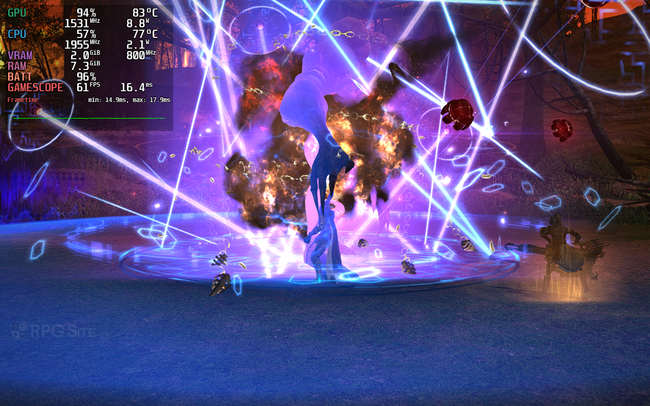
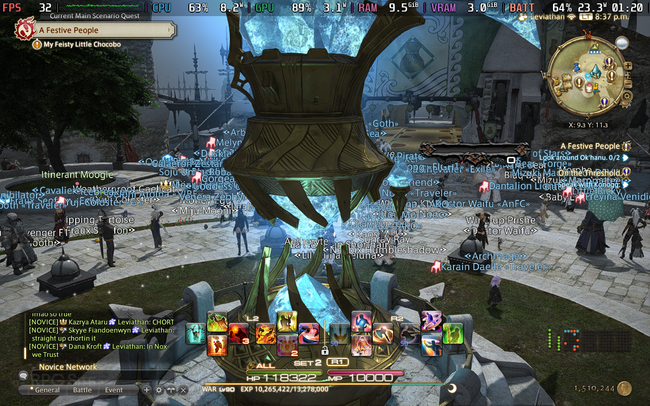
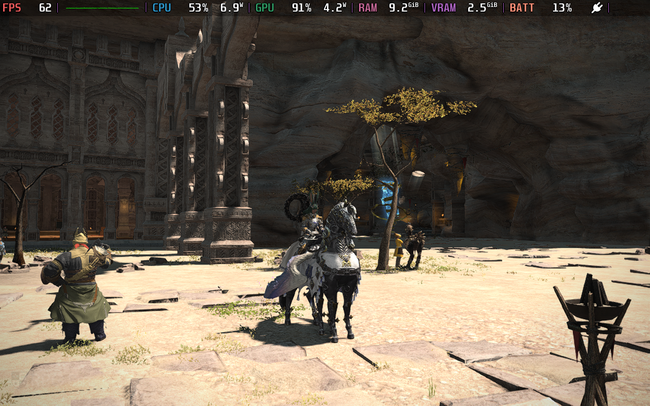
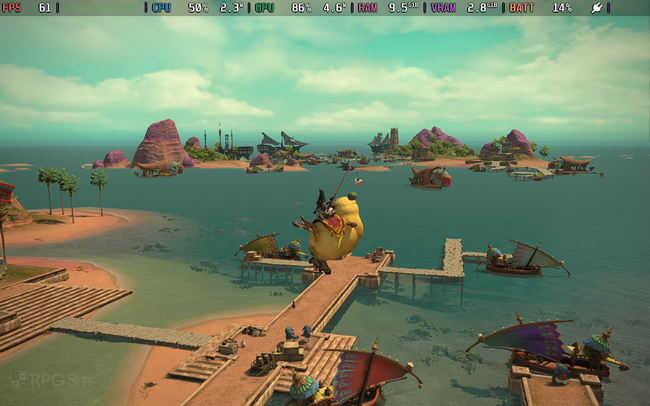
Final Fantasy XIV ran smoother before the 2024 graphics update. Now, you can expect around 45fps on the Steam Deck OLED and 40fps on the LCD model while still enjoying good graphics. Keep in mind that busy areas like Limsa Lominsa can cause performance to drop to around 30fps. However, the main story quests and challenging dungeons generally run well, often hitting 60fps or staying in the mid-50s with my settings. You can try for an uncapped framerate aiming for 60fps in dungeons and 45-60fps in open areas, but for a more consistent experience, I recommend adjusting some settings and using the FPS cap options I’ll explain later.
One of the Steam Deck’s biggest strengths in games like this is how much you can adjust the settings. You can prioritize great graphics, a smooth frame rate, or longer battery life – it’s up to you! Before diving into the ideal settings, though, getting Final Fantasy XIV (FFXIV) running on the Steam Deck can be a little tricky, depending on your subscription type.
How to play Final Fantasy XIV on Steam Deck with a standalone license
If you bought Final Fantasy XIV on Steam, installing it is straightforward – just like any other game. You might encounter a few minor issues with the launcher that require using your keyboard or touchscreen, but once you’re in the game, it runs normally. Most PC players I know, including myself, use the standalone version of the game. Just be aware that you can’t use both the Steam version and the standalone version with the same account.
Purchasing Dawntrail and the base game directly from the official launcher, rather than Steam, will prevent you from buying future expansions on Steam. I understand this can be confusing, so I’ll provide detailed instructions to help. This guide assumes you aren’t using programs like XIVLauncher, as those can cause problems with this process. If you already have FFXIV running on Steam Deck, you can jump ahead to the suggested settings.
You don’t need to use custom launchers to play Final Fantasy XIV on Steam Deck. I’ve tested several guides, and there’s a simple solution. Just make sure you own either the free trial or the starter edition on Steam. If you have the free trial, your friends will see you playing the trial online. With the starter edition, they’ll see you playing Final Fantasy XIV Online.
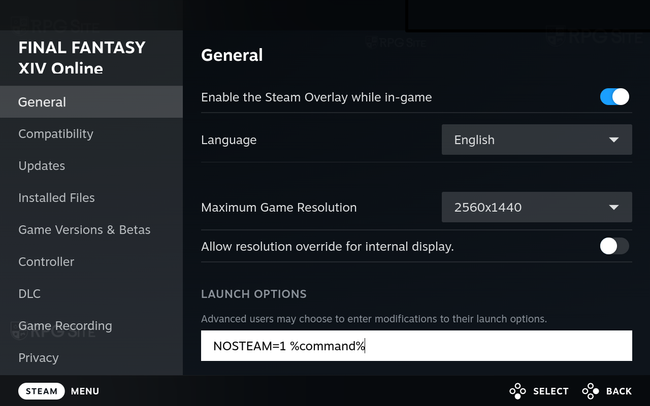
Now, whether you’re using the free trial or the full game, click the settings gear on the game’s page and then choose ‘Properties’. Scroll down on the ‘General’ tab until you find the ‘Launch Options’ box. Type this exactly as shown (without the quotes): NOSTEAM=1 %COMMAND%
Note: There is a space in between the 1 and % in the launch option above if it isn’t clear.
I’ve been using this method for a long time, and it’s explained well in a Steam Community guide. It basically tells the game launcher that you’re using a direct, non-Steam license. After setting that up, I recommend using GE Proton to get better performance. You’ll need to switch to Desktop mode on your Steam Deck to install GE Proton. If you’re unfamiliar with Desktop mode, this video from GamingOnLinux is a great resource – it’s how I learned to do it myself.
Okay, so when I’m back in gaming mode or just the regular Steam Deck mode, I head into the properties of the game I want to play. Then I go to the Compatibility section and pick the GE-Proton version I just downloaded from the dropdown menu. I’ve found that GE-Proton really boosts performance in Final Fantasy XIV, and that’s true even if I bought the game through Steam. It makes a noticeable difference!
Just a heads-up: If you’re installing or playing Final Fantasy XIV on Steam Deck for the very first time, the initial download and setup will take a significant amount of time. You’ll need at least 130GB of free storage space, and we suggest disabling sleep mode on your Steam Deck during the download to prevent interruptions.
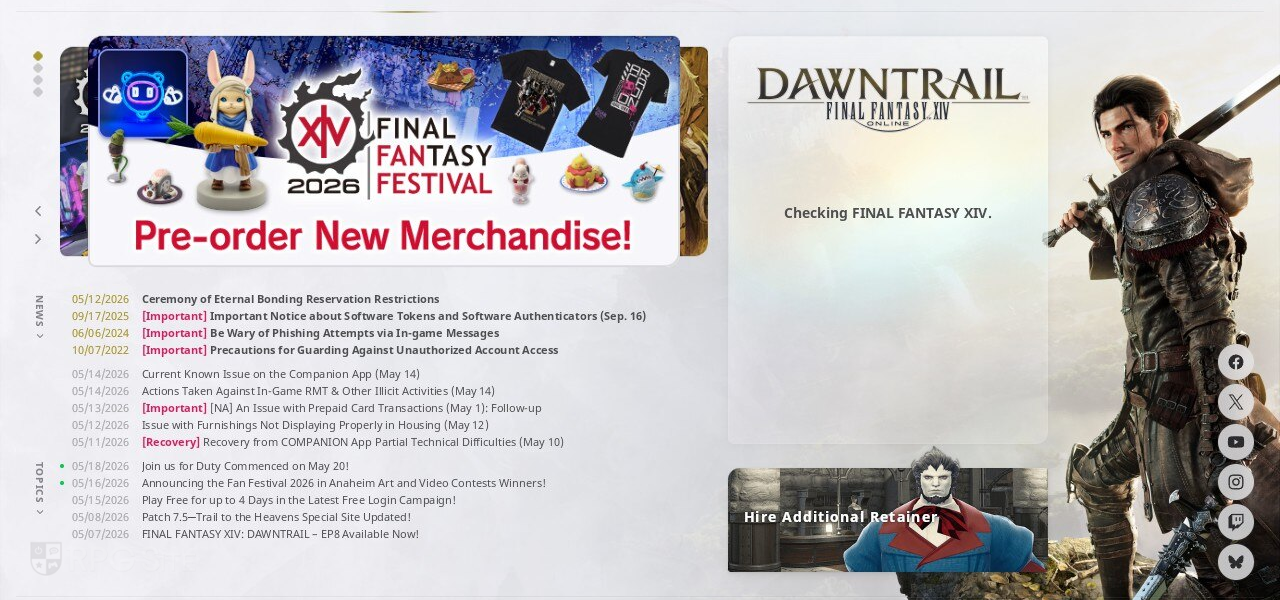
I’ve been using this technique for a long time, and it lets you play games on your Steam Deck without problems, other than needing to enter your regular password and a one-time code. I did find that sometimes entering these details using only the Steam Deck’s buttons can cause downloads to fail, but here’s a workaround:
- Type the password using the on-screen keyboard (buttons or touchscreen).
- Do not press the right bumper to hit enter. Instead, tap the section of the screen for the OTP input text box.
- This will bring up the on-screen keyboard again.
- Type the OTP and then use the bumper (R2) for enter and do not press the keyboard or touchscreen to submit.
- This will submit the password and not cause the launcher to have download or other errors.
- You need to do this to login every single time since the FFXIV client does not save your password, but it does save your username.
This might sound strange, but I’ve confirmed this repeatedly over time, testing on two separate Steam Decks with different accounts, and having friends check it too. I’m not sure why the touchscreen sometimes causes issues, but pressing the R2 button seems to fix it. After you log in – especially the first time – the system will begin downloading all necessary data.
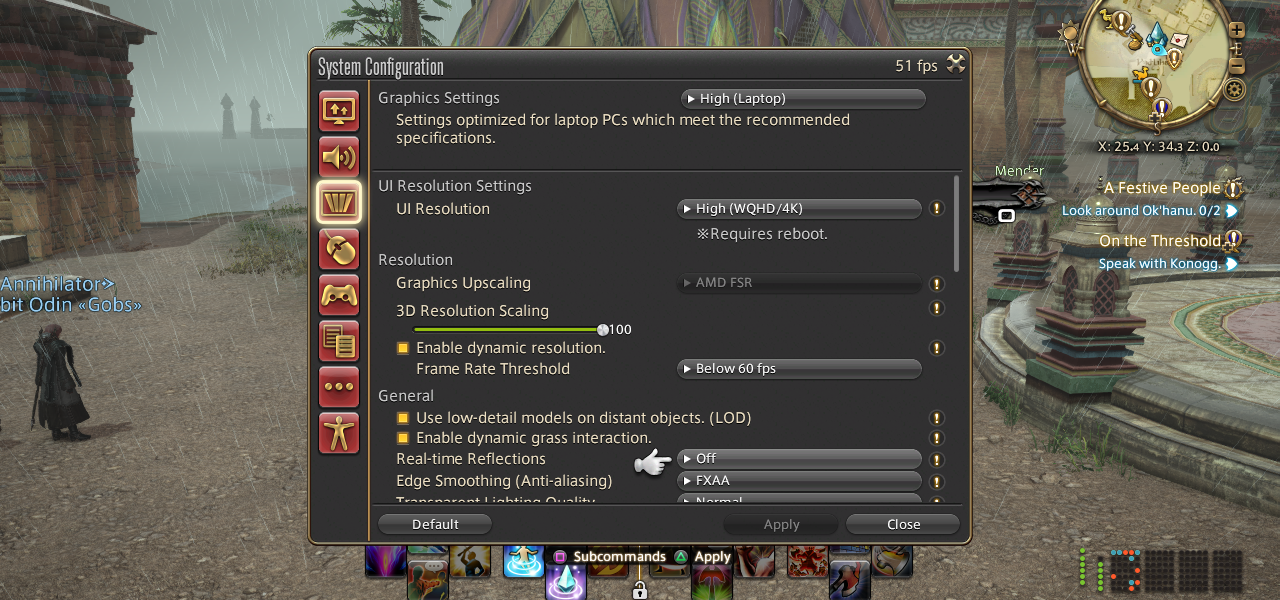
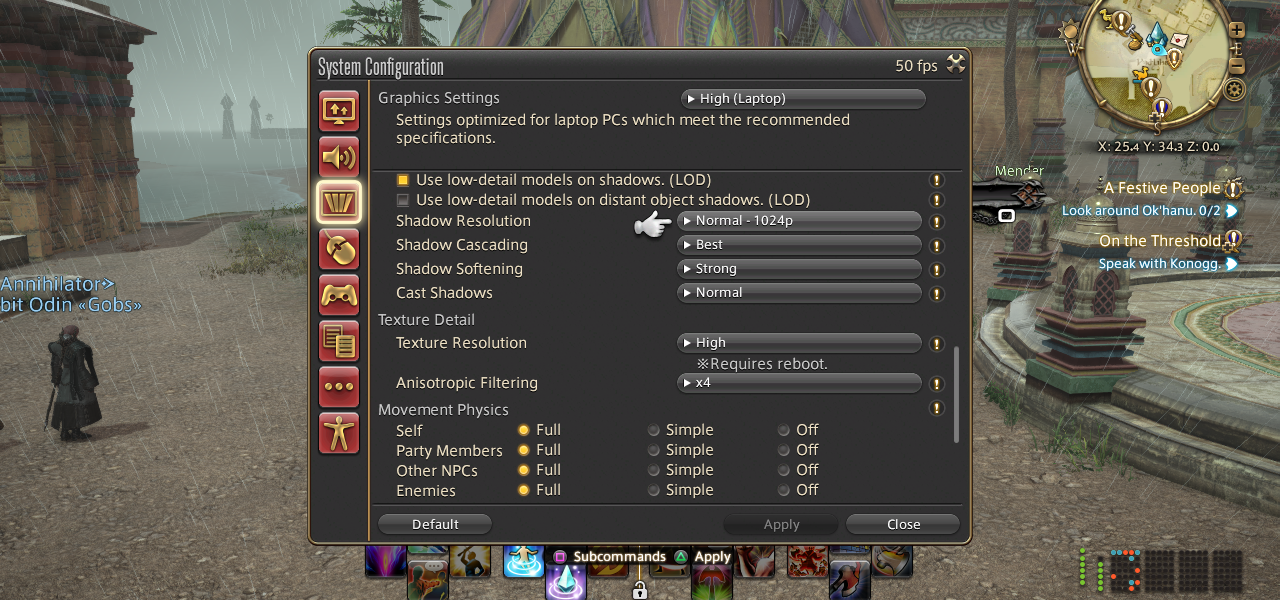
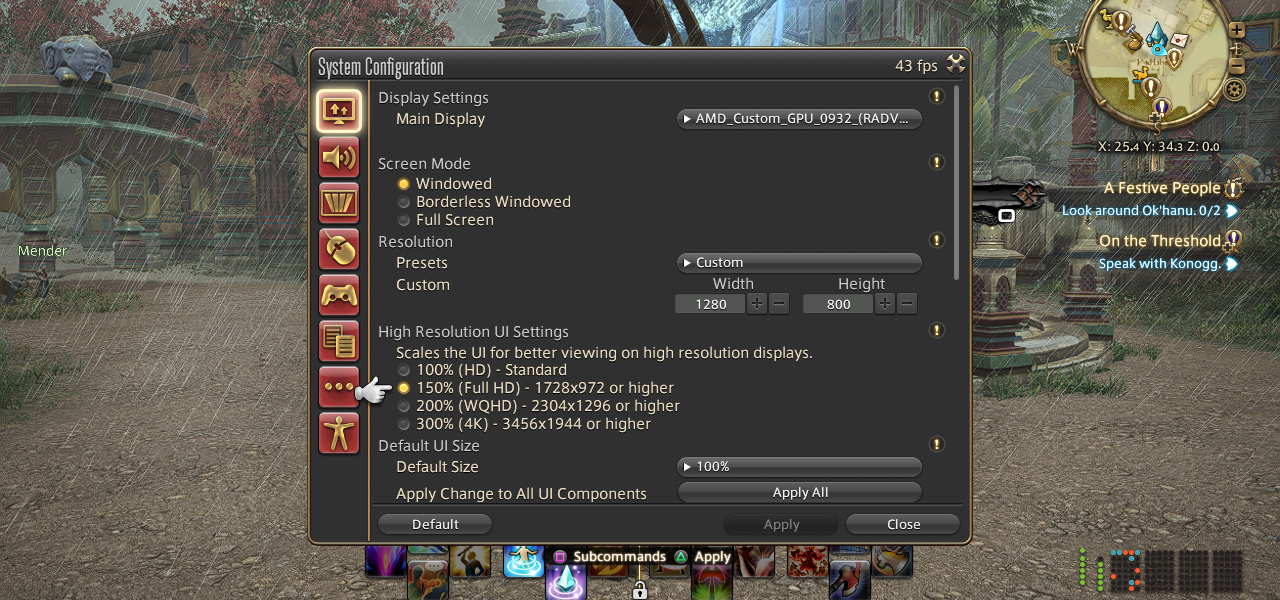
Final Fantasy XIV Steam Deck recommended settings
Now that you’ve downloaded everything, if you play Final Fantasy XIV on a different device, use this Square Enix guide to save your game settings. This will let you transfer your controller preferences and HUD layout, making the switch between platforms smoother. You only need to do this once, unless you change your hotbar or controller setup, in which case you can repeat the process to update your settings.
Okay, so after the visual overhaul for Final Fantasy XIV, getting a smooth 60fps on the Steam Deck while keeping things looking good is tough. What I’ve found works best is manually setting the game’s resolution to 1280×800 within FFXIV’s Display Settings – you’ll find that under System Configuration in the main menu. If you’re not seeing the System Configuration option, or the menu seems weird and just shows keyboard/mouse stuff, you need to enable the controller layout. I’ve included some pictures showing you how to do that – it’s pretty straightforward!
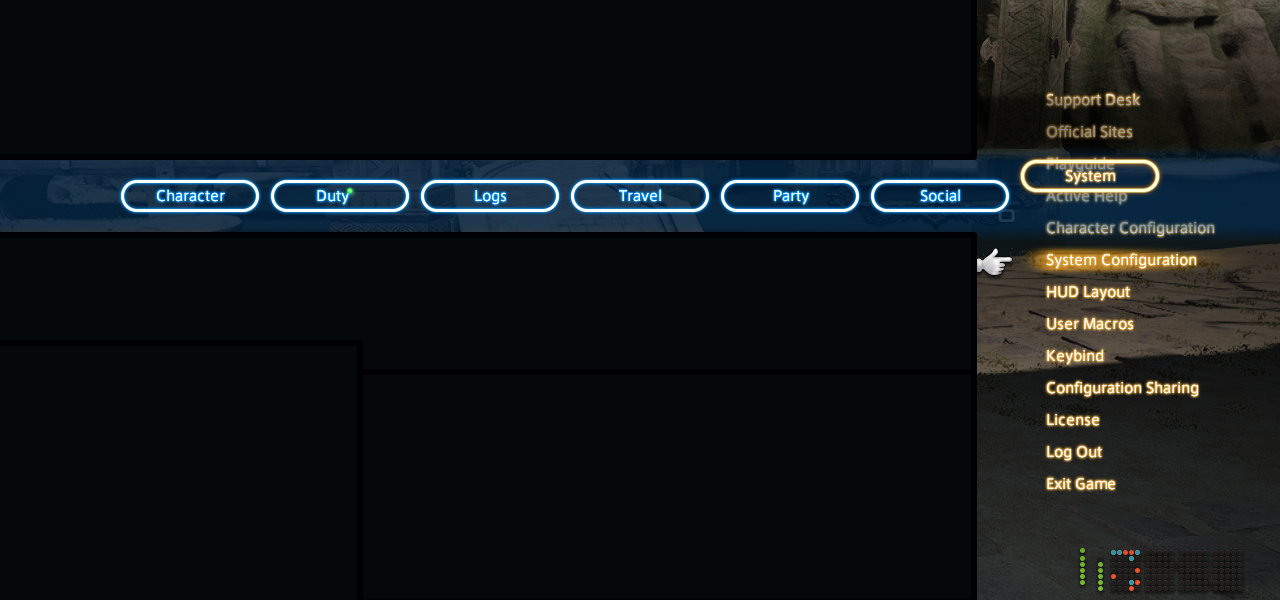
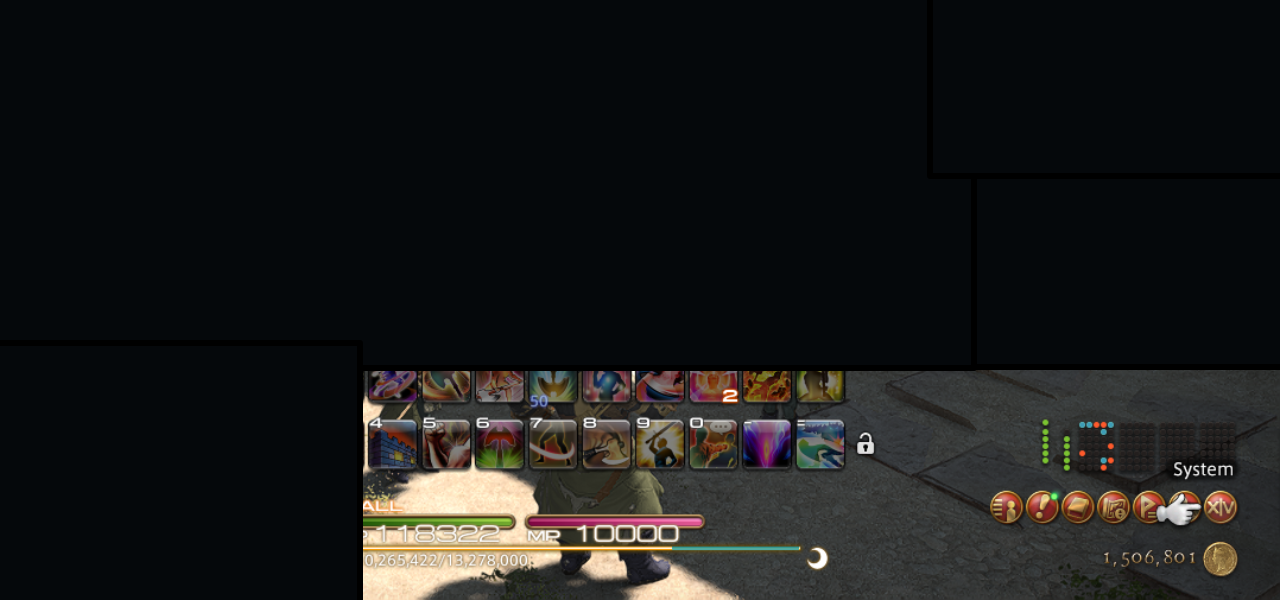
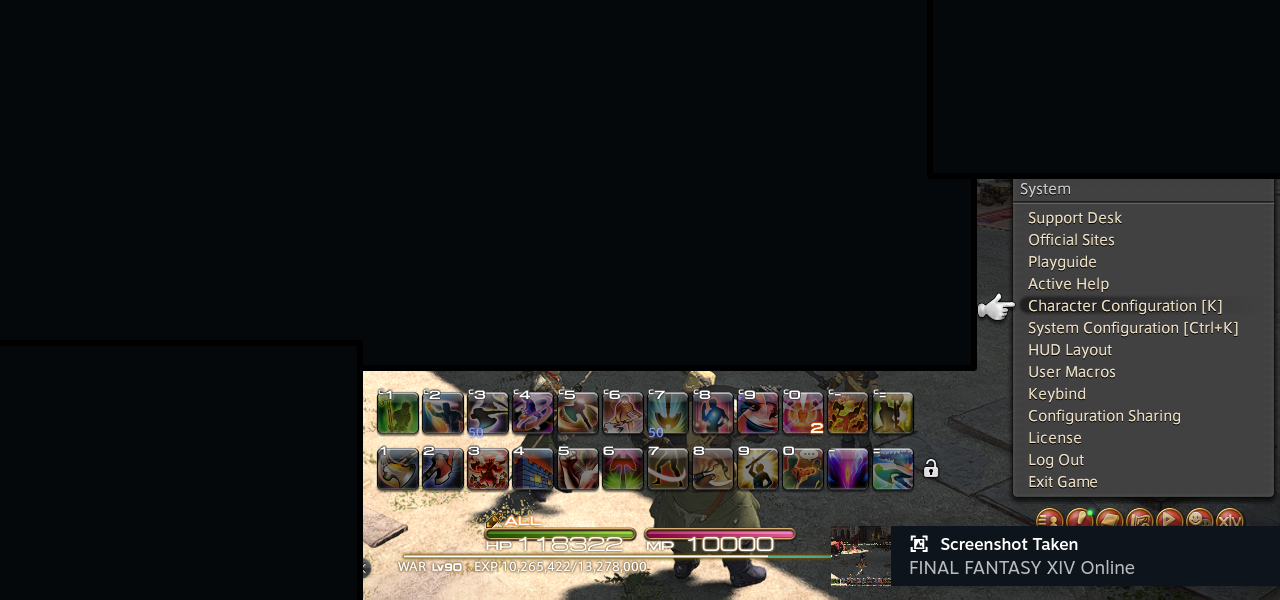
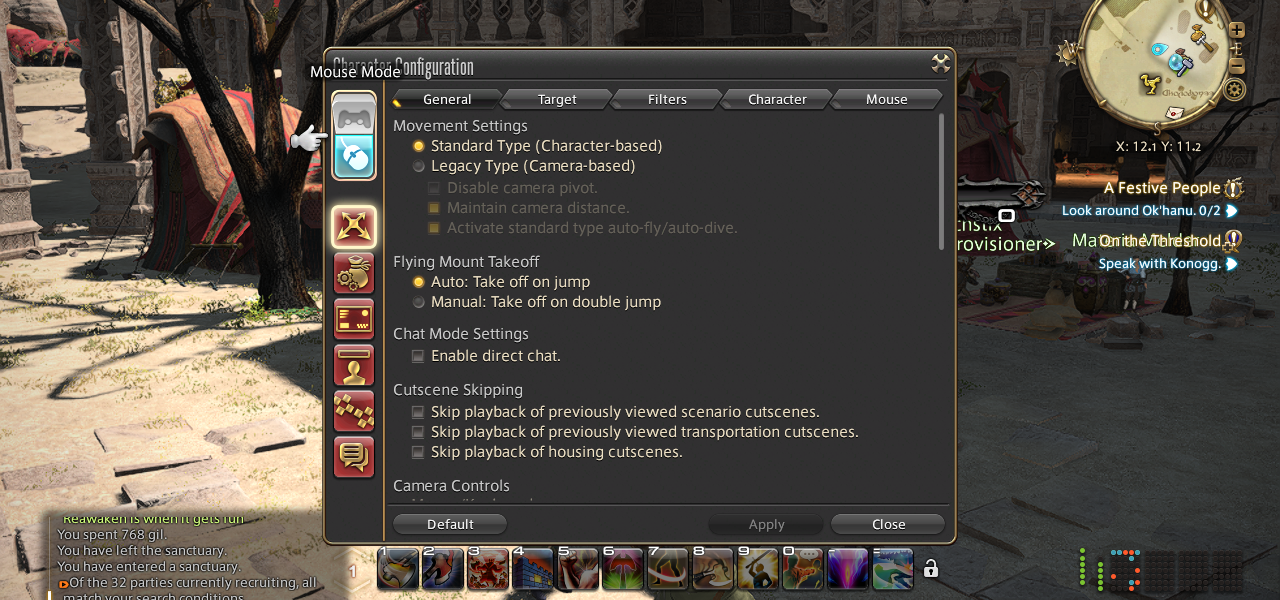
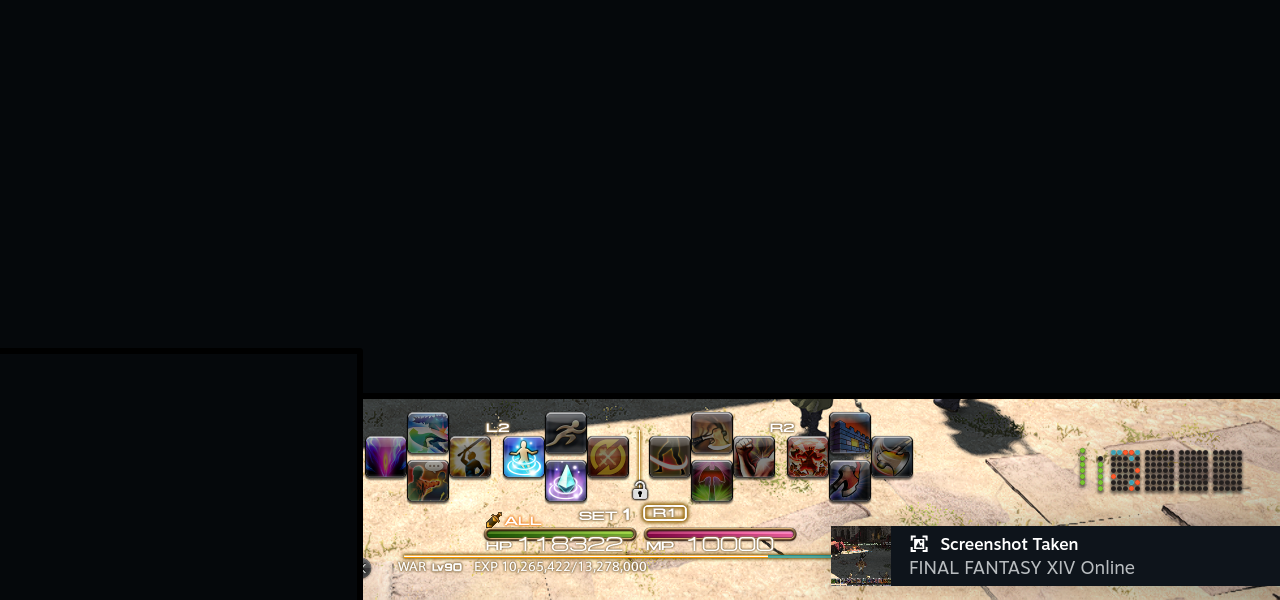
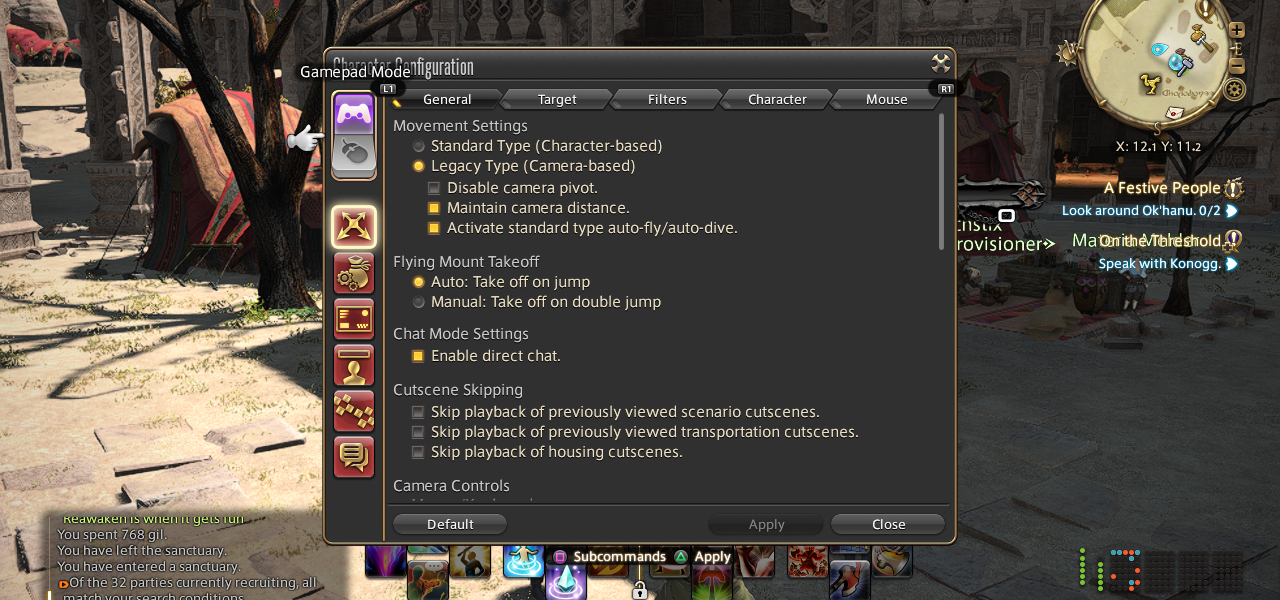
After setting up your controller, you’ll probably want to adjust the interface size. Feel free to customize it to your preference, but I found 150% scaling to be a good balance – it makes everything easy to read without taking up too much screen space.
Getting Final Fantasy XIV running well on the Steam Deck doesn’t require many adjustments. To aim for a smooth 40 frames per second on the standard Steam Deck LCD screen, or 45 frames per second on the newer OLED screen, here are the settings we recommend:
- Laptop (High) preset.
- 3D resolution scaling to 100
- Enable dynamic frame rate (when below 60fps)
- Anisotropic filtering set to 16x instead of 4x.
The game looks great and runs smoothly on the handheld device. However, after a recent graphics update, I couldn’t consistently achieve a stable 60 frames per second, even with different settings, especially in crowded areas. I wouldn’t recommend trying to maintain that frame rate.
FFXIV Steam Deck recommended trackpad and back button bindings
Okay, so I got the graphics sorted, and now I’m messing with the controls on my Steam Deck for FFXIV. I really recommend setting up the L3 and R3 clicks – that’s clicking in the left and right sticks – to the back buttons, like you see in the picture. And since I take a ton of screenshots, I also mapped that to one of the back buttons too. Makes life so much easier!
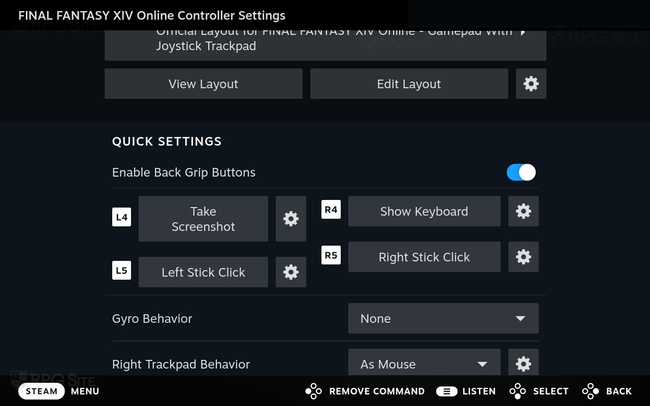
I configured the right-side trackpad to function like a mouse instead of a joystick. This allows me to use a full controller, the touchscreen, and both trackpads – one as a mouse – giving me complete input control.
Now you can enjoy playing Final Fantasy XIV (FFXIV) on the Steam Deck, including the new Dawntrail expansion! It offers a good experience with various control options, impressive graphics, and reliable performance, all without needing any extra software.
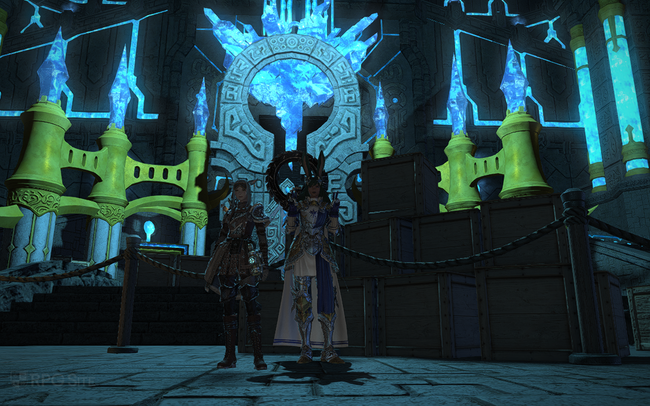
Final Fantasy XIV: Dawntrail is out now on PlayStation 5 and 4, Xbox Series X|S, Mac, and PC. It will become available on the Switch 2 in August. The following expansion, Final Fantasy XIV: Evercold, is scheduled to launch in January 2027 for PS5, PS4, Xbox Series, Switch 2, and PC.
Read More
- Netflix’s Little House On The Prairie Reboot: Release Date, Cast & Everything We Know
- Off Campus Season 1 Soundtrack Guide
- YouTuber arrested after viral AI bodycam videos spark real police complaints
- Silver Rate Forecast
- Prime Video’s New R-Rated Spy Thriller Is Officially No.1 On Streaming Despite Poor Reviews
- Brent Oil Forecast
- Bulgakov’s Take: Koreans Bet the Farm on Chips, Crypto, and Chaos
- EUR ZAR PREDICTION
- Peaky Blinders: The Immortal Man’s Tommy Shelby Is a Better Father Than Michael Corleone
- Gold Rate Forecast
2026-05-18 13:28