Ever feel like your controller is working against you, making it hard to hit your targets or move smoothly? It’s frustrating when you know what to do but your character doesn’t respond correctly. Often, this comes down to how your controller is set up. A good setup should feel natural, like an extension of your own hands, so your actions translate instantly to the game. This guide will help you achieve that perfect connection. We’ll cover everything from simple settings like sensitivity and dead zones to more advanced techniques for mapping controls, so your movement and aiming feel smooth, quick, and effective.
Key Takeaways
- Master the Core Settings First: Before you worry about advanced tactics, dial in your sensitivity, dead zones, and Field of View. Getting these foundational settings right is the key to making your aim feel intuitive and responsive.
- Customize Your Controls for Seamless Action: Remap essential actions like jumping and sliding to back paddles or more accessible buttons. This allows you to move, aim, and shoot simultaneously, keeping your thumbs on the sticks and giving you a major advantage in any gunfight.
- Your Perfect Setup is Found Through Testing: There’s no single “best” configuration that works for everyone. Use the practice range to make big changes, then fine-tune your settings in live matches to discover what truly syncs with your muscle memory and playstyle.
How Have Battlefield’s Controller Settings Evolved?
If you’re a long-time Battlefield player, you’ve probably experienced this: you jump into the game after an update and something just feels off. Your shots aren’t landing, movement feels awkward, and you’re losing fights you’d normally win. The developers are always making small adjustments to the game, and often these changes affect controller settings. What worked perfectly last season might now be hindering your performance. Thankfully, Battlefield’s recent updates to controller settings are a major improvement for both console and PC players using a gamepad. The developers have listened to player feedback and addressed issues with how responsive the game feels and how aim assist works. These aren’t small fixes – they’re significant changes that can drastically improve your gameplay. From faster response times to more consistent aim assist, the game now feels more natural and dependable. To stay competitive, it’s important to understand these changes and adjust your settings. It’s time to move beyond the default settings and create a controller configuration that truly helps you win.
What’s New in Recent Updates
The game developers have made significant improvements based on player feedback, especially regarding controller responsiveness. Recent updates have dramatically reduced input delay and made aiming and movement feel much smoother – you’ll notice the difference right away. That previously frustrating, floaty feeling when aiming is largely gone. They’ve also refined the aim assist so it works more consistently, allowing players to rely on their skill and aim naturally without the game interfering. It now helps you target enemies predictably, engagement after engagement.
Why Your Settings Matter More Than Ever
We’ve made significant improvements under the hood, making the game feel much more responsive. Now, getting your personal settings right is key to taking full advantage of these changes. Players are already reporting smoother movement, but you’ll need to fine-tune your sensitivity and dead zones to really feel the difference. We’ve also adjusted weapon recoil specifically for controllers to level the playing field between players using controllers and those using mouse and keyboard. This means you can compete effectively with any player, as long as you adjust your settings to control the recoil. Essentially, we’ve built a better engine for the game, but you need to customize the controls to get the best driving experience.
The Essential Controller Settings You Need to Know
Before you focus on complicated strategies, make sure your basic controller settings are perfect. It’s like building a house – you need a solid foundation first! Settings like sensitivity, button layout, and how much you can see on screen are key. Getting these right makes everything else feel smoother and more natural. It’s the difference between struggling with your controller and feeling like it’s a part of you. Just like finding the best weapons can improve your game, taking the time to adjust these settings is crucial if you want to play better. Let’s start with the most important things to change.
Adjust Your Sensitivity and Dead Zone
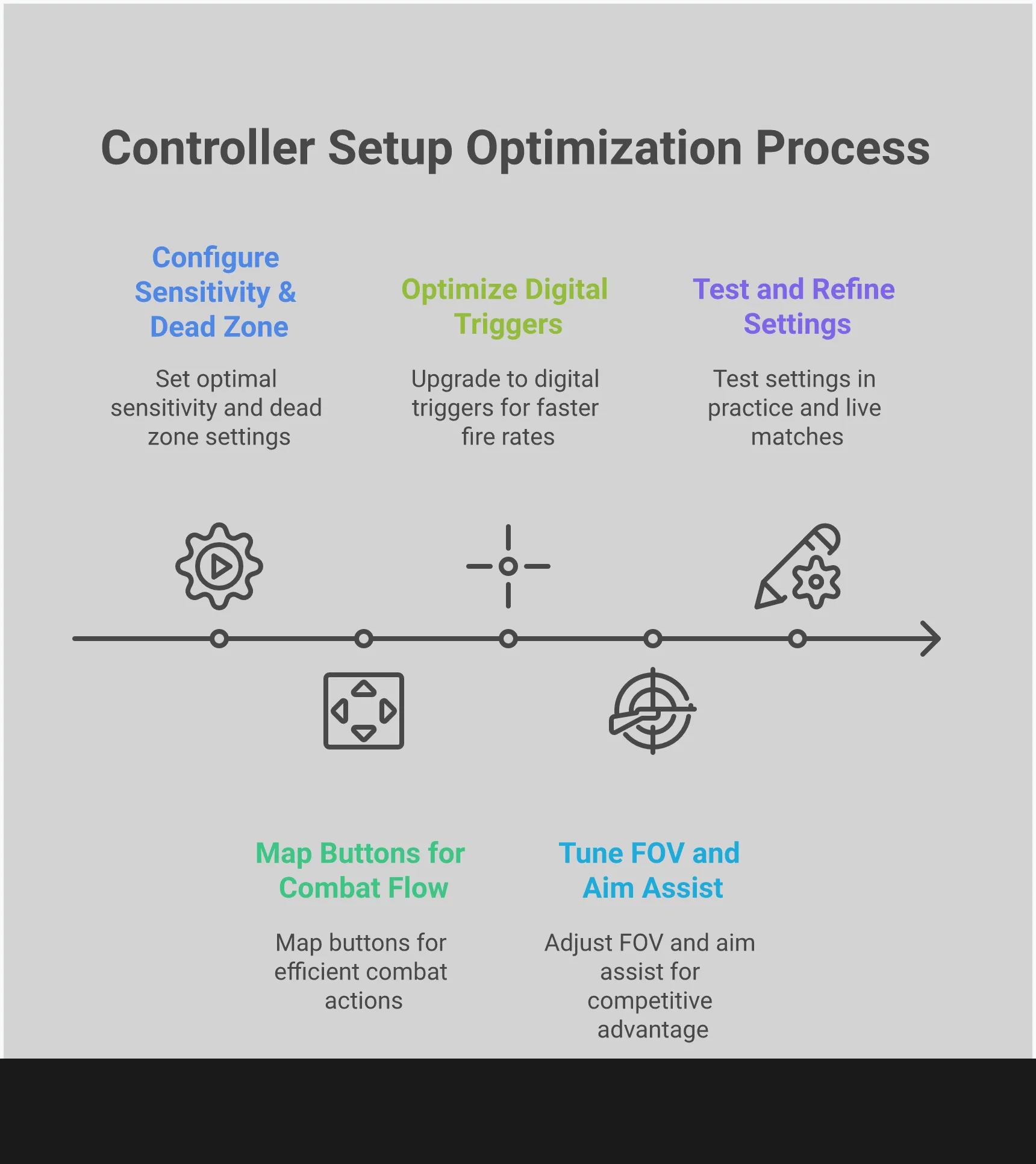
As a player who really wants to nail their aim, I’ve learned how important controller settings are! Basically, sensitivity controls how fast your view moves with the sticks, and the dead zone is that little area in the center where nothing happens. You want a small dead zone for quicker reactions, but if it’s too small, your aim will drift all over the place. I usually start with a center dead zone of four and an axial dead zone of six. Then, I adjust the sensitivity until it feels fast and responsive, but still easy to control. What I’m aiming for is being able to quickly turn onto enemies without accidentally going right past them. It’s all about finding that sweet spot!
Learn the Button Mapping Basics
Don’t settle for the standard button setup just because it’s familiar. You can customize the controls to fit how you like to play, making your most important actions quick and easy to access. For instance, you might not know you can assign actions like a melee attack to a simple swipe on the touchpad, which then frees up a button for something more crucial. Think about what you do most often – jumping, sliding, reloading – and consider remapping those controls so you can do them without lifting your thumb from the right stick. This simple adjustment can make your movement and fighting feel much smoother and more connected.
Optimize Your Field of View and Display
Your field of view (FOV) controls how much of the game world you can see on your screen. It’s really a matter of what feels best for you, but it can significantly affect how you play. A wider FOV, like 120, lets you see more around you, making it easier to spot enemies trying to get behind you. However, things far away will look smaller. Some players prefer a narrower FOV to make distant targets larger and easier to shoot. I recommend starting with a high FOV and lowering it if you’re having trouble with long-distance combat. Also, be sure to check your Aim Assist settings – they’ve been recently updated to work more reliably, so make sure they’re set up the way you like.
How Can Automatic Mantling Transform Your Movement?
It’s incredibly frustrating to get stuck trying to climb over something during a fight – we’ve all experienced it. Automatic mantling solves this with a quick settings adjustment that changes how you move around. Instead of awkwardly pressing buttons to climb, you can set your character to automatically pull themselves up when jumping. This makes movement smoother and lets you stay focused on the action.
Automatic mantling makes your movement feel smoother and more natural while you’re playing. Instead of getting slowed down by obstacles, you can quickly and easily climb over them without interrupting your speed or reactions. This small change can significantly improve how quickly and efficiently you move around the map, giving you an edge over your opponents. It turns awkward moments into fluid, strategic maneuvers.
Set Up Your Jump Button Functionality
To begin, go to your controller settings and find the mantling options. Turn on automatic mantling so you can simply press the jump button to climb over obstacles. This removes the need for a separate climb button, which can be really helpful in intense situations. We want movement to feel natural and instinctive—when you run towards a wall, you should be able to get over it without having to think about it. This makes your character’s actions predictable, allowing you to concentrate on aiming and making strategic decisions.
Combine Movement with Combat Actions
Top players are constantly moving, and your controller should help you do the same. Being able to jump, slide, and aim at the same time is key to improving your gameplay. If your controller has paddles on the back, assign your jump button to one of them. This lets you jump over obstacles without lifting your thumb off the aiming stick, keeping your sights locked on your target. This smooth combination of movement and shooting makes you harder to hit and ensures you’re ready to fire with any weapon setup.
Optimize Your Crouch and Slide
How you crouch and slide is just as crucial as how you jump. In the game’s settings, you can usually choose between quickly tapping to crouch, holding the button down to stay crouched, or toggling it on and off. Many players prefer the ‘hold’ option because it gives them more control. This allows for fast, precise slides into cover or a technique called ‘slide canceling,’ which can disrupt an enemy’s aim. Getting this setting right will make your movements smoother and more intentional. You’ll avoid getting stuck in a crouch and have complete control over every slide and dive, making you a harder target to hit in battle.
Digital Triggers: Your Secret Weapon for a Faster Fire Rate
Have you ever felt like you were too slow to react in a game, even though you pressed the fire button first? The problem might be your controller’s triggers. Traditional analog triggers need to be pressed down a certain amount before the game registers the action, which can waste valuable time in fast-paced games like Battlefield. Digital triggers solve this. Often found on controllers used by professional gamers, they eliminate the gradual press and replace it with a quick, firm click – similar to clicking a mouse button. It’s an instant on/off action, so the game fires as soon as you intend it to.
It’s not just about how it feels to use; it’s about being faster. Digital triggers respond instantly, which means you can fire weapons more quickly, especially semi-automatic ones where each shot needs a trigger pull. This gives you a clear advantage, letting you shoot faster than opponents using standard controllers. It essentially shortens the delay between deciding to fire and actually firing on screen. For players who prioritize accuracy and quick reactions, learning to use digital triggers can dramatically improve your performance in every gunfight. They eliminate a physical delay in your equipment, turning a skilled player into a truly dominant one.
Configure Your Digital Trigger Settings
Let’s start with the basics: digital triggers are a physical part of the controller itself, not something you change in the game’s settings. You’ll only find them on controllers designed for competitive gaming. Instead of adjusting settings, you need to get used to how quickly they respond. Unlike traditional triggers that need to be physically pressed down, these triggers act like a mouse click – there’s no delay at all. As soon as you touch them, they activate. This is especially important in games like Battlefield, where being able to fire quickly and accurately can determine who wins a fight. The key to using them effectively is learning to react to their instant response.
Optimize for Tap Firing vs. Full Auto
Digital triggers let you adapt your shooting style for better performance. They make semi-automatic rifles and pistols much more powerful because you can fire shots more quickly than with standard triggers. For automatic weapons, they improve burst firing – instead of struggling with recoil while holding the trigger, you can fire short, controlled bursts. This lets your aim quickly recover between each burst, increasing accuracy. This precise control is a key difference between good and excellent players, particularly in medium- to long-range combat.
Reduce Your Input Latency
In fast-paced games, even the smallest delays can make a big difference. Input latency – the time it takes for your actions to register – can be a major disadvantage. Digital triggers help solve this by making your shots happen instantly, giving you a quicker response time in firefights. While a good controller is a good start, you can improve things even further with a high-refresh-rate gaming monitor and a wired connection. This combination creates a setup where your actions feel immediate and perfectly aligned with what you want to do.
Advanced Button Mapping Strategies
After you’ve gotten comfortable with sensitivity and dead zones, you can start customizing your button layout for even better control. This lets you tailor your controller to perfectly fit how you play, potentially making you react faster. Today’s controllers, particularly those designed for competitive gaming, are incredibly flexible and can give you a real edge.
Ever lost a gunfight because you had to move your thumb away from the movement stick to do something else, like jump or reload? Advanced controller mapping fixes that. It lets you move important actions to easier-to-reach buttons, like the back paddles, or customize the face buttons. This keeps your thumbs on the sticks where they need to be – aiming and moving. It’s not just about being more comfortable; it’s about making your connection to the game feel smoother and faster, so you can react quicker and beat your opponents.
Configure Your Back Paddles
If your controller has back buttons (paddles), you have a huge advantage! These buttons can dramatically improve your gameplay by letting you do important things – like jumping and crouching – without lifting your thumbs from the movement sticks. A popular and effective setup is to assign jumping to one paddle and crouching or sliding to another. This allows you to move around the map smoothly, jump around corners, and quickly take cover, all while keeping your aim steady. This makes you harder to predict and keeps you ready to engage in combat.
Create Custom Bindings for Competitive Play
To truly improve your gameplay, don’t just stick with the default controller settings. Customize your button layout to match how you naturally play. For instance, some players on controllers like the PS5 DualSense Edge assign their melee attack to the touchpad, allowing for faster reactions in close combat. Consider which actions you use frequently or struggle with in stressful situations, and move those to more comfortable buttons. Just like building the best loadout in Warzone, personalizing your controls is crucial for maximizing your competitive edge.
Set Up Individual Action Bindings
Advanced controllers let you customize almost every button to do just one specific thing. This is a big improvement over standard controllers, where a single button often handles several actions depending on the situation—like both reloading your weapon and interacting with objects. With a high-end controller, you can dedicate a paddle to only jumping, or a side button to only mantling. This precision prevents frustrating mistakes, like accidentally trying to heal a teammate during a gunfight or mantling instead of jumping. It gives you complete control over your actions in critical moments.
Fine-Tune Your Aim for Maximum Precision
In Battlefield, hitting your shots is crucial – even a tiny delay can determine the outcome of a fight. While being skilled is important, your controller settings are the base for that skill. Just like a musician needs a properly tuned instrument, you need well-adjusted settings to perform at your best. Fine-tuning your sensitivity, aiming down sights (ADS) multipliers, and dead zones will make aiming feel natural and quick, allowing you to react instantly in battle. We’ll guide you through the essential settings to help you develop consistent, accurate aim.
Configure Your Infantry Aim Sensitivity
The Infantry Aim Sensitivity setting determines how fast your crosshair moves when you’re shooting without aiming down sights. It’s important to find a good balance: a high sensitivity can make you overshoot your targets, while a low one can leave you unable to react quickly. We recommend starting with a sensitivity between 38 and 45. This provides a good mix of speed and precision. Combine this with a Zoom Sensitivity Multiplier of 0.65 to 0.80 for stable aim when zoomed in. These are just starting points – jump into a game and fine-tune the settings until aiming feels comfortable and natural.
Dial In Your ADS Sensitivity Multipliers
When you aim down sights (ADS) – looking through a scope or optic – your sensitivity multiplier controls how quickly your aim moves. You can adjust this in the Infantry Control Settings. Lowering your ADS sensitivity gives you finer control for small adjustments when shooting at far-away targets, ideal for long-distance fights. A higher sensitivity makes it easier to follow targets moving quickly up close. Many players like to use a slightly lower ADS sensitivity than their normal aiming sensitivity for better precision. Try different settings to find what feels best for you.
Optimize Your Dead Zone and Stick Response
The dead zone on your controller refers to a small area around the center of the analog stick where slight movements aren’t detected. If the dead zone is too large, you’ll need to push the stick further to get your character to move or aim, which can feel laggy. To improve your aim, try reducing the dead zone setting. This makes your movements translate to on-screen action more quickly, resulting in more responsive aiming and smoother character control. EA has noted this change can significantly improve gameplay. However, be cautious – setting the dead zone too low can cause unwanted stick drift, making your aim move on its own.
Which Controller Features Give You the Biggest Advantage?
Adjusting your game settings is important, but don’t underestimate your controller! The right controller can give you a real advantage, not just by feeling comfortable, but by letting you react quicker and aim more accurately. Knowing how your controller’s buttons and internal settings work is essential to playing your best.
Your controller is like an extension of your own skill in the game. If it feels slow, awkward, or isn’t set up correctly, it will hurt your gameplay, even if you have a great plan. We’ll cover what controller features matter most, how to customize your aim assist for the best results, and how game developers have made the game fair for controller players, even when competing against those using other input methods.
Consider Your Hardware and Stick Curves
How your controller feels in your hands is really important. Better controllers often have digital triggers that respond instantly, like clicking a mouse, instead of a traditional trigger squeeze. This gives you a big advantage in fast-paced games because you can fire again faster. If you want to improve your gameplay, a controller with these features can make a huge difference. Also, experimenting with different stick settings can help you find the most comfortable and accurate way to aim, whether you like quick, sharp movements or slow, precise control.
Configure Your Aim Assist
Just to be clear, aim assist isn’t cheating, but it’s a really important feature that helps controller players compete with those using a mouse and keyboard. Battlefield has recently improved how aim assist works to make it more reliable, but you’ll still need to customize the settings. Many players leave it on the default settings, which can actually hurt their performance. To get the most out of it, adjust the settings so aiming feels smoother and more accurate. Take some time in the practice range to test different aim assist levels and slowdown settings until you find what works best for you. When it’s set up right, aim assist should feel natural, helping you stay on target without taking over completely.
Understand Cross-Platform Balance
Ever feel like you’re at a disadvantage against players using a mouse and keyboard? The game’s developers have addressed this. To make cross-platform play fair, the game reduces weapon recoil for controller players compared to those using a mouse and keyboard. This isn’t about making it easier; it’s a way to level the playing field, helping you stay accurate during continuous shooting and compete effectively. This gives controller players an edge in longer fights, so you won’t feel outgunned. Along with recent improvements to movement, controller users are now better positioned to succeed in matches with players on all platforms.
How Do These Settings Impact Competitive Play?
Optimizing your controller settings isn’t just about what feels comfortable—it’s a key way to improve your gameplay and gain an advantage over opponents. In fast-paced games where split-second reactions matter, well-adjusted settings can mean the difference between victory and defeat. These aren’t small changes; they significantly impact how you play, helping you aim more accurately, react faster, and move with greater control. Let’s explore how adjusting these settings can boost your performance in critical moments, giving you the precision and confidence you need to succeed.
Leverage Enhanced Accessibility Features
The latest game updates have made a big impact on controller gameplay. Developers have reduced delays between your actions on the controller and what happens in the game, and improved how the sticks feel. This makes aiming and moving your character much smoother and more responsive, giving you a more fluid and connected experience. It’s like the controller is now a natural extension of your own movements. This isn’t just about making the game more comfortable to play; it actually helps you react faster and more accurately during intense battles.
Gain Strategic Depth with Customization
You have incredible control over how the game feels, letting you personalize everything to match your preferred way of playing. From simple settings like aiming speed and how much the game helps you aim, to more detailed options like fine-tuning how the controls respond, you can create a setup that feels just right. Whether you like rushing into fights or playing carefully from a distance, these adjustments let you optimize your controls and gain a strategic advantage before the game even starts.
Get a Performance Edge in High-Stakes Matches
These changes all work together to give you a real advantage while playing. For example, developers usually lessen weapon recoil when using a controller to make the game fair for players using both controllers and mouse/keyboard setups. A well-adjusted setup also makes your character move quickly and smoothly, avoiding that slow, awkward feeling that can cost you the game. With better aim and movement, you’ll win more fights, move around the map easier, and react faster to danger. These small improvements add up, giving you the confidence to tackle any situation.
Common Controller Mistakes That Hurt Your Performance
Even experienced gamers can develop habits or settings that actually hinder their performance. If you’re feeling like your character is slow to react or your aim is off, the problem might not be your skill—it could be how your controller is set up. This is a simple guide to check your controller settings. We’ll cover some common mistakes that are easy to fix. Just a few small adjustments can significantly improve your gameplay, turning frustrating moments into confident wins. Let’s make sure your settings are working for you, not against you.
Using Double-Tap Settings That Slow You Down
The idea of quickly sprinting or sliding with a double-tap of a button seems good, but it actually slows you down. The game constantly waits to see if you’ll tap the button a second time, even when you only want to press it once. This small delay can mean the difference between winning and losing a fight. That’s why many experienced players suggest disabling double-tap controls for actions like sprinting, crouching, and sliding. Using a single button press makes your movements feel faster and more consistent, which is crucial for quickly reacting in a firefight or getting to safety.
Having a Poorly Configured Dead Zone
Your controller’s dead zone is a small area around the center of the thumbstick where slight movements aren’t detected. If the dead zone is too large, you’ll need to move the stick further to make adjustments, making your aim feel slow. If it’s too small, your aim might drift on its own. You want to find the lowest setting that prevents drift. You can adjust these settings in the Infantry Control Settings menu. Try starting with a center dead zone of four and an axial dead zone of six, and then adjust those numbers until your aim feels both steady and quick to respond.
Ignoring Weapon-Specific Settings
It’s rarely effective to use the same settings for every weapon in this game, given the wide variety available. Quick, reactive aiming is ideal for close-range weapons like SMGs, but a sniper rifle needs slow, careful control at a distance. Many players don’t bother changing their settings to match the weapons they’re using. Try adjusting your aim sensitivity for different weapon types. Lower sensitivity is helpful for zoomed-in scopes, allowing for more accurate shots, while higher sensitivity works well with iron sights for fast target tracking. Fine-tuning your settings to suit your playstyle will help you find the sweet spot between quick reactions and precise aiming.
Test and Perfect Your Controller Setup
Let’s face it: there’s no one-size-fits-all controller setup. Just because a pro gamer uses certain settings doesn’t mean they’ll work for you. The key is to find what feels comfortable and natural based on how you play. Don’t just copy someone else; create a custom setup that lets you move and aim instinctively. It’s like getting a suit tailored – it needs to fit you perfectly.
It takes some time and experimentation to find controller settings that feel just right. You want to reach a point where the controller feels like a natural extension of your movements – every adjustment should feel smooth and immediate. Similar to perfecting your gear in a game like Warzone, getting your controller settings dialed in can really boost how well you play. A good approach is to start by practicing in a calm setting, then test your settings in more intense situations, and keep making small adjustments until everything feels perfect.
Optimize in the Practice Range
Before playing a real match, spend some time in the practice range. It’s a great place to experiment with your controller settings without any pressure. Go to the controller settings and focus on the “Infantry” section – that’s where you’ll find options for movement, aiming, and shooting. First, get comfortable with your sensitivity. Quickly move your aim between targets, practice following moving bots, and test how your weapons recoil. Don’t be afraid to make significant changes now to find settings that feel right for you.
Fine-Tune During Real Matches
After you’ve practiced and found settings you like, it’s time to try them in a real game. Actual matches are different from practice because enemies move unpredictably, you’ll be shot at, and you’ll feel pressure. This is when you’ll discover small issues with your setup. Does your aim feel unstable in close combat? Are you overshooting when trying to track enemies from far away? Recent game improvements have made aiming and movement smoother, so focus on how well your actions translate to what you see on screen. Play several matches, but don’t try to change everything all at once. Instead, make small adjustments between games to see what improvements actually make a difference.
Make Ongoing Adjustments for Peak Performance
Finding the ideal controller settings isn’t a quick fix—it’s an ongoing process. As your skills improve, or when games change with updates, you’ll likely need to adjust your setup. Some players spend a lot of time fine-tuning things like stick sensitivity and deadzones to get everything feeling perfect. Don’t hesitate to practice and keep making small changes. This dedication to improvement is what helps good players become truly great. By constantly refining your settings, you’ll ensure you’re always performing at your peak.
Frequently Asked Questions
If you’re new to customizing your game controls, start with your Infantry Aim Sensitivity and Field of View (FOV). These settings make the biggest difference right away in how the game plays. It’s important to find a sensitivity that lets you turn and aim quickly without going too far, and adjusting your FOV can dramatically improve your awareness of what’s happening around you. Getting these two settings right will give you a great base to work from.
You don’t need a professional controller with extra features like paddles and digital triggers to be competitive. While those controllers can be helpful, they won’t magically make you a better player. The most important thing is to learn your controller’s settings and practice – a skilled player using a standard controller will always beat someone who relies on expensive equipment instead of practice.
Want to check if your controller’s dead zone is set up right? Here’s an easy test you can do in the practice range. First, go to your settings and set your stick dead zone to the lowest possible value. Then, let go of the sticks and see if your aim moves by itself. If it does, that’s called “stick drift.” Slowly increase the dead zone setting, one point at a time, until the drifting stops. That’s your ideal minimum – it means your controller is responding quickly without any unwanted movement.
It’s understandable why you’d want to copy a pro player’s settings, but it’s usually not the best approach. Pros customize their settings to match their specific equipment, hand size, how they hold their mouse, and years of practice. What works for them might feel too fast or slow for you. While their settings can be a good place to start, you’ll improve much faster by taking the time to fine-tune everything to your own preferences and how you like to play.
It’s common to still feel a bit uncomfortable after making adjustments, so don’t worry! Getting things exactly how you like them takes time and practice. If something doesn’t feel right, go back to practicing and focus on changing only one setting at a time. For instance, if you’re struggling with long-distance shots, try reducing your aiming sensitivity a little bit. The trick is to make small changes, test them out, and keep refining until everything feels just right.
Read More
- Movie Games responds to DDS creator’s claims with $1.2M fine, saying they aren’t valid
- SHIB PREDICTION. SHIB cryptocurrency
- United Airlines can now kick passengers off flights and ban them for not using headphones
- Scream 7 Will Officially Bring Back 5 Major Actors from the First Movie
- The MCU’s Mandarin Twist, Explained
- These are the 25 best PlayStation 5 games
- Rob Reiner’s Son Officially Charged With First Degree Murder
- Server and login issues in Escape from Tarkov (EfT). Error 213, 418 or “there is no game with name eft” are common. Developers are working on the fix
- MNT PREDICTION. MNT cryptocurrency
- Gold Rate Forecast
2025-12-11 14:21