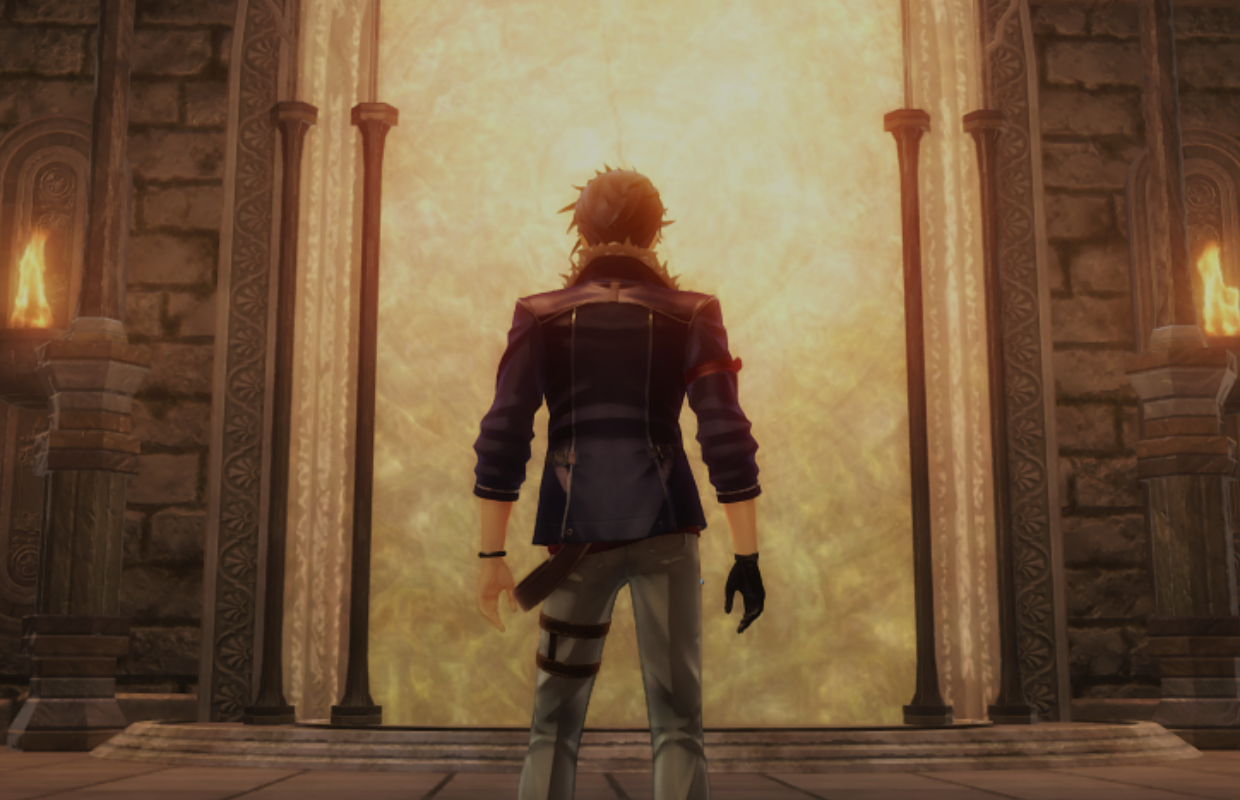
NIS America will release The Legend of Heroes: Trails beyond the Horizon on PC next week. The port was handled by PH3, the same team that worked on other Falcom PC releases from NIS America. I’ve put together a detailed feature covering the PC version, including PC-specific features, how well it runs on handheld devices, and impressions of ultrawide support. In this feature, I also compare the NIS America PC release with the Asia-focused version released by Clouded Leopard Entertainment.
Trails beyond the Horizon PC exclusive features — HDR support, quality of life options, soundtrack information, and more
Trails beyond the Horizon, like the recent PC release of Trails Through Daybreak II, offers features designed specifically for PC gamers. These include support for HDR, enhanced turbo options that go beyond what’s available on consoles, the convenience of loading directly into your saved game, the ability to skip startup logos for faster launching, a wide range of graphics settings, and the option to display background music information – plus a lot more!
Trails beyond the Horizon PC-exclusive features and options
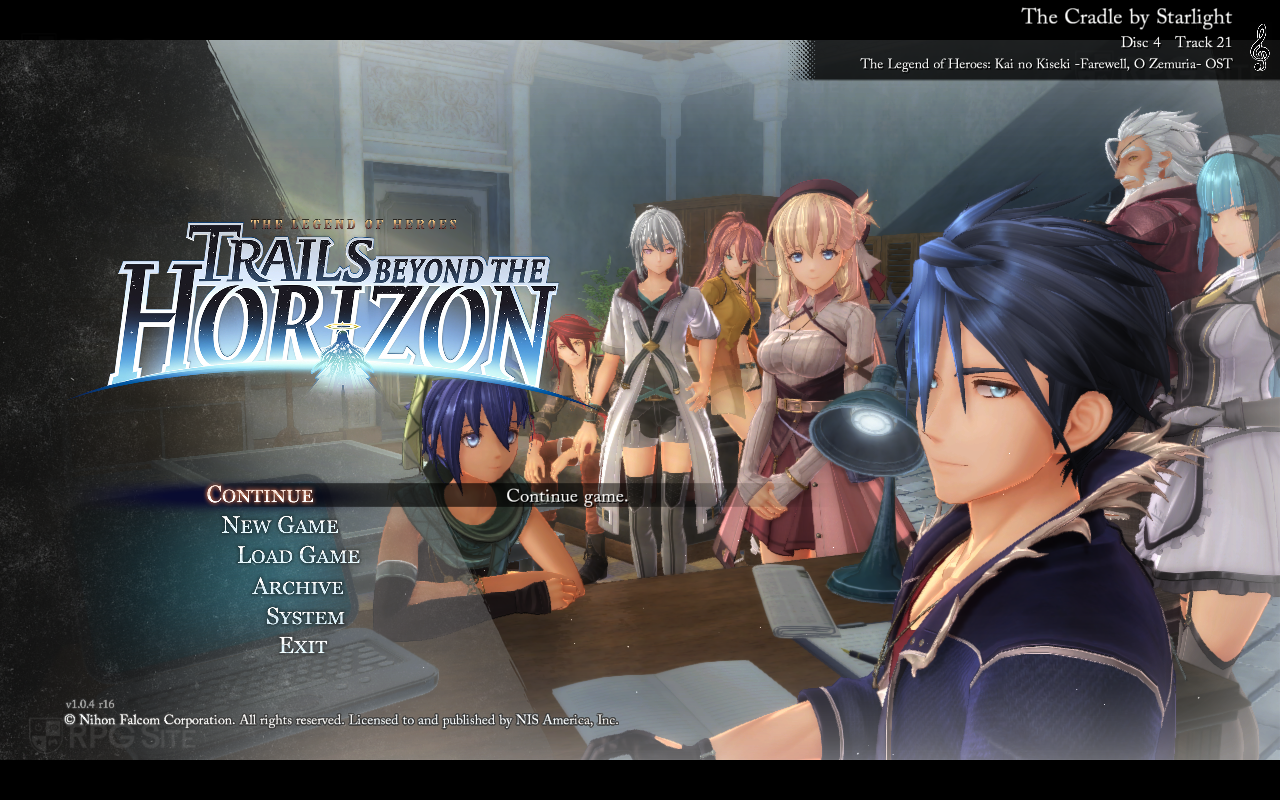
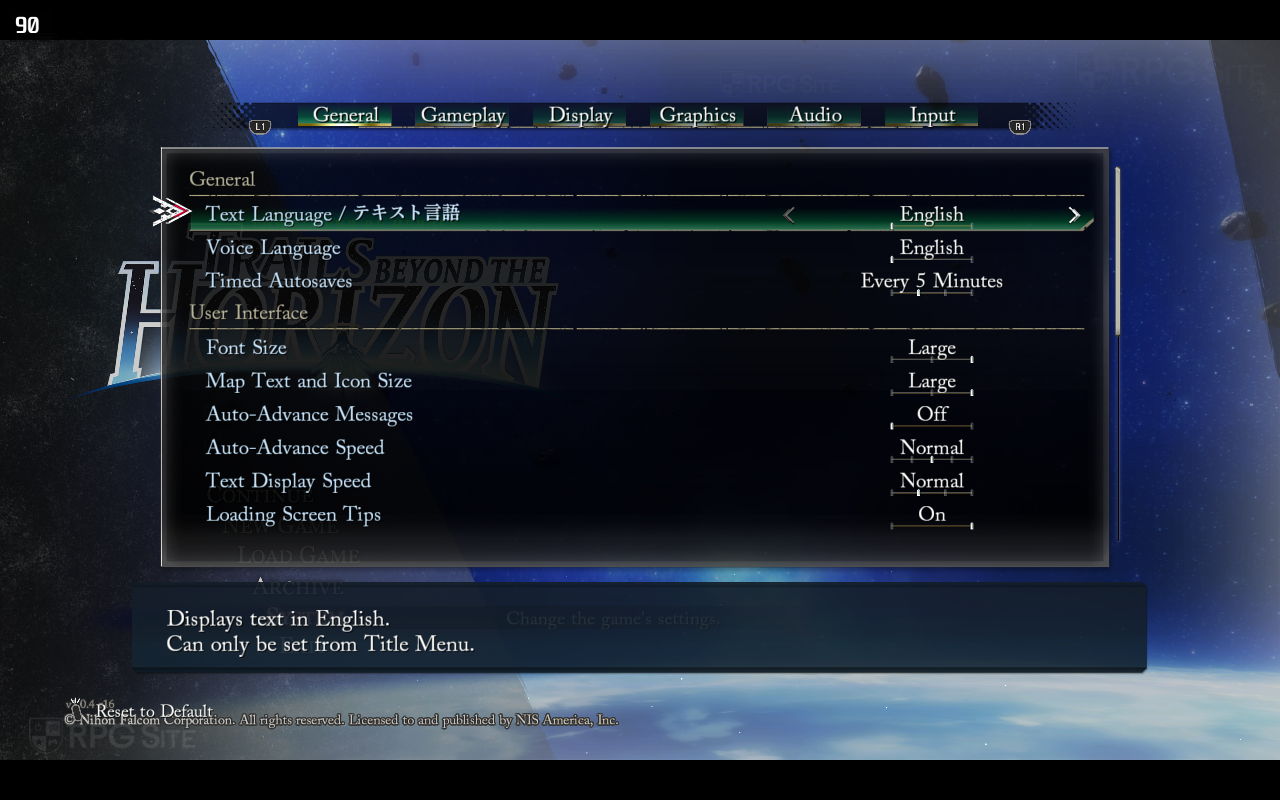
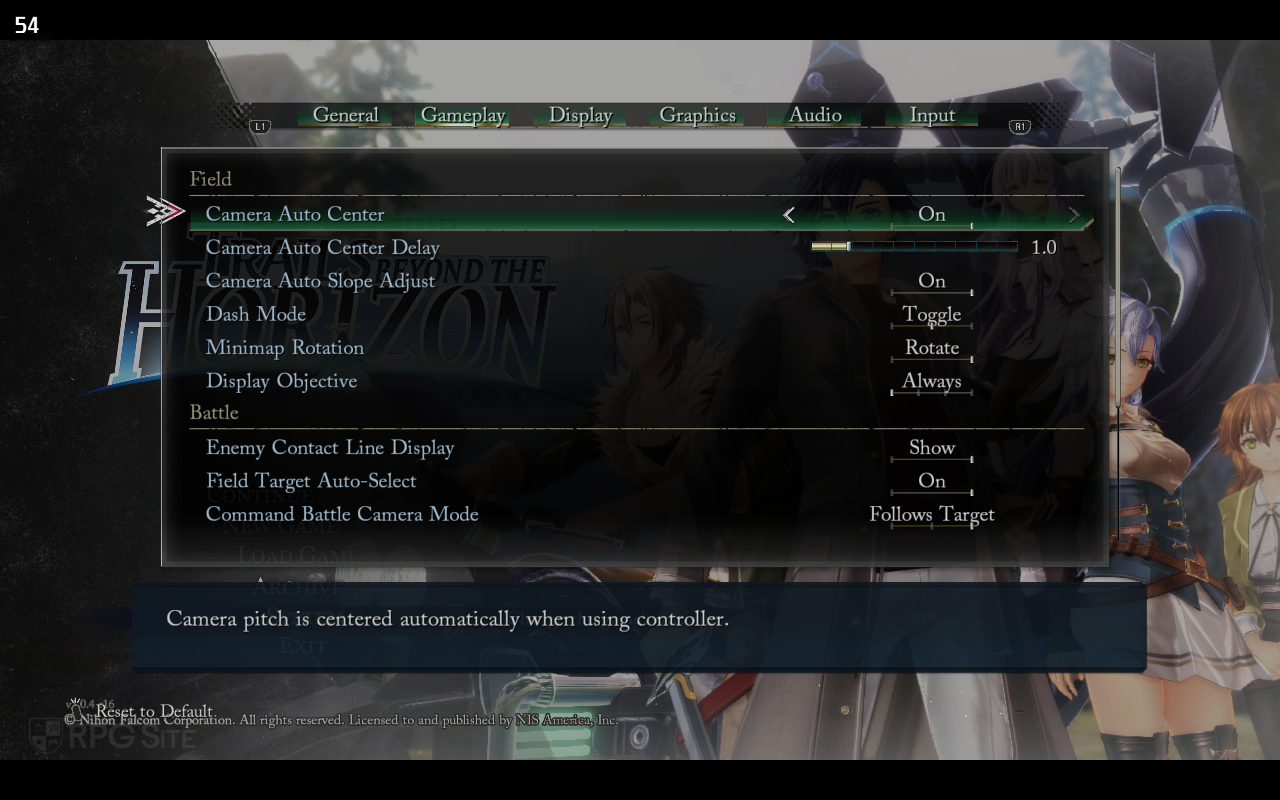
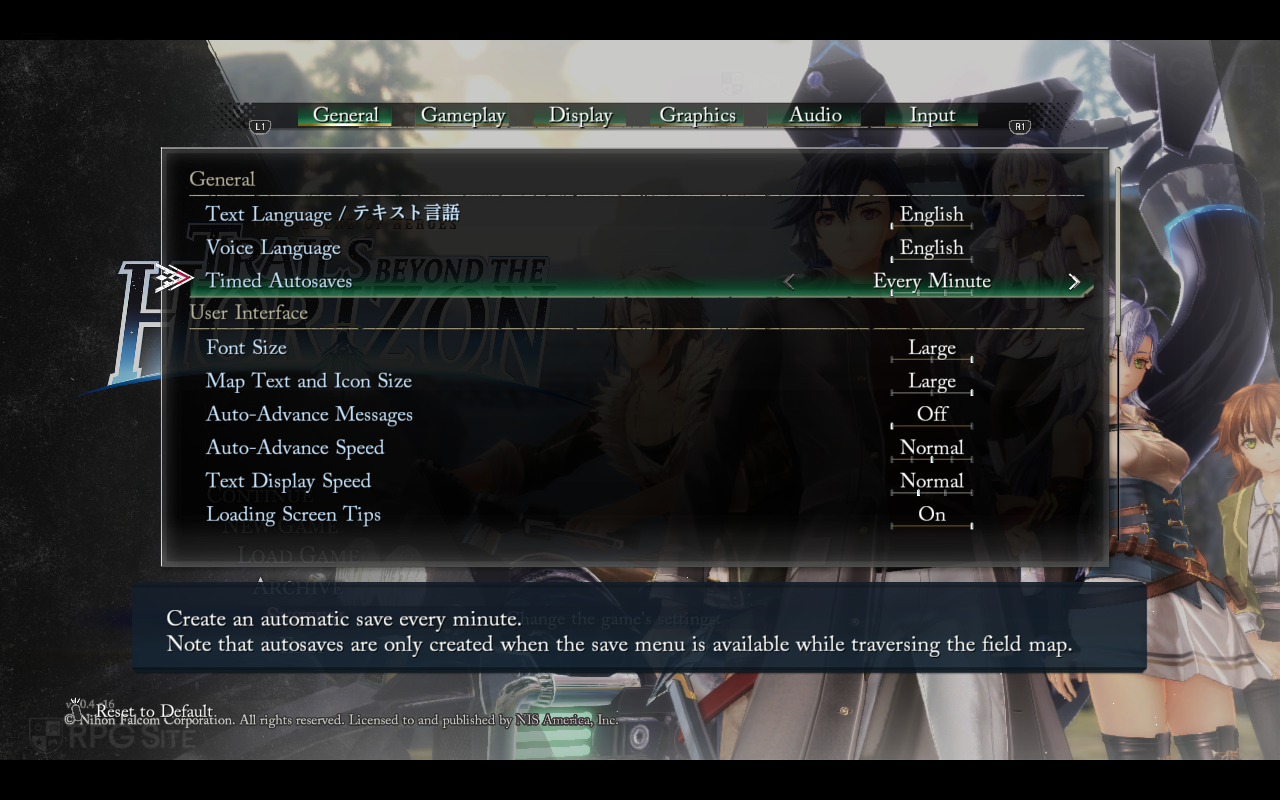
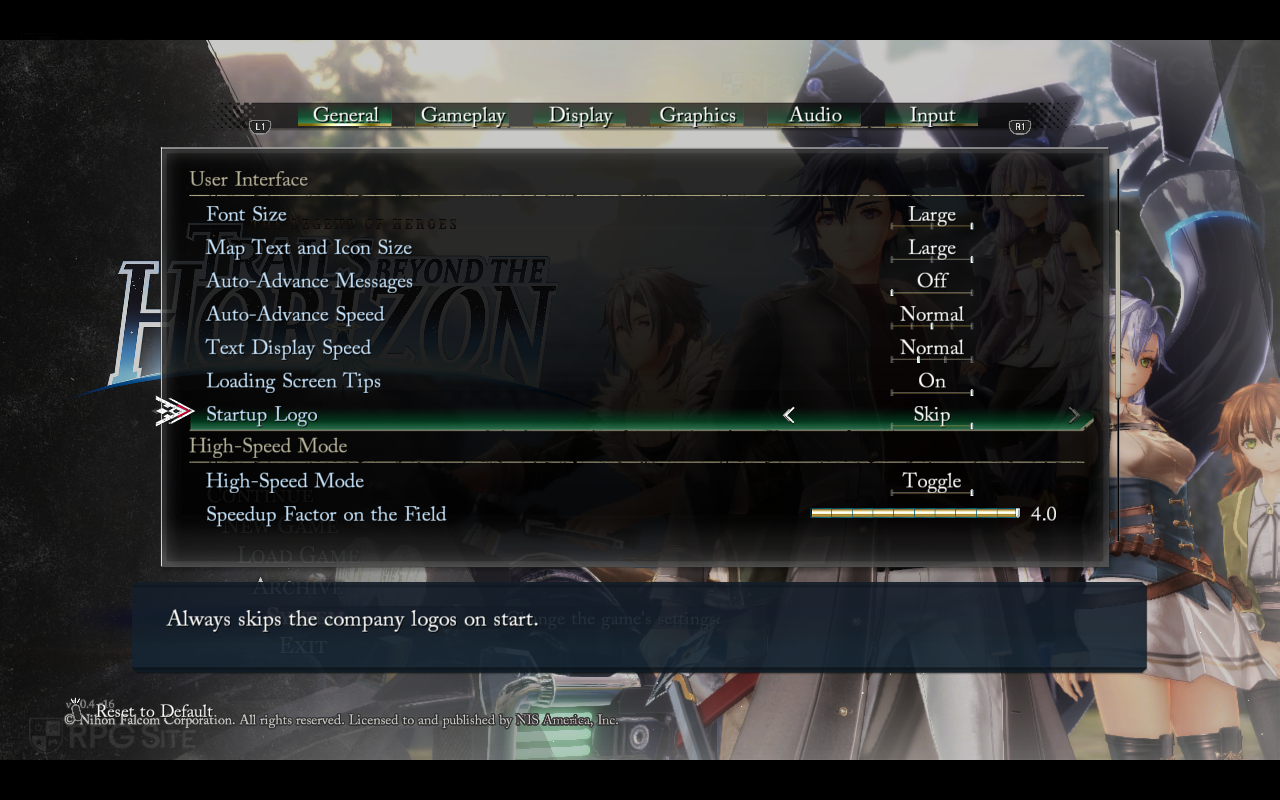
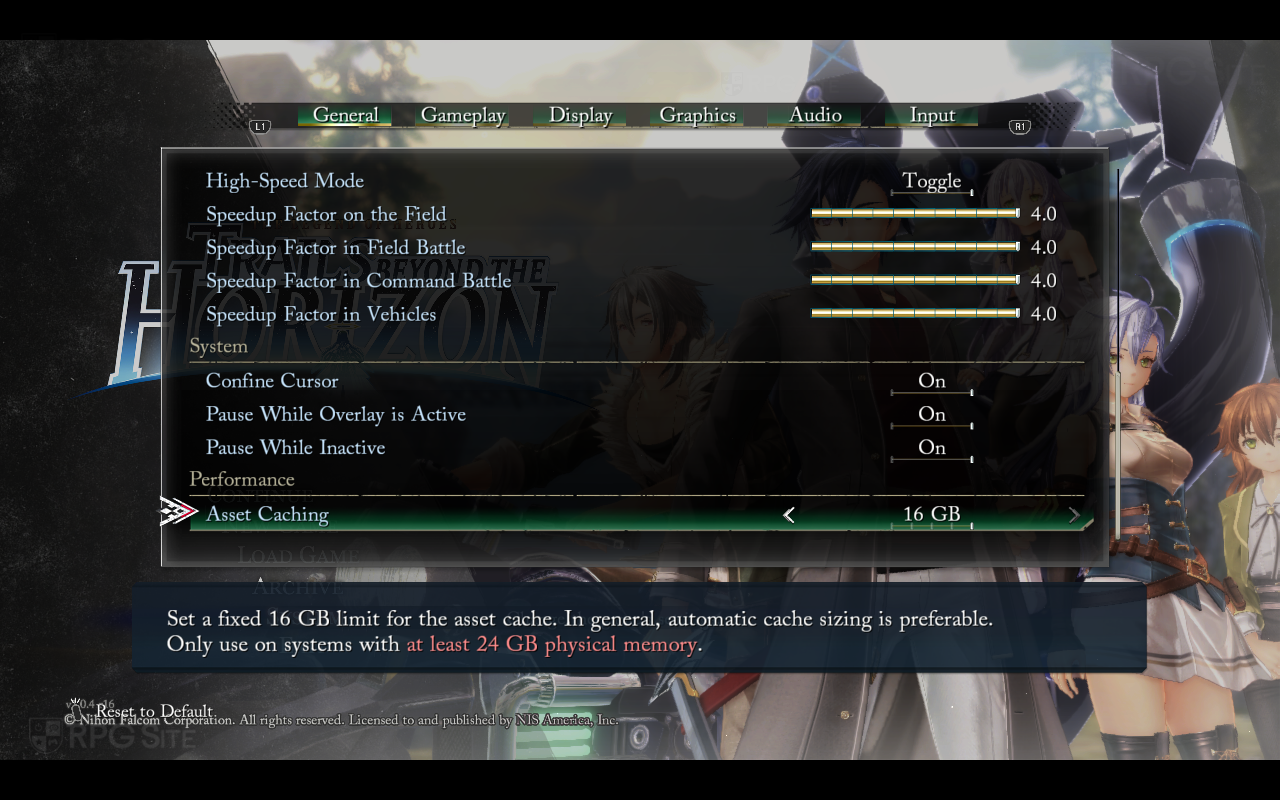
Before you adjust the graphics, Trails beyond the Horizon’s menu offers many more settings than the console versions. These PC-specific options let you customize text size, set how often the game automatically saves, adjust the UI’s appearance, skip the opening logos, and manage asset caching. Asset caching is turned off by default, but it can speed up loading times by using more memory. While disabling it means slightly longer loads, you can enable it automatically or customize it if your computer has at least 24GB of RAM.
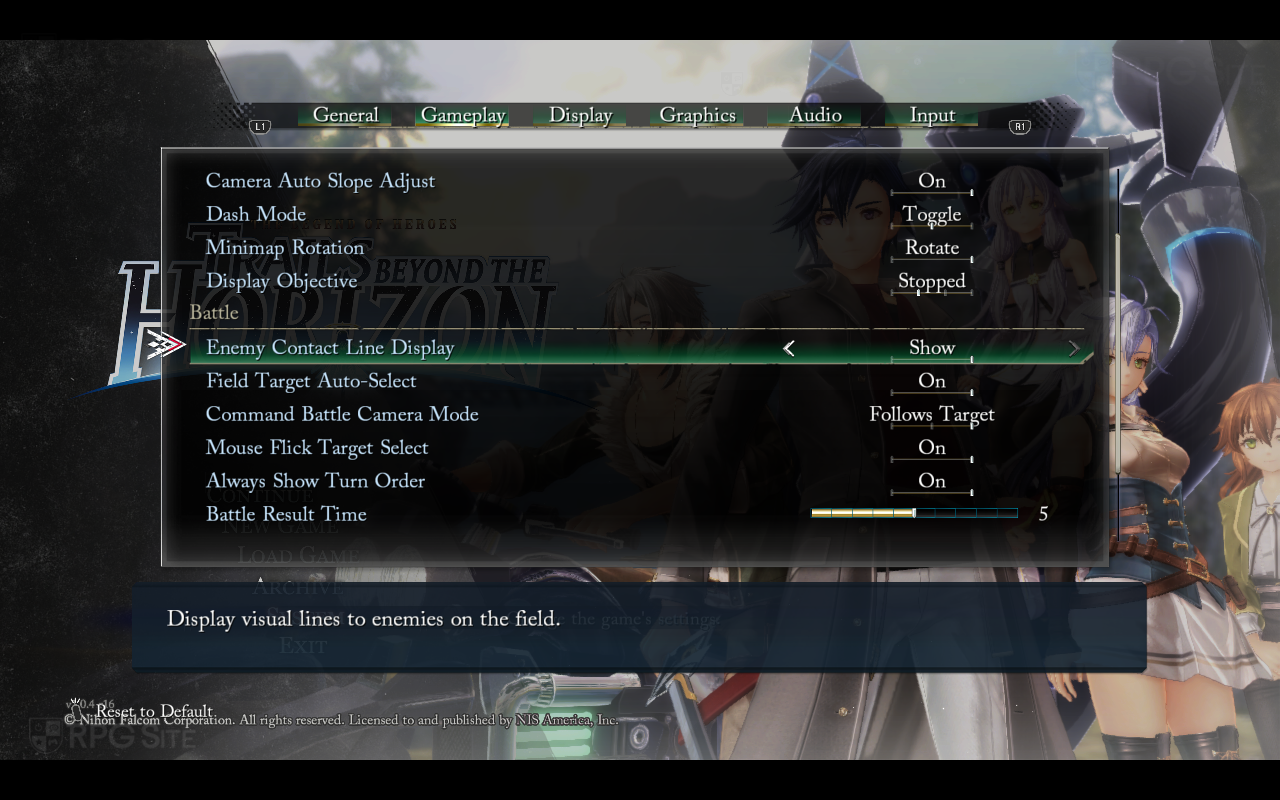
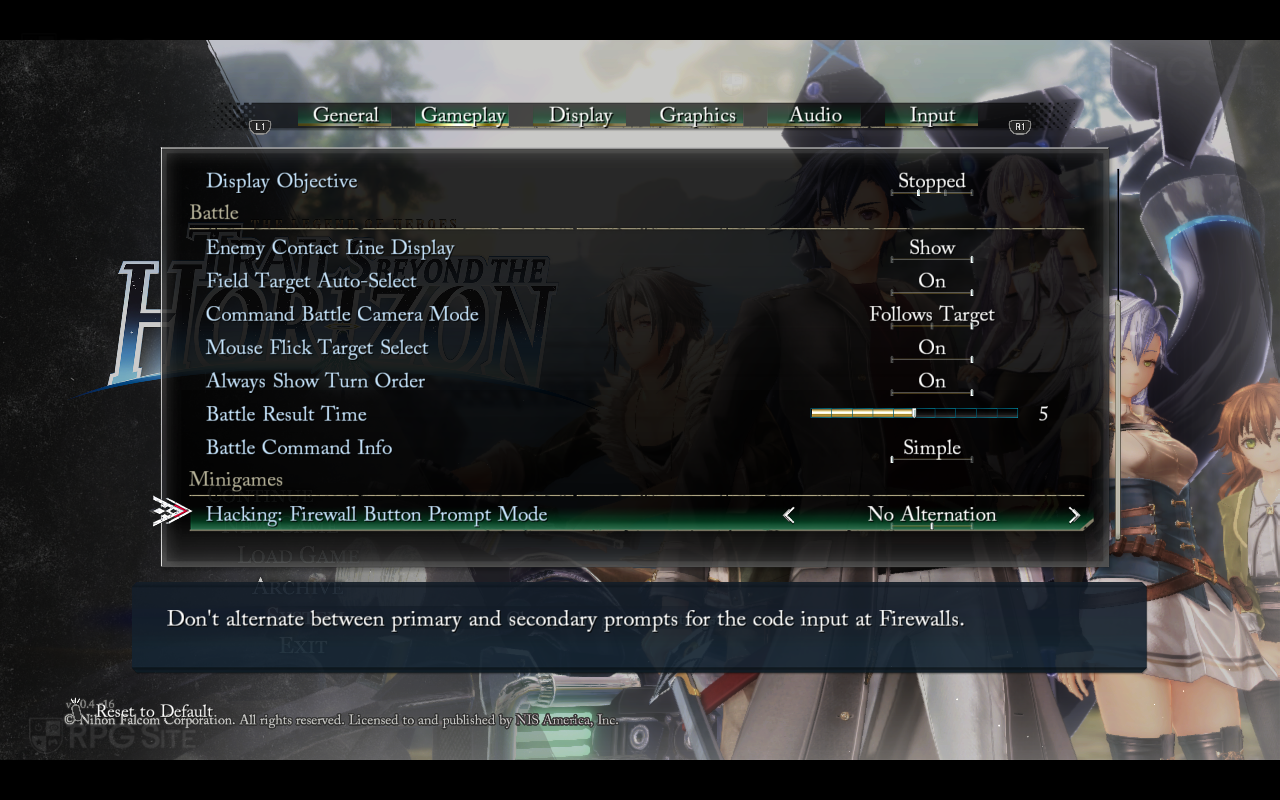
Trails beyond the Horizon offers a detailed Gameplay settings menu where you can customize your experience. You can adjust things like how the camera focuses, how quickly it responds, and whether it automatically adjusts to slopes. The game also lets you choose how the dash function works – as a simple toggle or a held button – and customize the minimap. You can control how objectives are displayed, tweak battle options like auto-targeting and contact lines, change camera behavior during fights, and even choose how you switch between targets. The game also includes options to show turn order and a special mini-game for hacking, called Firewall.
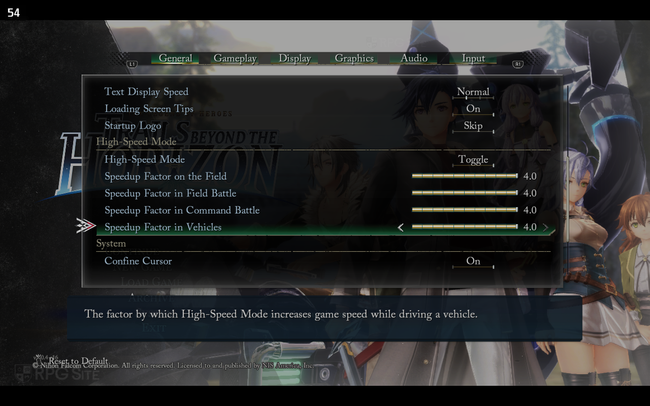
Trails beyond the Horizon PC exclusive turbo mode or High-Speed Mode options
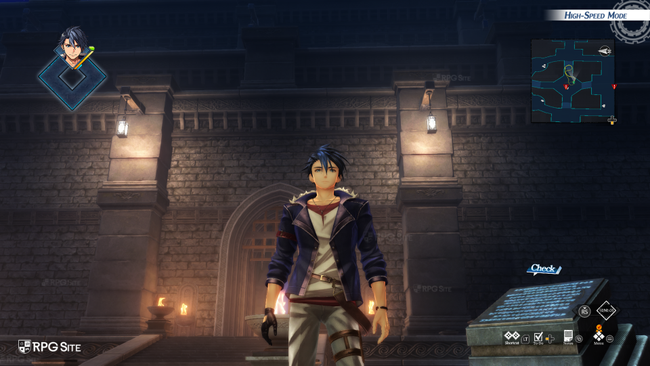
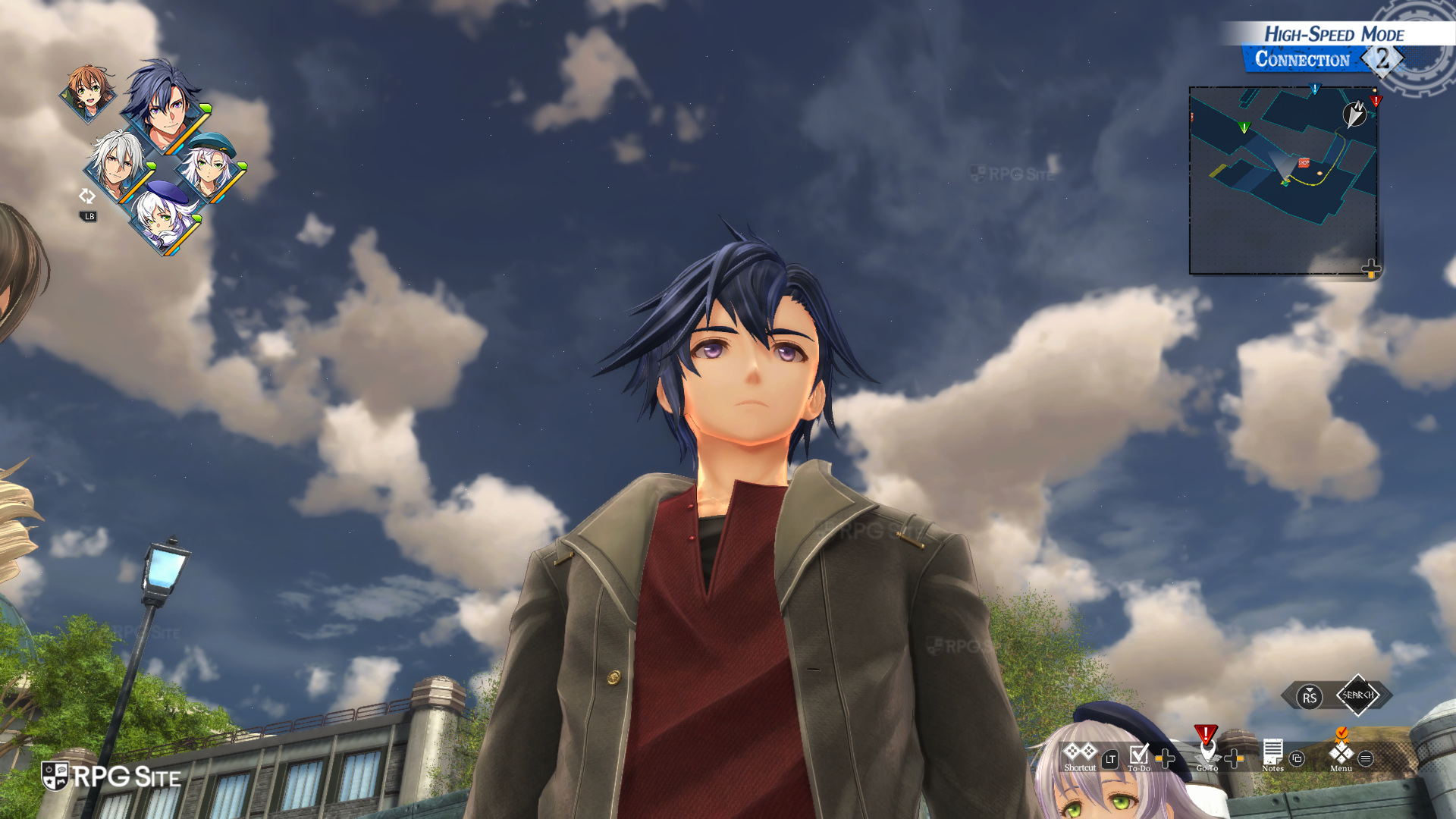
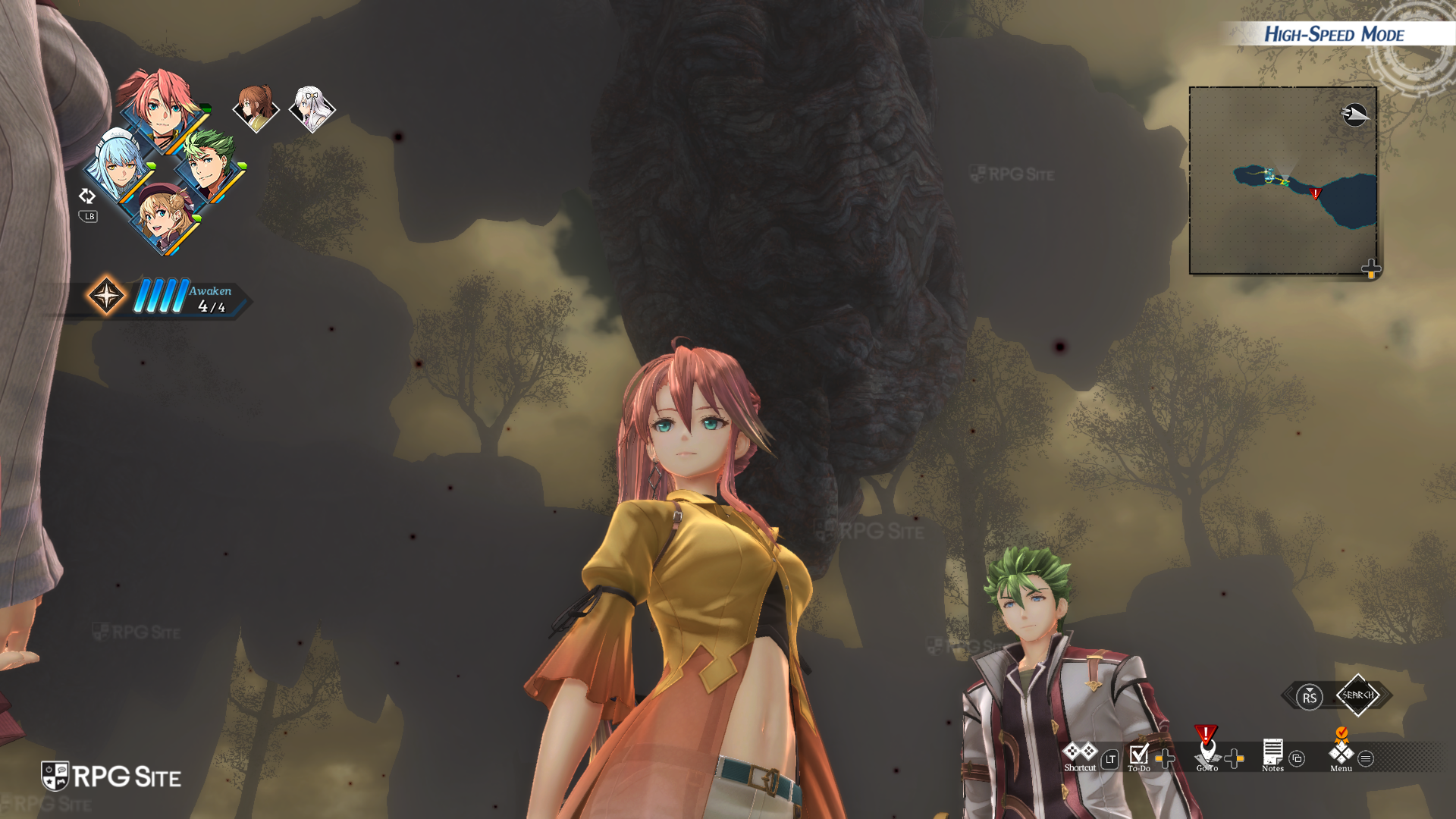
Trails beyond the Horizon offers speed control options for both console and PC. On consoles, you can separately adjust the speed boost for regular battles and command battles with three different settings. On PC, you can turn on a high-speed mode with a simple switch or button press, and then fine-tune how much faster the game runs – from normal speed (1.0) up to four times faster (4.0) – when exploring, battling, or driving.
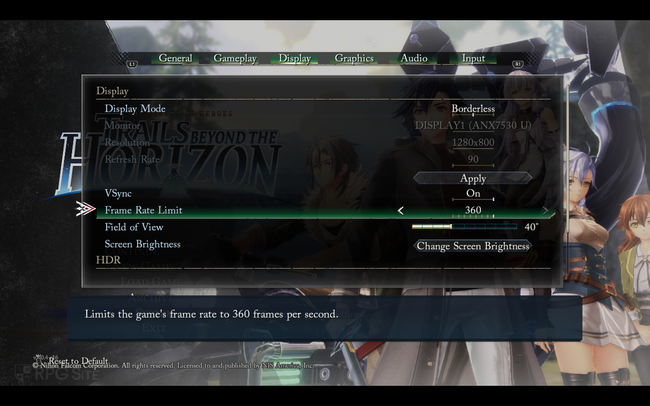
Trails beyond the Horizon PC display options
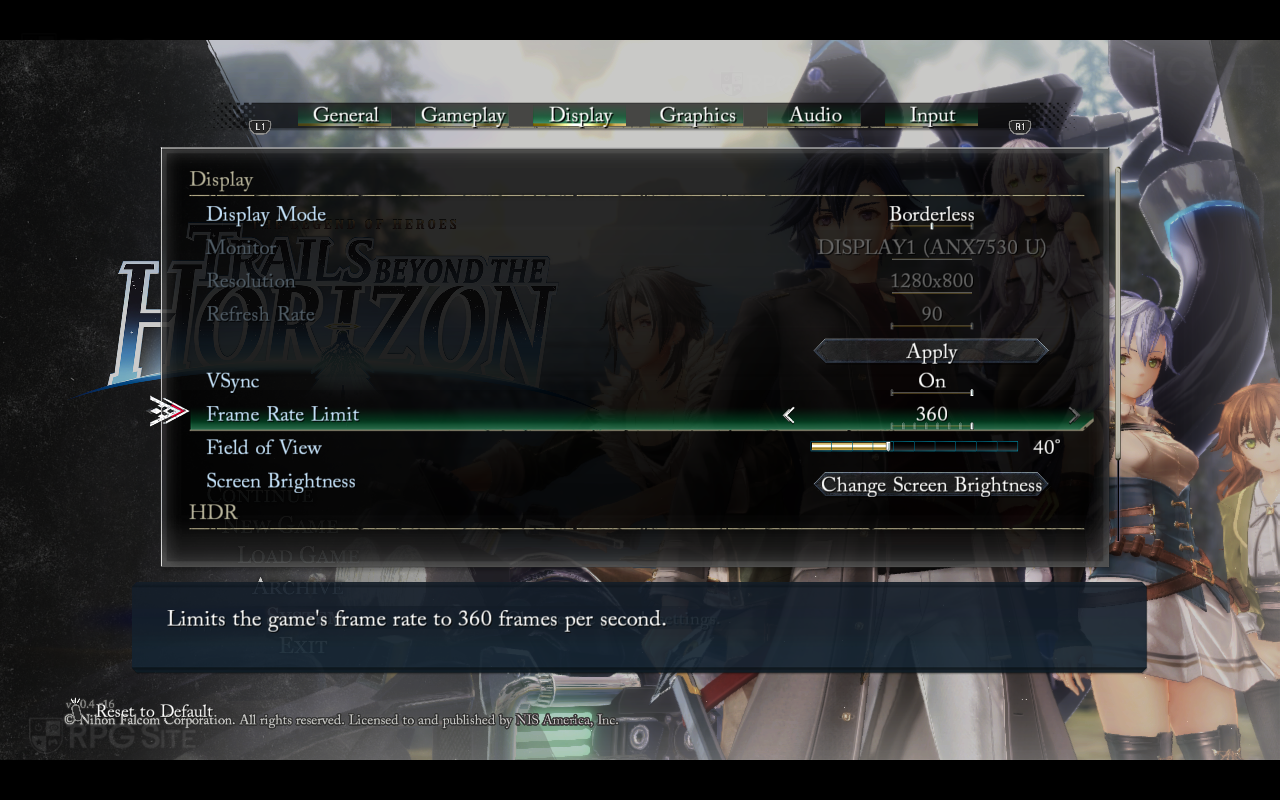
Trails beyond the Horizon on PC offers a lot of options to customize how the game looks. You can change between windowed, borderless, and fullscreen modes, select which monitor to use, and adjust the resolution (from as low as 320×200 up to 4K, which I’ve tested). You can also tweak the refresh rate, turn v-sync on or off, set a frame rate limit between 30 and 360fps, and adjust screen brightness and HDR settings.
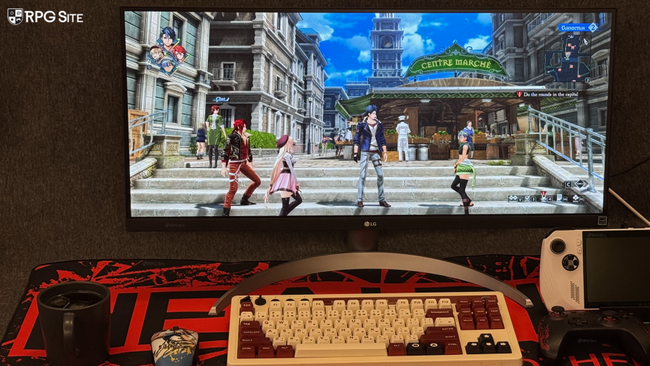
Trails beyond the Horizon PC ultrawide support
I recently got an ultrawide monitor and wanted to see how Trails beyond the Horizon looked on it. As expected, it’s a fantastic experience – the game really shines on the wider screen, with only a few older images looking a bit off. This improved view makes both exploring the world and fighting battles much more immersive, as the game’s interface adapts nicely to the ultrawide format.
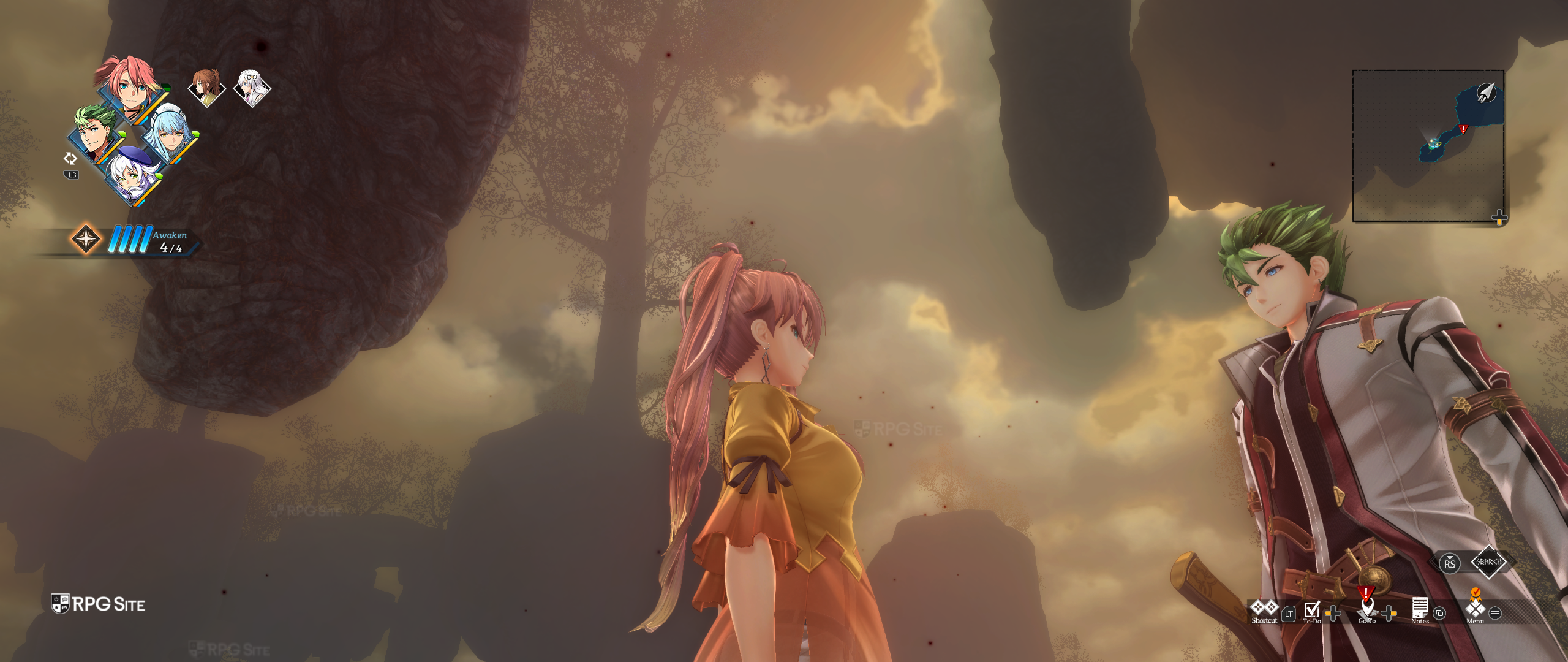
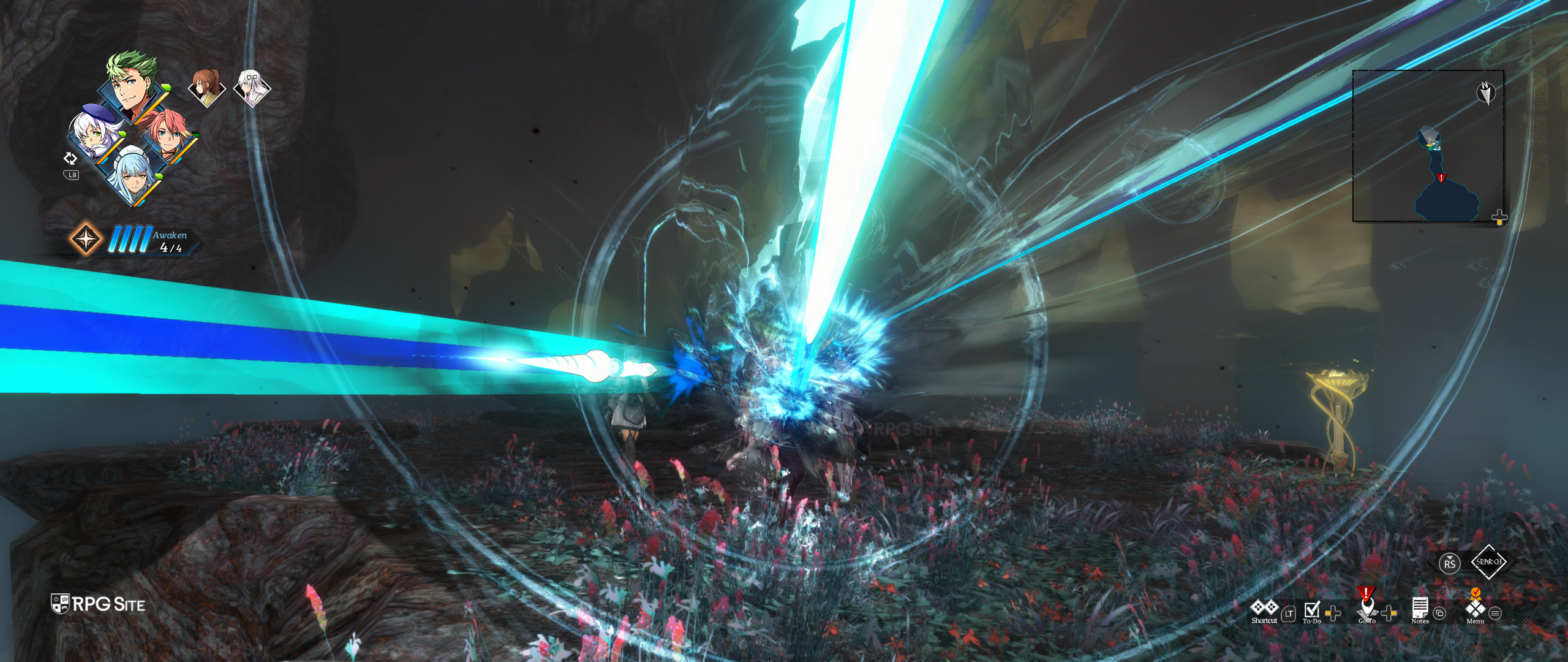
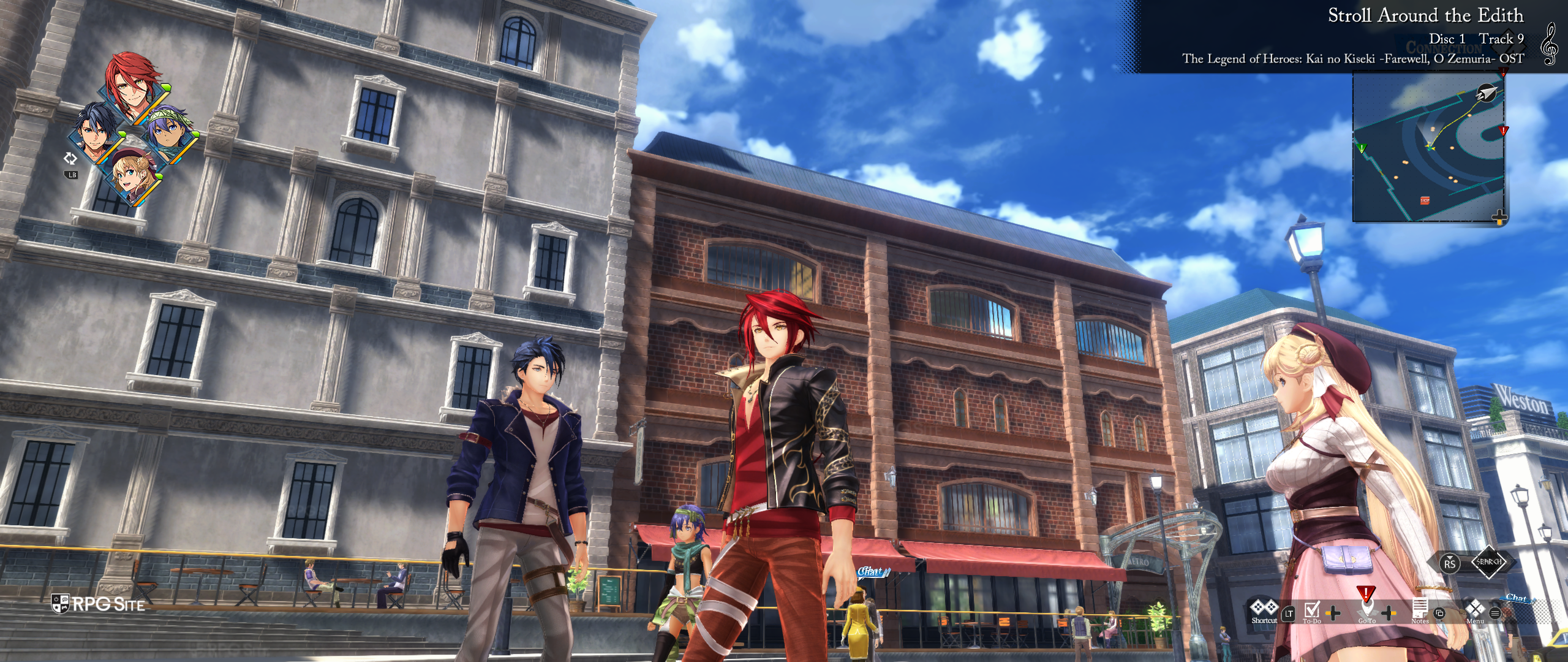
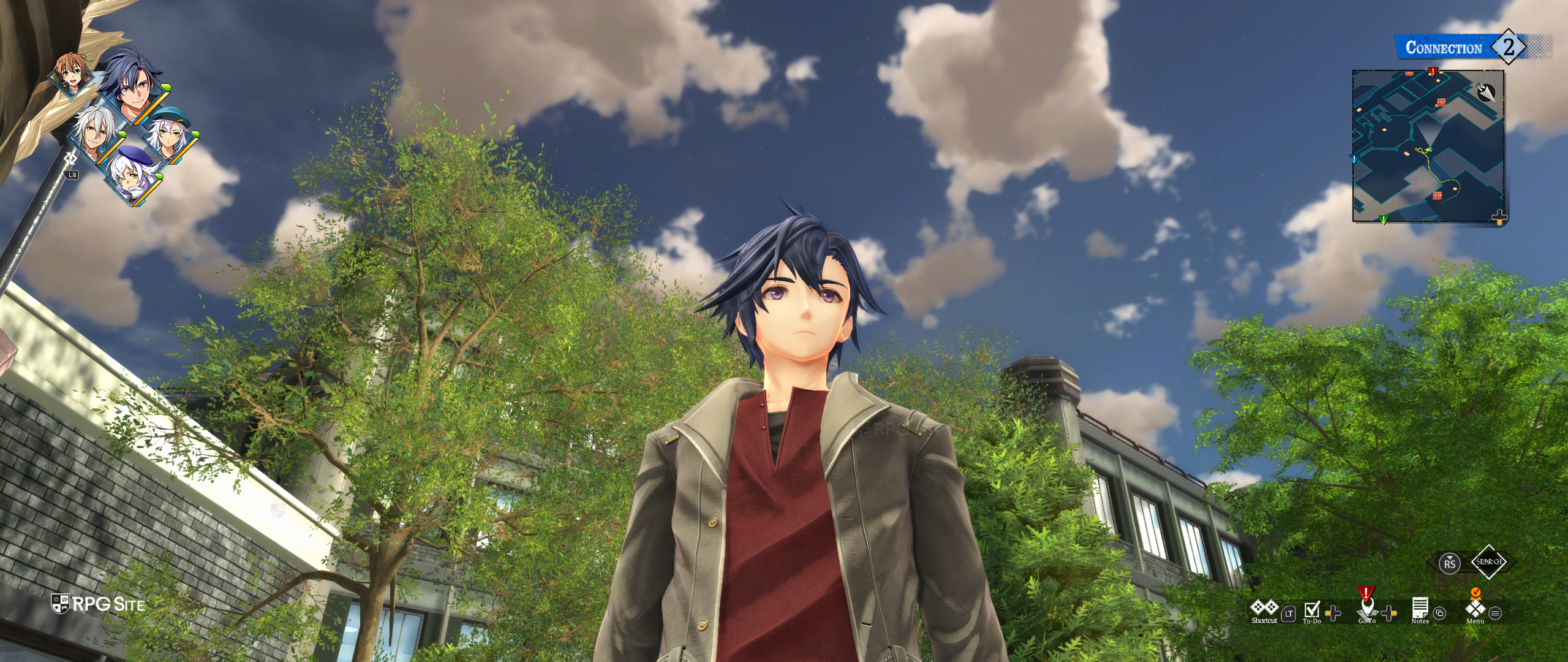
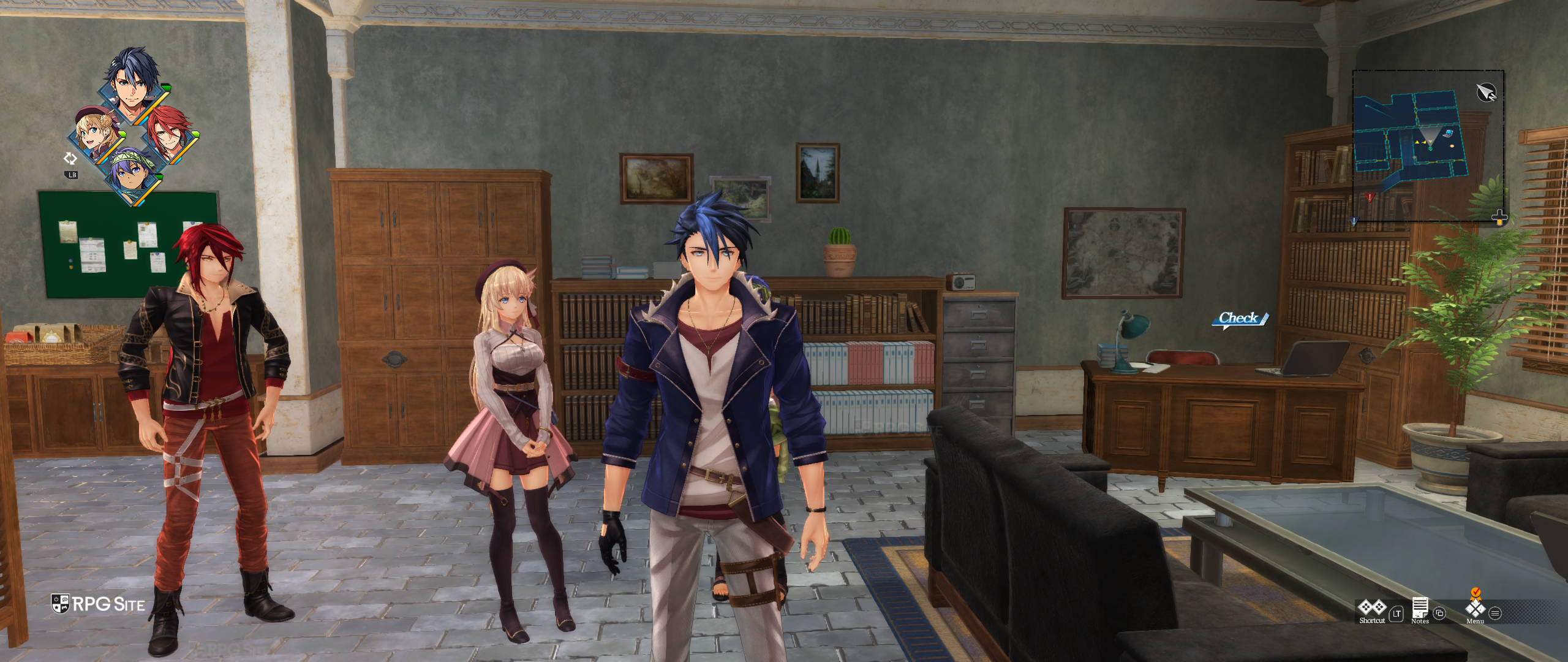
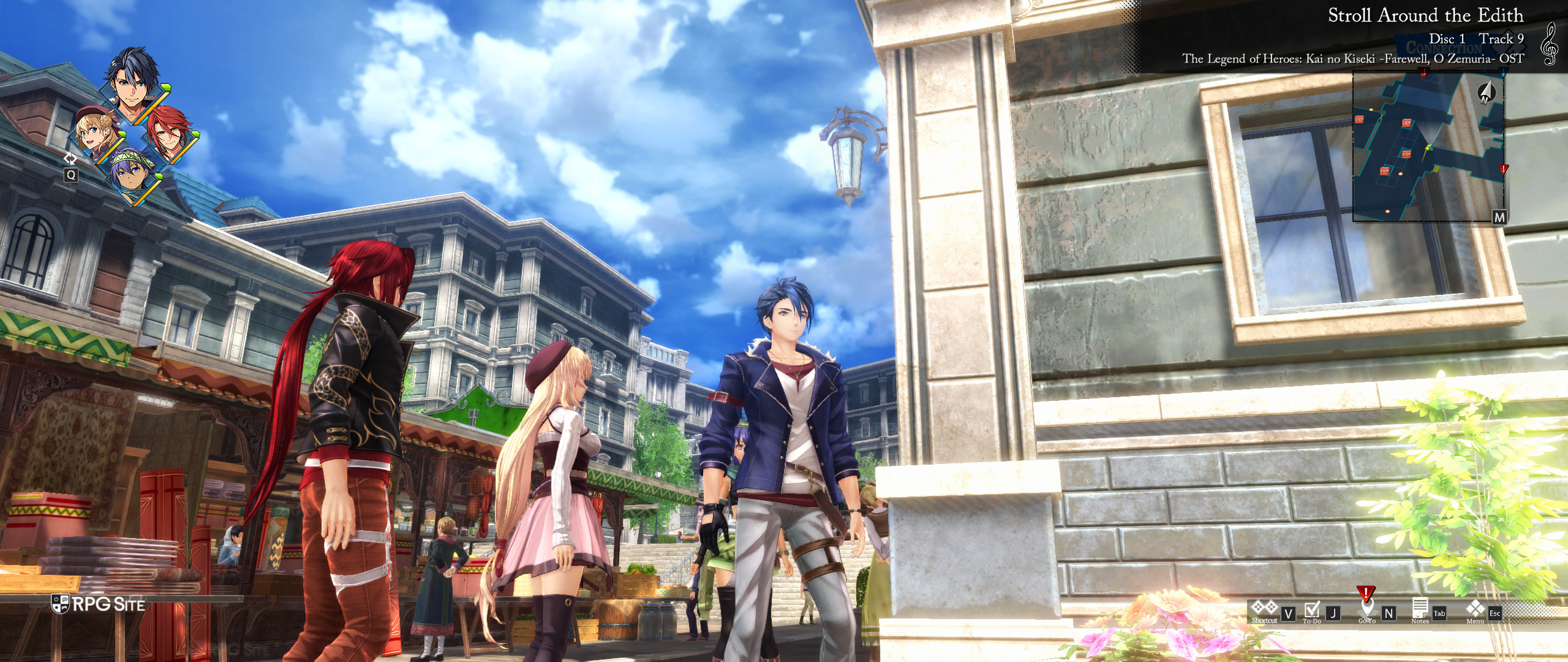
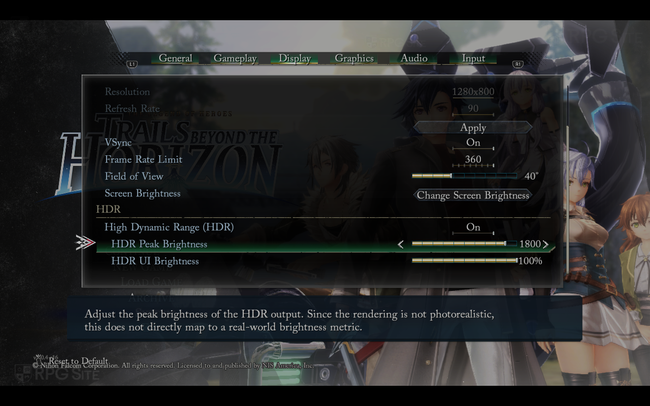
Trails beyond the Horizon PC-exclusive HDR settings
On PC, you can find the HDR settings for Trails beyond the Horizon at the bottom of the Display menu. These settings allow you to turn HDR on or off – and even adjust it on the Steam Deck OLED – using sliders for peak and UI brightness.
Trails beyond the Horizon PC graphics presets
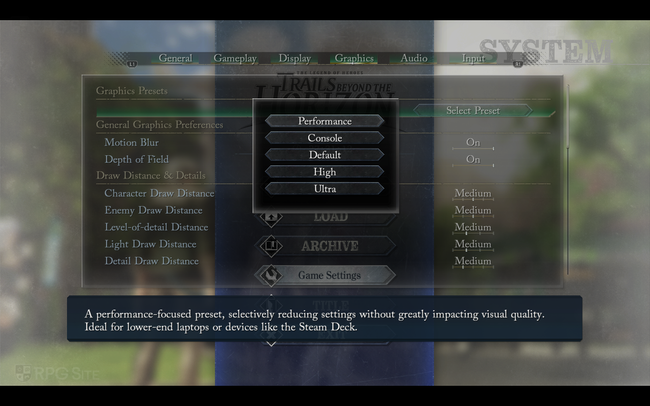
Like other PC games from Falcom’s Trails series, Trails beyond the Horizon includes several pre-set graphics options, as well as detailed settings you can customize yourself. Here’s a look at the available presets:
- Performance: A performance-focused preset, selectively reducing settings without greatly impacting visual quality. Ideal for lower-end laptops or devices like the Steam Deck
- Console: Settings designed to match the console experience (outside of resolution and refresh rate).
- Default: The default settings. This is above console.
- High: Enables several graphics improvements which are not too performance-intensive. A balanced selection for gaming PCs.
- Ultra: Enables all the highest-end settings, except for those with extremely large performance costs for little graphical gain. Only for high-end gaming PCs.
Besides the graphics settings, Trails beyond the Horizon lets you customize the audio in detail. You can control the volume of background music, sound effects, voices, and even environmental and movie sounds. There’s also an option to automatically mute the game when you’re not actively playing it. You can choose how the game displays information about new music tracks – you can have it always notify you, only notify for new tracks, or disable notifications altogether. I personally have it set to always display new track information.
Trails beyond the Horizon PC graphics options
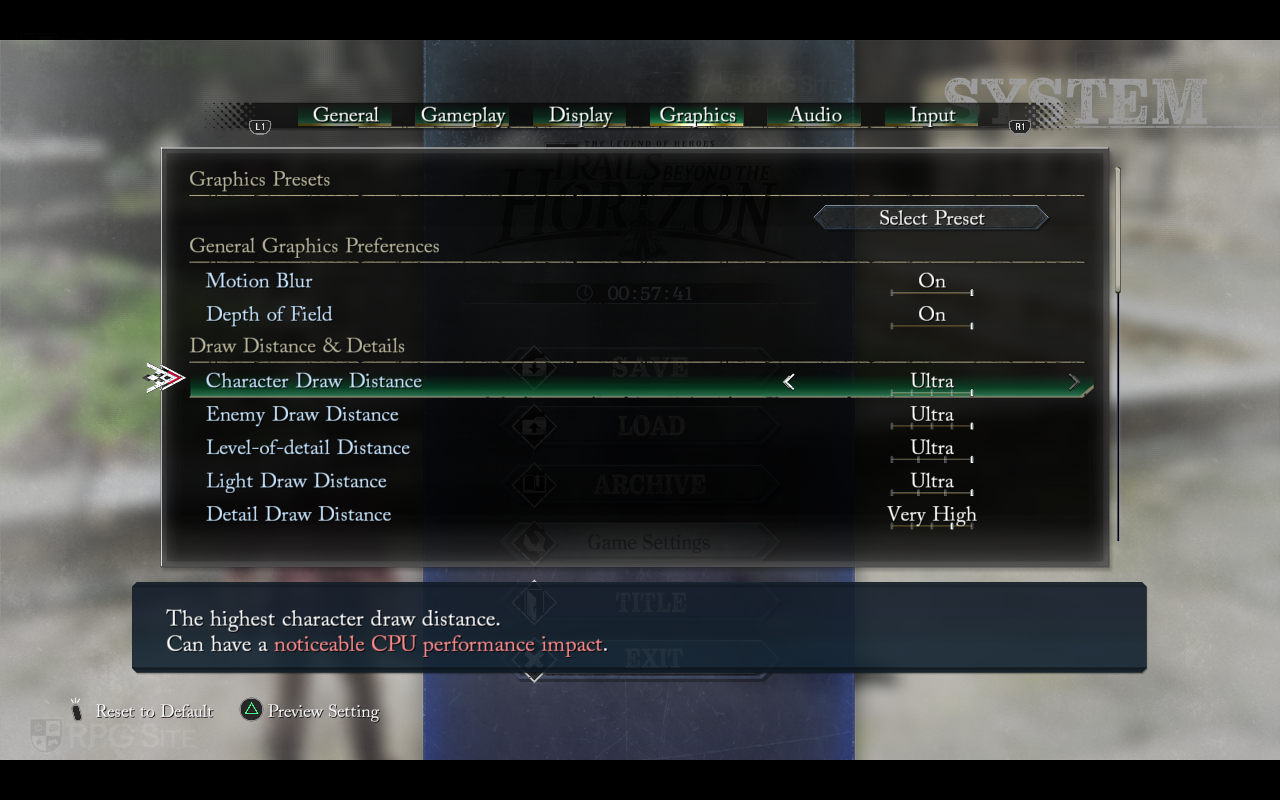
The Graphics menu in Trails beyond the Horizon allows you to select a pre-made visual setting or fine-tune many individual options. These options are organized into five categories: General Graphics Preferences, Draw Distance & Details, Shadows, Rendering Quality, and Graphical Effects. In General Preferences, you can turn motion blur and depth of field on or off. The Draw Distance & Details section controls how far away you can see characters, enemies, and other objects, as well as the level of detail for lights and smaller elements. You can also change how many fog effects appear in the game.
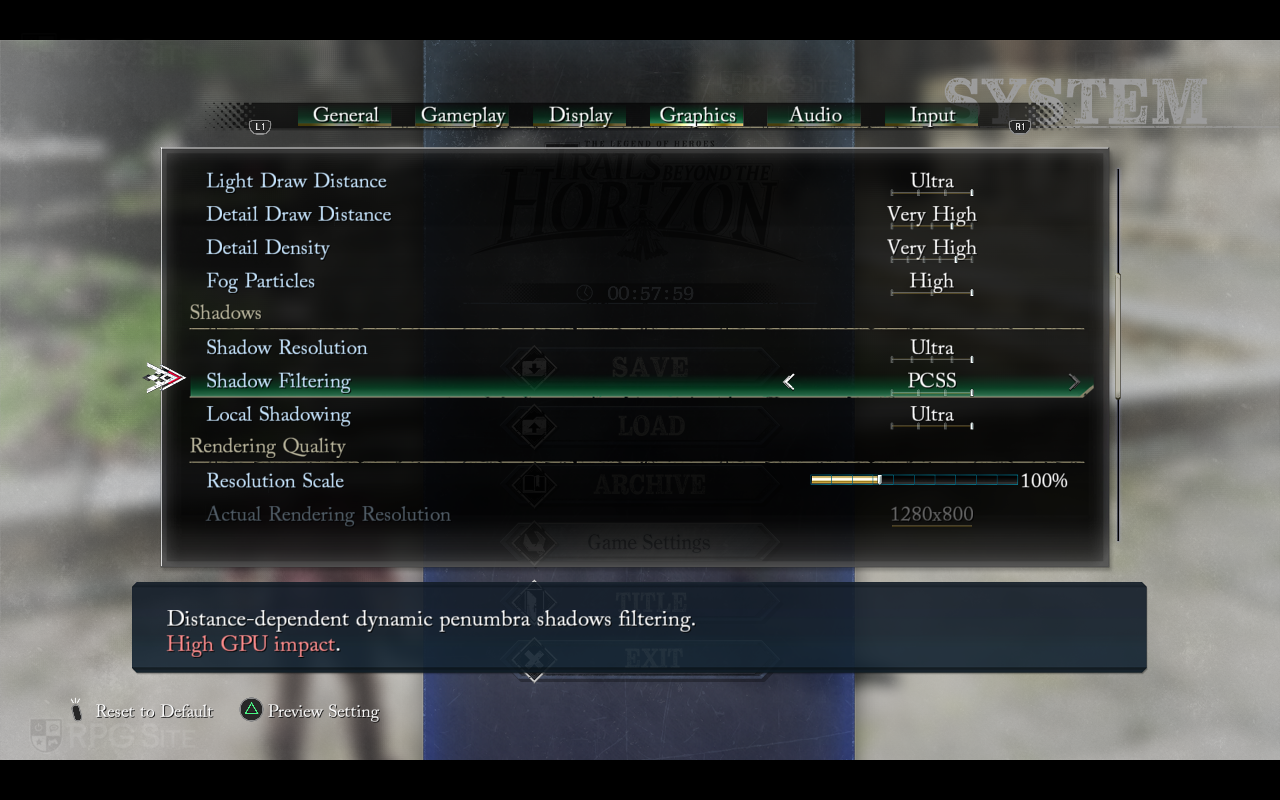
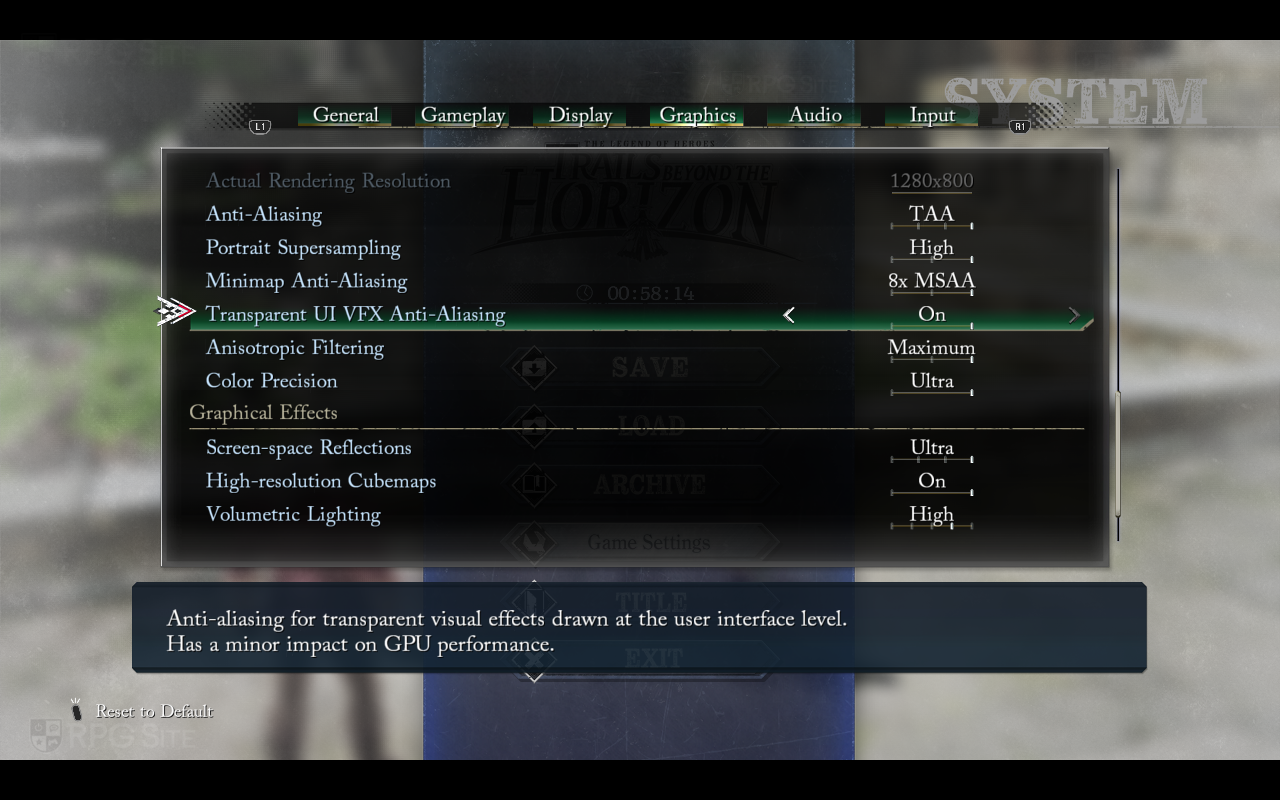
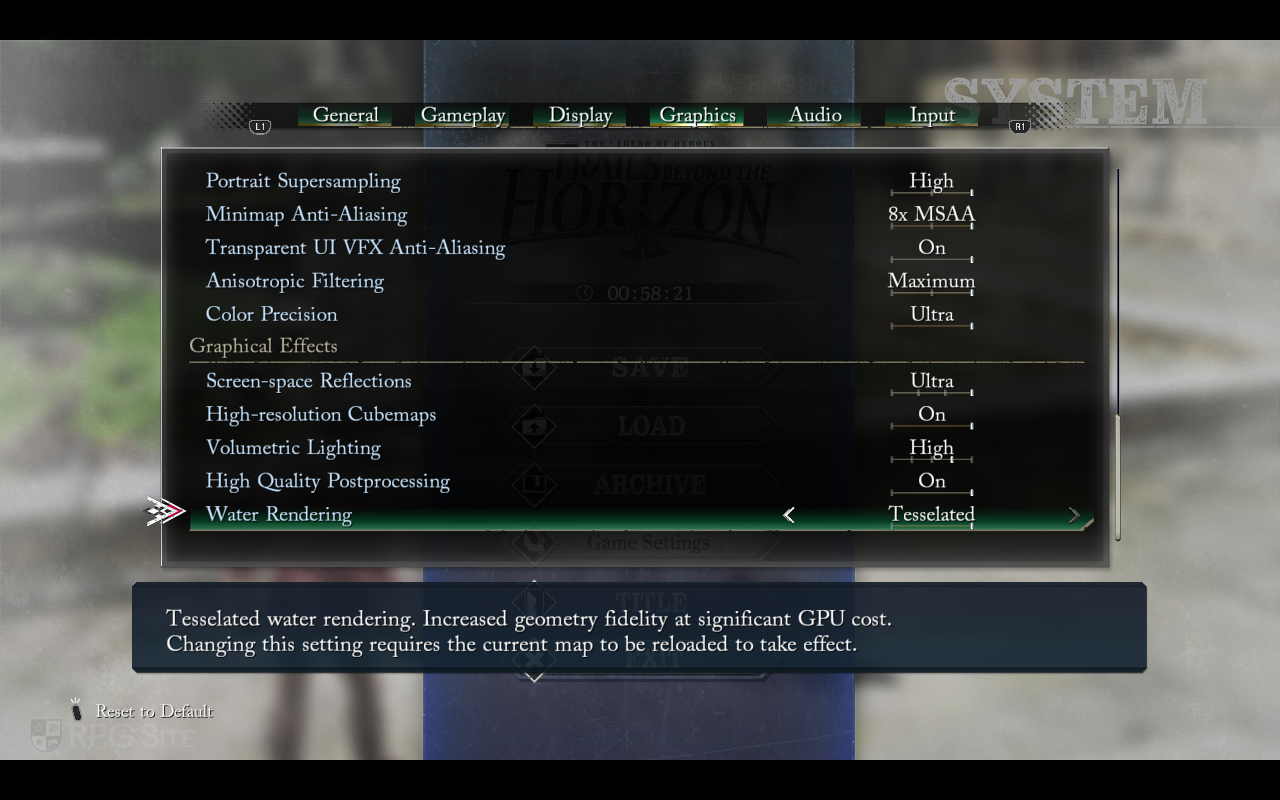
The Shadows settings control the quality of shadows in the game. You can change the shadow resolution and filtering method – options include basic, default, soft, and a more advanced, high-quality setting that uses dynamic penumbra but requires a powerful graphics card. You can also enable detailed, ray-marched shadows for characters, combined with high-resolution ambient occlusion, though this is also demanding on your GPU.
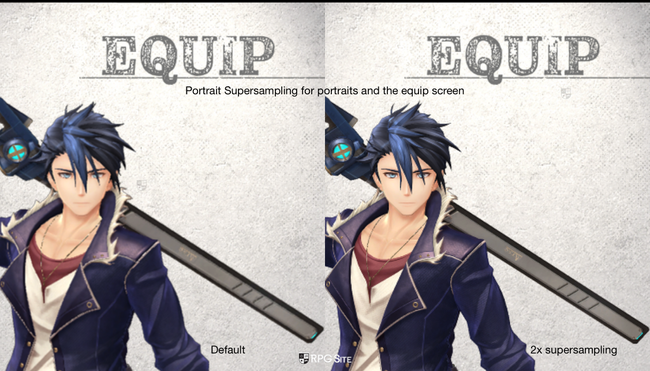
The Rendering Quality settings allow you to change the resolution scale – from 50% to 200% – and see the actual rendering resolution. You can adjust these settings instantly without needing to restart the game. As you make changes, you’ll see how much it impacts performance. This section also controls anti-aliasing (with options like off, basic, high, and TAA). Plus, it lets you enable some special visual features that are unique to PH3, like portrait supersampling and minimap anti-aliasing.
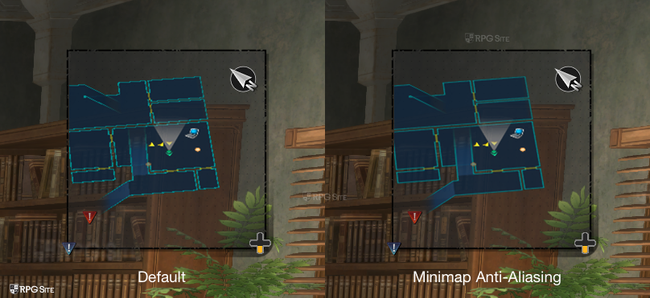
If you’ve noticed games looking great overall but having blurry details in some menus, PH3 addresses that. It allows you to increase the resolution of even small elements like minimaps and character portraits, making everything look sharp and clear on your screen.
You can also improve how the user interface looks with anti-aliasing, which smooths out jagged edges on visual effects. Finally, you’ll find settings for Anisotropic Filtering, which controls texture clarity with three different levels, and Color Precision, which includes an ‘Ultra’ mode to minimize color banding and improve image quality.
The Graphics menu’s final section, Graphical Effects, lets you customize how the game looks. Here, you can fine-tune details like screen-space reflections, lighting, and water rendering, as well as enable high-resolution textures and advanced post-processing effects.
Also, keep in mind that most of the settings mentioned above that change how things run will include information about how much they’ll affect your graphics card’s performance.
According to Peter Thoman from PH3, Trails beyond the Horizon on PC supports DLSS and XeSS, but you’ll need compatible hardware to see the benefits. That means an Nvidia GPU for DLSS or an Intel GPU for XeSS, as the game uses DirectX 11.
Trails beyond the Horizon PC control options
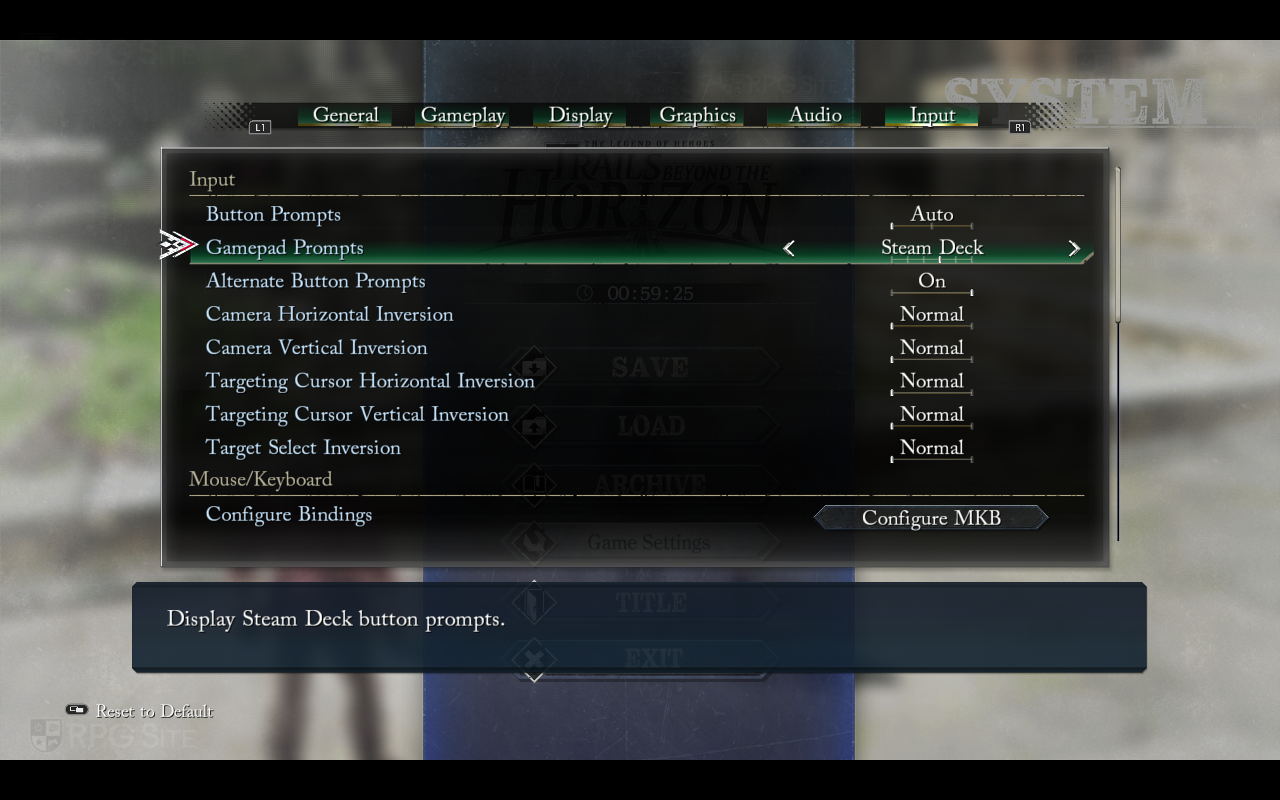
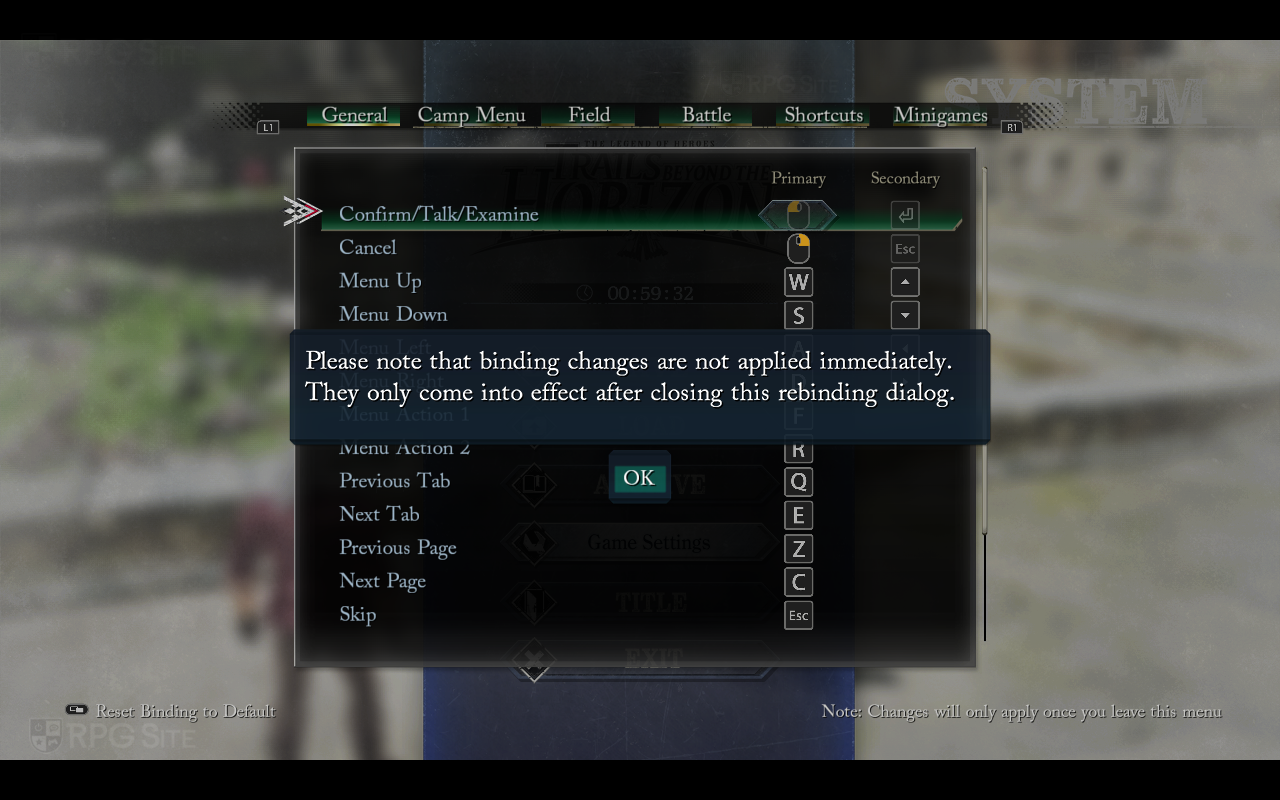
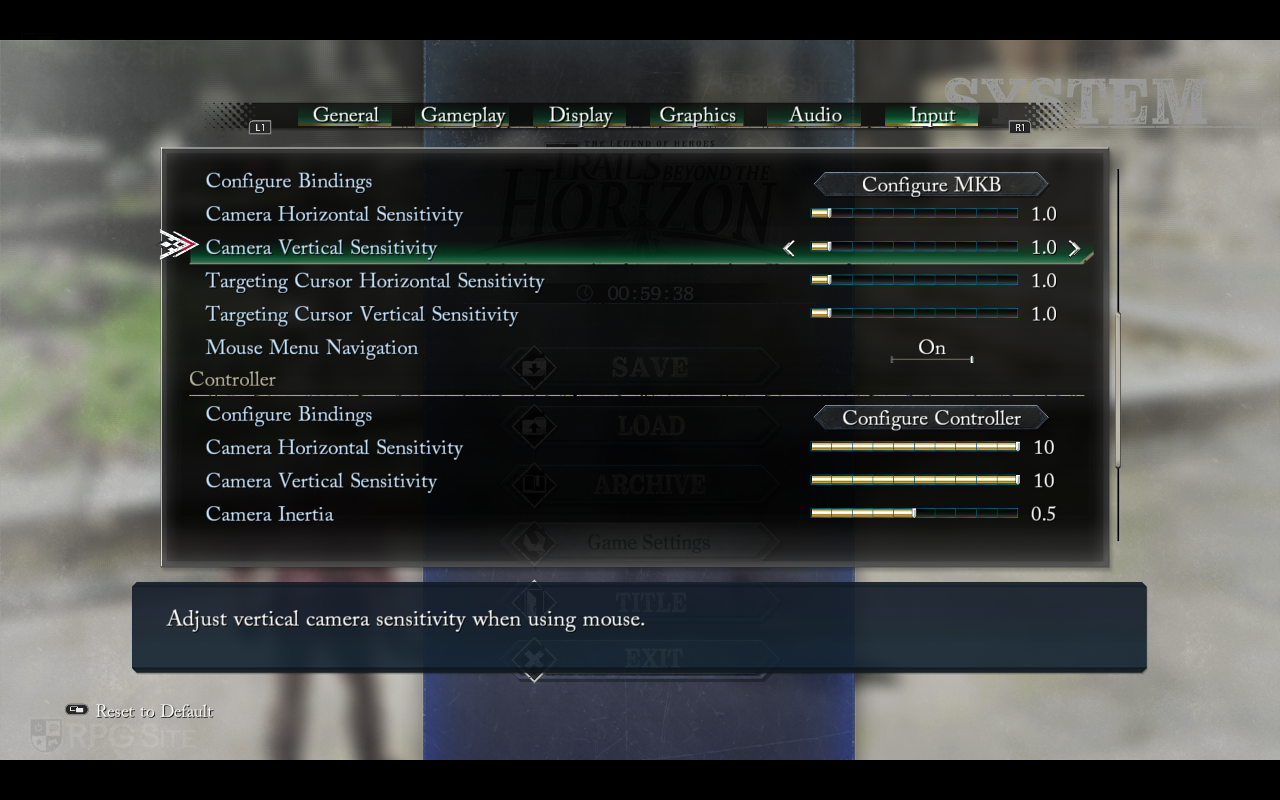
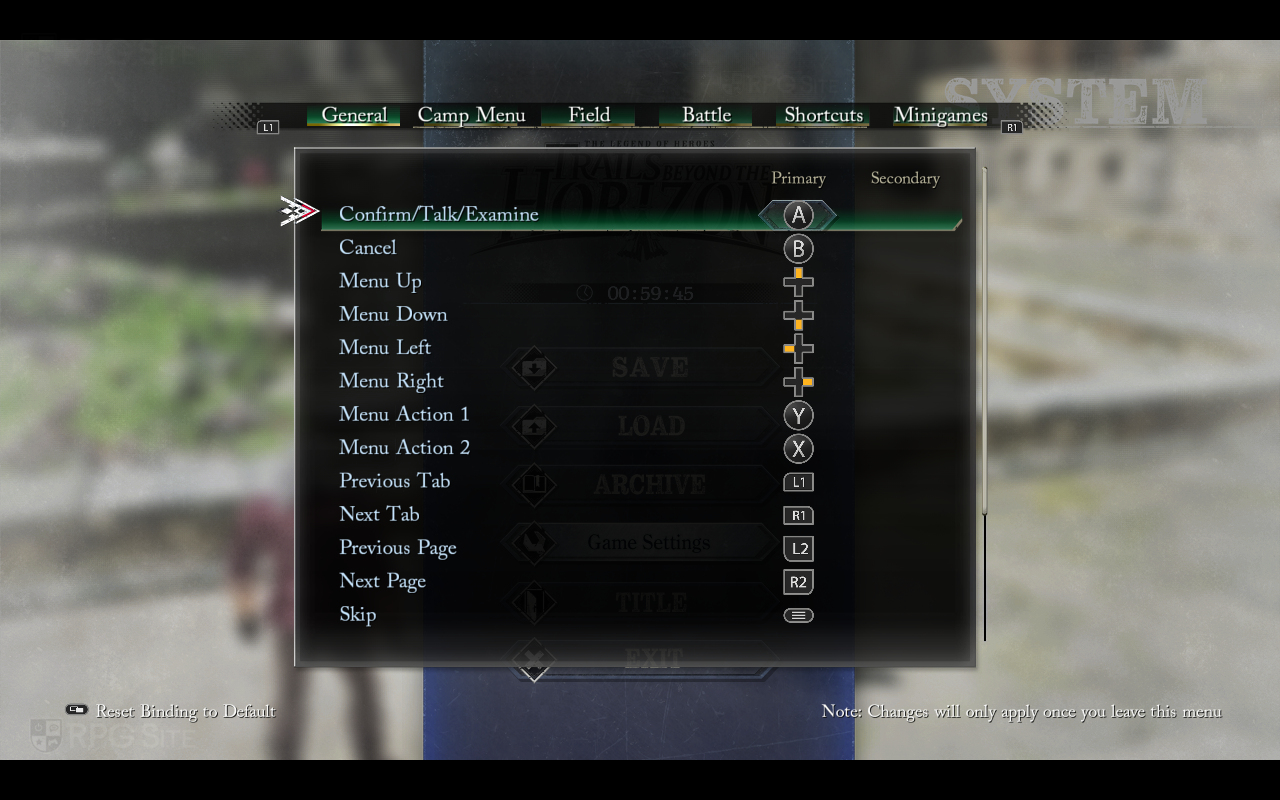
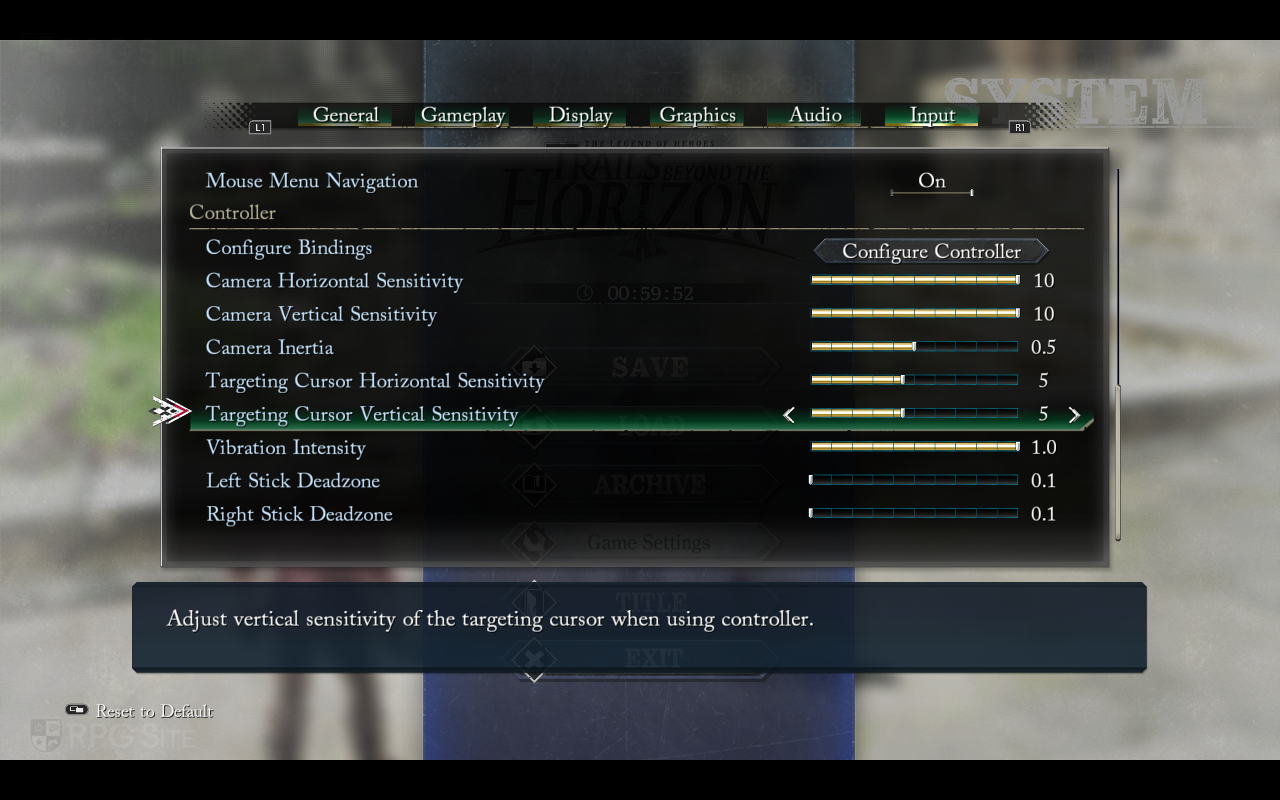
Trails beyond the Horizon offers extensive control customization. You can choose your preferred button prompts (like those for Xbox, PlayStation, or Switch), force specific buttons to appear, and display both primary and secondary control schemes. The game also lets you fine-tune aiming and movement, and adjust sensitivity settings for both mouse and controllers, including deadzones and vibration. It’s a remarkably feature-rich PC release when it comes to how you control the game.
Trails beyond the Horizon recommended settings for Steam Deck OLED and LCD
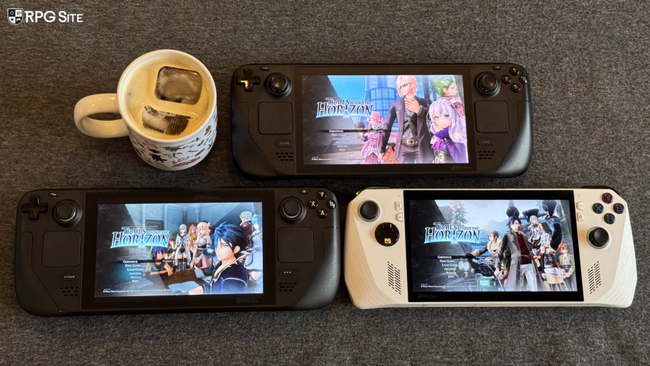
I’ve created two sets of settings for Trails beyond the Horizon on the Steam Deck, one for the LCD screen and one for the OLED. For a smooth 40-45 frames per second, use the game’s performance graphics preset and play at the native resolution. This setup provides a clear picture and consistent performance, and I experienced no major problems during my 20 hours of gameplay on the Steam Deck.
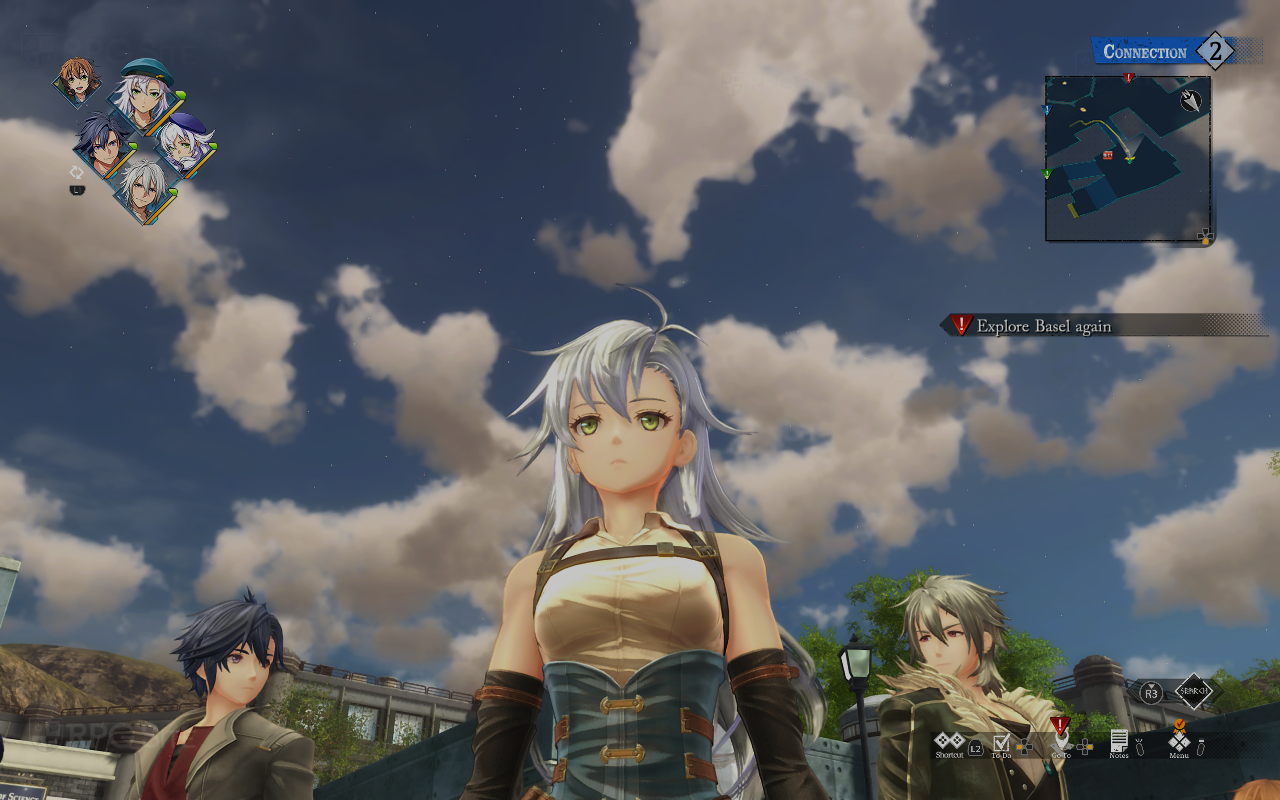
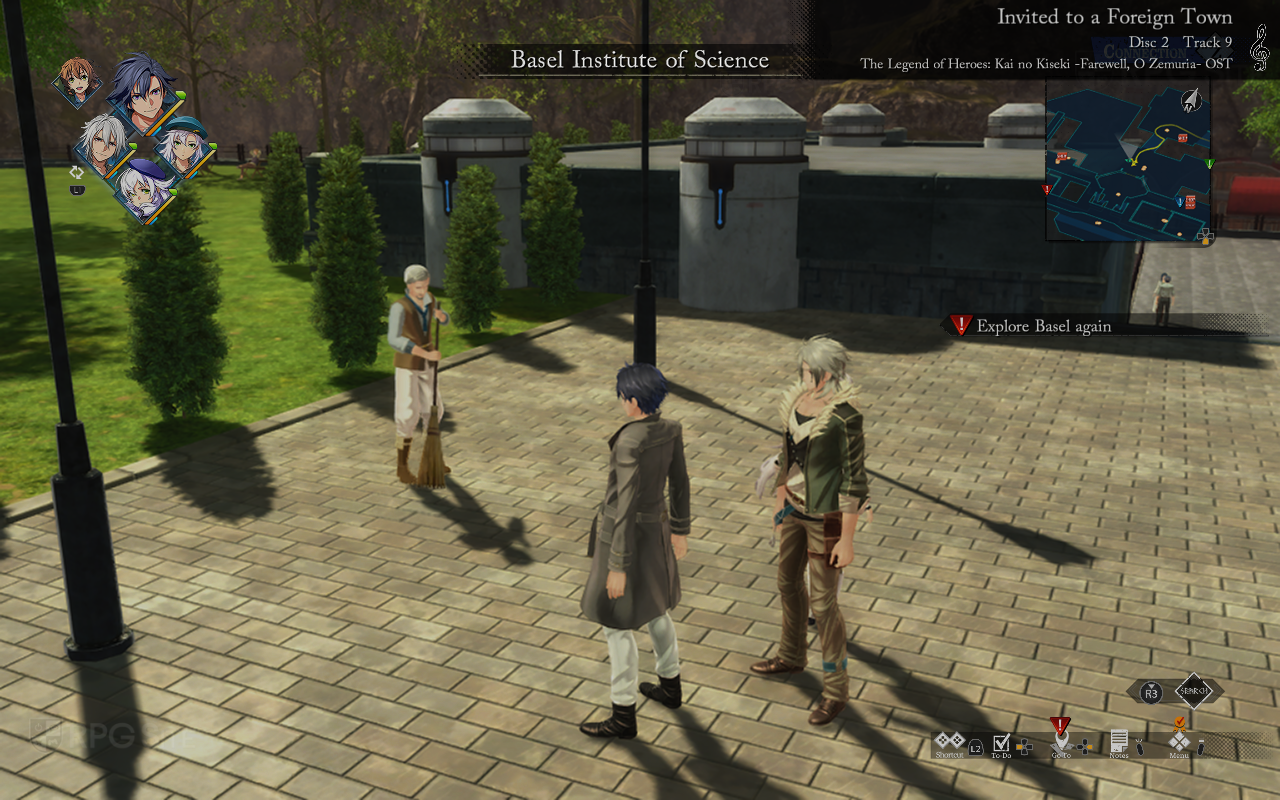
To hit 60 frames per second, the game requires a bit of tweaking. With the performance graphics settings, TAA anti-aliasing enabled, and the render scale set to 80%, it mostly maintains a steady 60fps. There are occasional drops during scenes with a lot of particles, but overall, playing on the Steam Deck OLED with its screen set to 60Hz provides a good 60fps experience without significantly sacrificing visual quality.
Trails beyond the Horizon ROG Ally impressions
When running in its 25W mode, the ROG Ally generally performs better than the Steam Deck in Trails beyond the Horizon. To consistently hit 60 frames per second, you’ll need to lower the rendering resolution slightly. However, if you’re comfortable with around 50fps, you can play at 1080p resolution, with performance only noticeably dropping in areas crowded with characters. I also tested the ROG Ally with an ultrawide monitor, and it worked well, though I did encounter some minor Steam screenshot issues related to Windows 11.
If you’ve enjoyed previous Trails games on your ROG Ally, Trails beyond the Horizon offers another well-made and comprehensive PC experience.
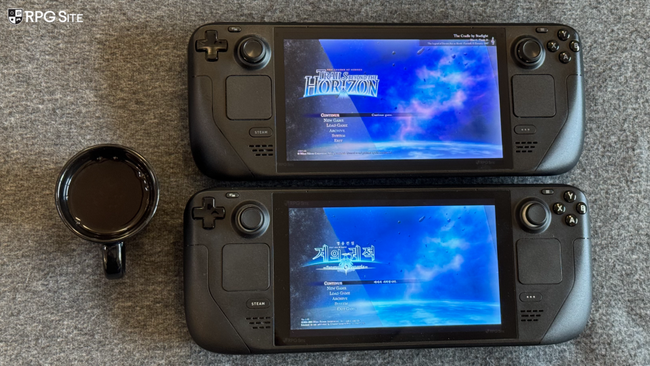
Trails beyond the Horizon NIS America vs Clouded Leopard Entertainment PC ports
Currently, the only thing missing from the PC release of Trails beyond the Horizon (PH3) is support for AMD’s upscaling technologies, FSR and XeSS. If you have an Nvidia or Intel graphics card, you’re already covered with DLSS and XeSS. While the CLE version and Steam Deck do have FSR and XeSS, they don’t offer the same improvements and extra features found in the main PC release, as I discussed earlier.
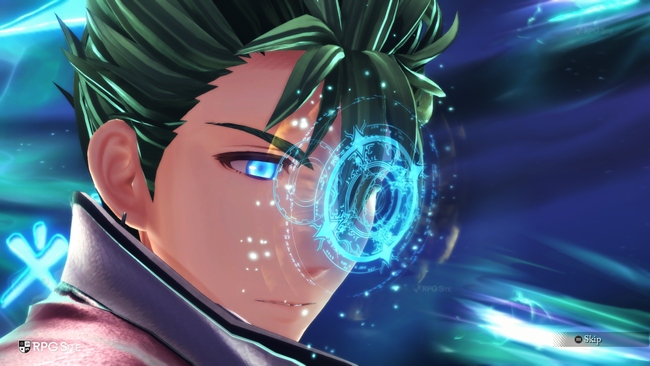
The PC version of The Legend of Heroes: Trails beyond the Horizon is exceptionally well-made, continuing the high quality we’ve come to expect from PH3. It’s shaping up to be one of the best PC ports of 2026, following Trails Through Daybreak II which was the best of 2024. I’m excited to see how Falcom handles the PC release of Ys X: Proud Nordics, and I hope the upcoming Trails in the Sky 2nd Chapter benefits from more PC-specific improvements than just better resolution and frame rates. Playing Trails beyond the Horizon reminded me how much I appreciated the unique features available in the PC version, something that was missing from my experience with the first Trails in the Sky game.
The Legend of Heroes: Trails beyond the Horizon will be available on January 15, 2026 for PlayStation 4, PlayStation 5, Nintendo Switch, Nintendo Switch 2, and PC via Steam.
Read More
- United Airlines can now kick passengers off flights and ban them for not using headphones
- Crimson Desert: Disconnected Truth Puzzle Guide
- How to Get to the Undercoast in Esoteric Ebb
- All Golden Ball Locations in Yakuza Kiwami 3 & Dark Ties
- All 9 Coalition Heroes In Invincible Season 4 & Their Powers
- Katanire’s Yae Miko Cosplay: Genshin Impact Masterpiece
- All Itzaland Animal Locations in Infinity Nikki
- Zendaya’s 4 Big 2026 Movies Could Beat Brie Larson’s Box 2019 Office Record
- HBO’s Harry Potter Is Already Breaking My Heart
- Pokemon Champions producer says 10,000 Pokemon could be the franchise’s future
2026-01-08 17:08