The first two Nioh games were initially released on PlayStation 4 and later brought to PC. Now, with Nioh 3, Koei Tecmo and Team Ninja are launching the game on both PlayStation 5 and Steam at the same time. I’ve had the chance to play both the Steam and PS5 versions before release to test how well they run on handheld devices and to assess the initial PS5 experience. I was particularly interested in whether the PC version would be playable on handhelds given its system requirements, and if the PS5 version could consistently deliver a smooth 60 frames per second. This article will cover both versions, but I’ll be focusing mainly on the Steam release.
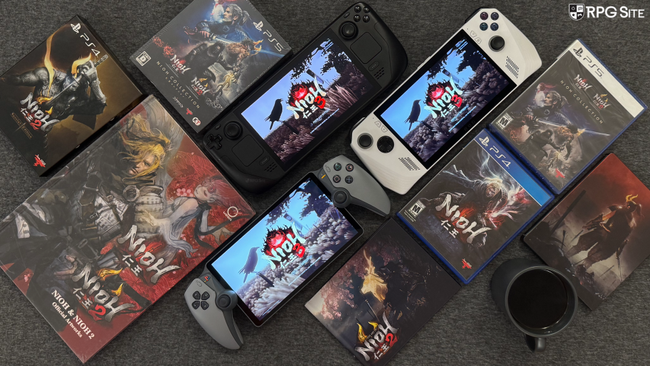
Nioh 3 PC graphics options and features in the final game
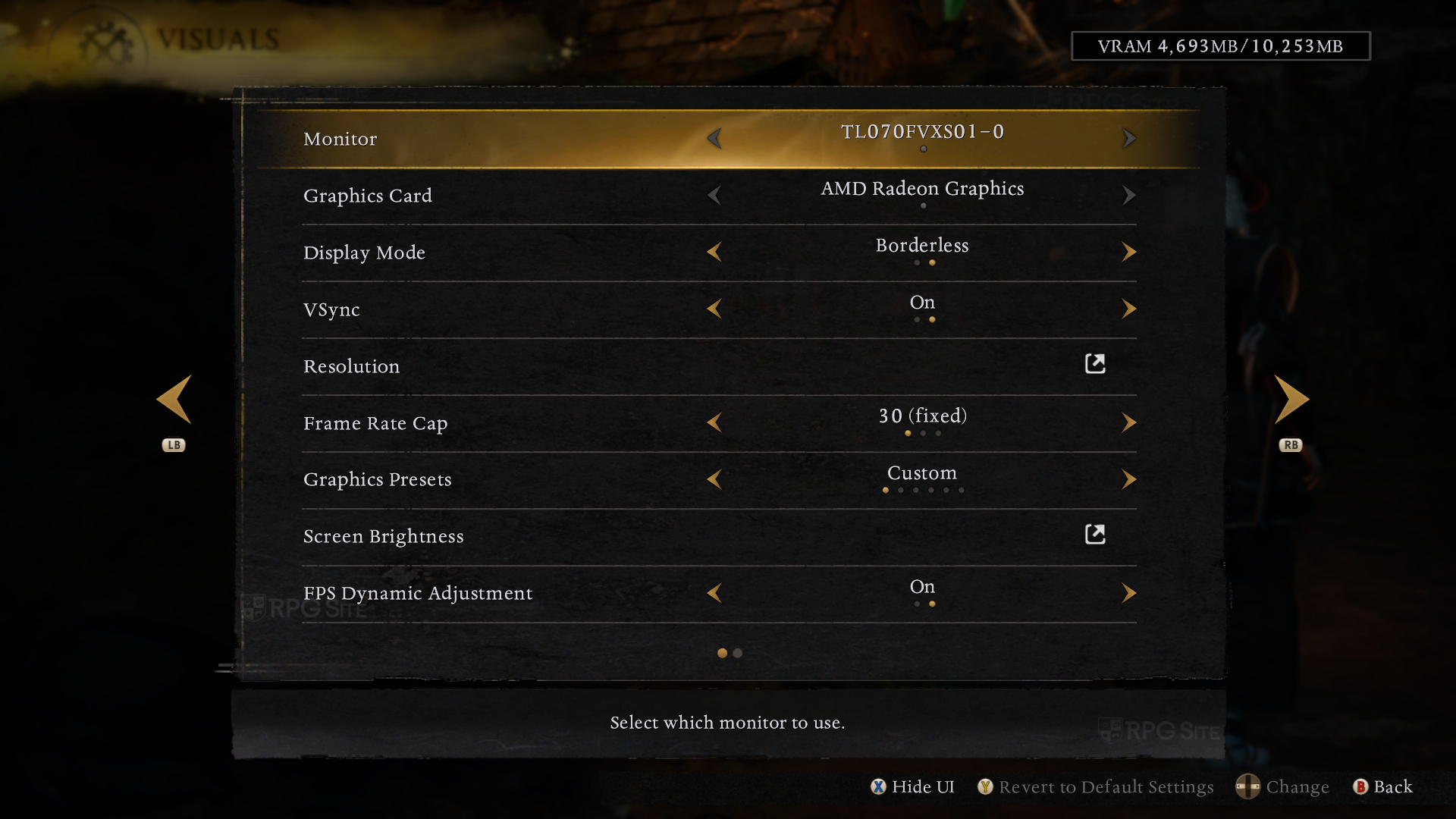
Before looking at how the game runs on handheld devices, let’s talk about the visual options on the PC version of Nioh 3. While there are plenty of settings to tweak, they’re spread across several menus instead of being neatly organized. You’ll find graphics and display options together in the ‘Visuals’ tab of the system menu. Here, you can change your monitor, choose between windowed or fullscreen modes, turn v-sync on or off, set the resolution (including upscaling options), and cap the frame rate at 30, 60, or 120 FPS. You can also select a graphics preset, adjust screen brightness, and enable dynamic FPS adjustment which automatically lowers the frame rate cap to keep the game running smoothly. HDR support, post-effects, and advanced visual settings are also available. The game constantly displays how much video memory (VRAM) is being used. Plus, you can hide the on-screen interface to see the effects of your changes in real time.
Here’s something important to know about Nioh 3: its frame rate cap works differently than in most games. Instead of simply limiting the frame rate, the game actually slows down if it can’t maintain your desired speed. You might have a smooth start when you begin a new game, but performance can drop when you enter the first open area if your computer isn’t powerful enough to handle it.
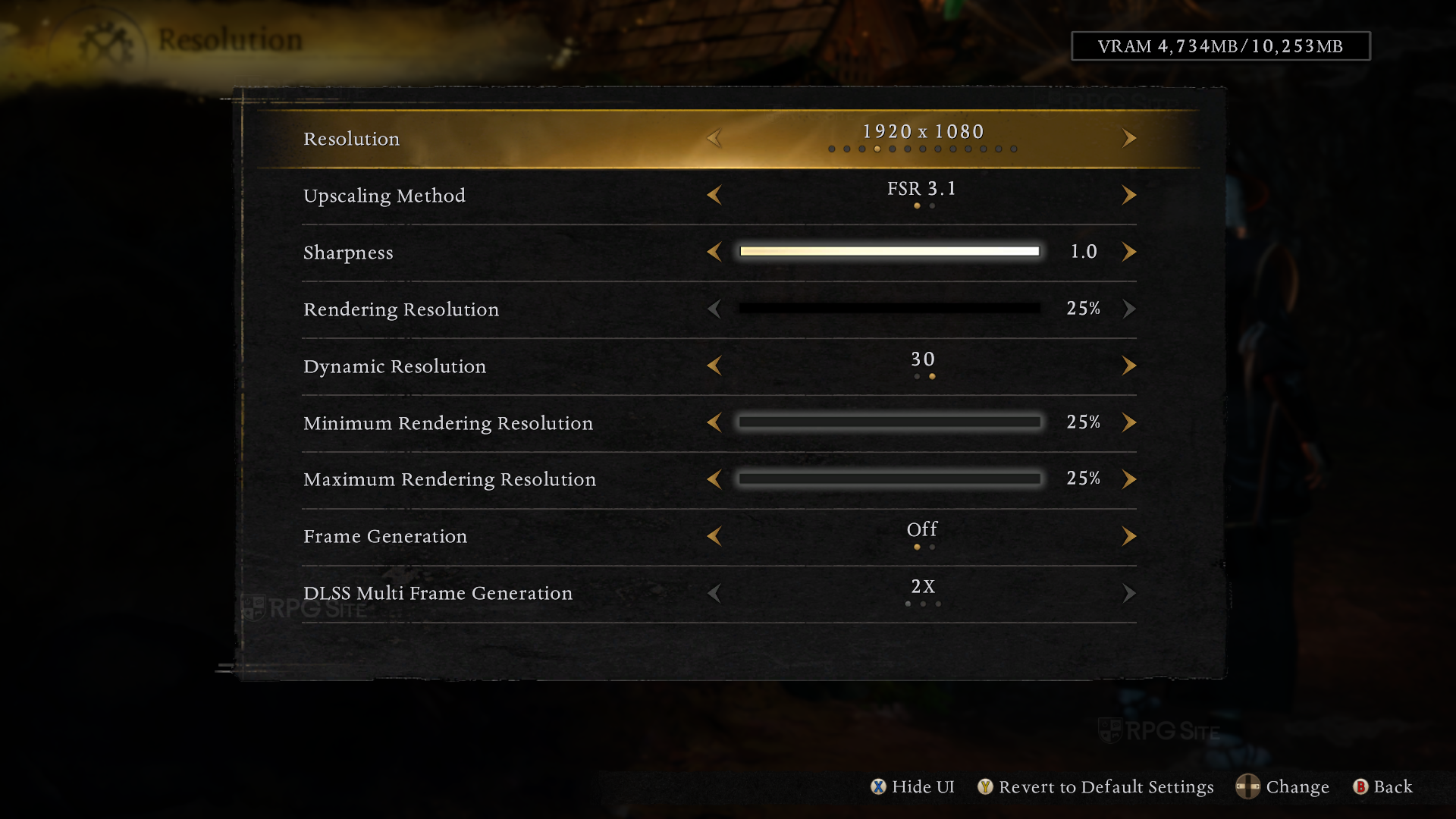
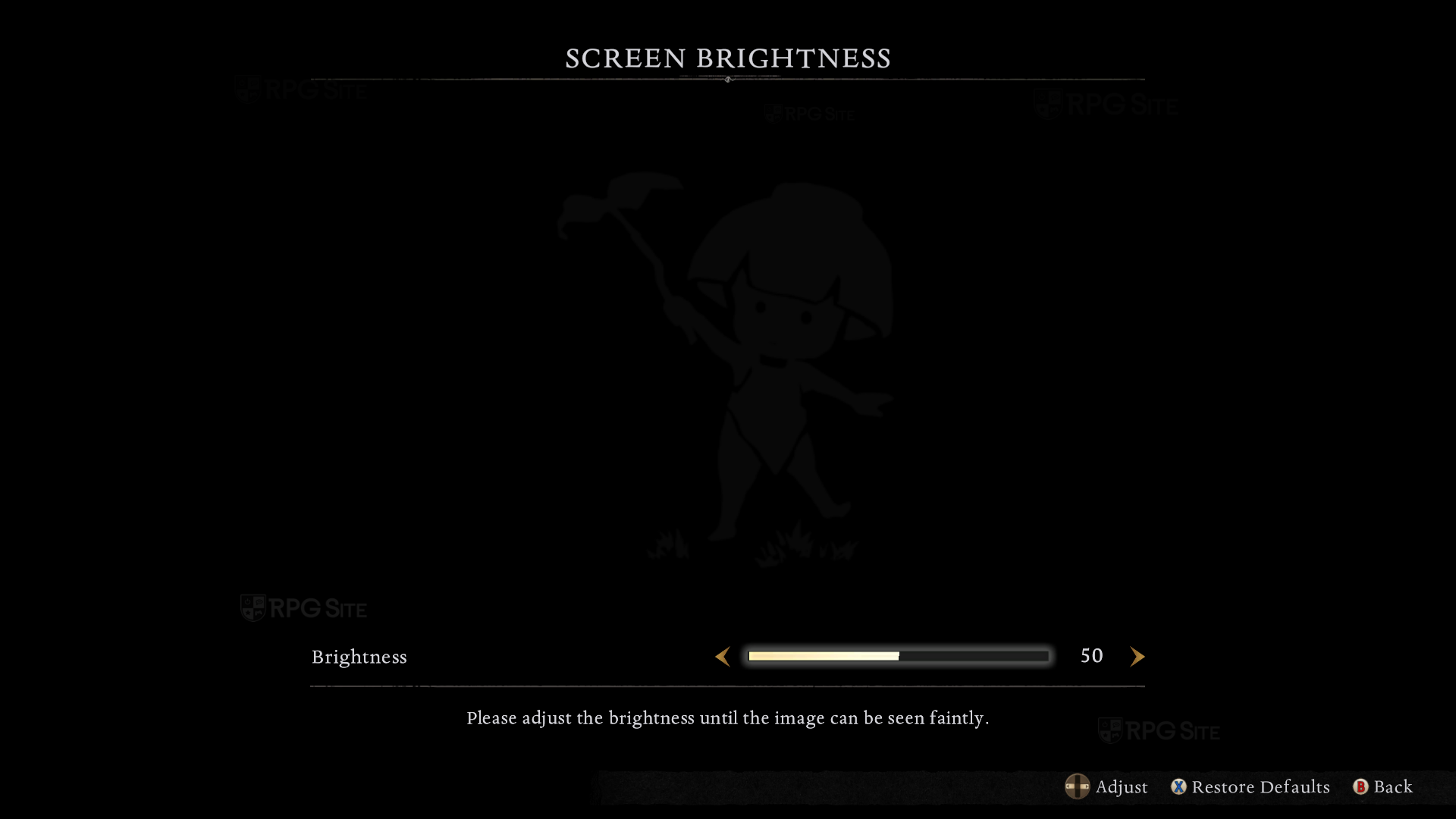
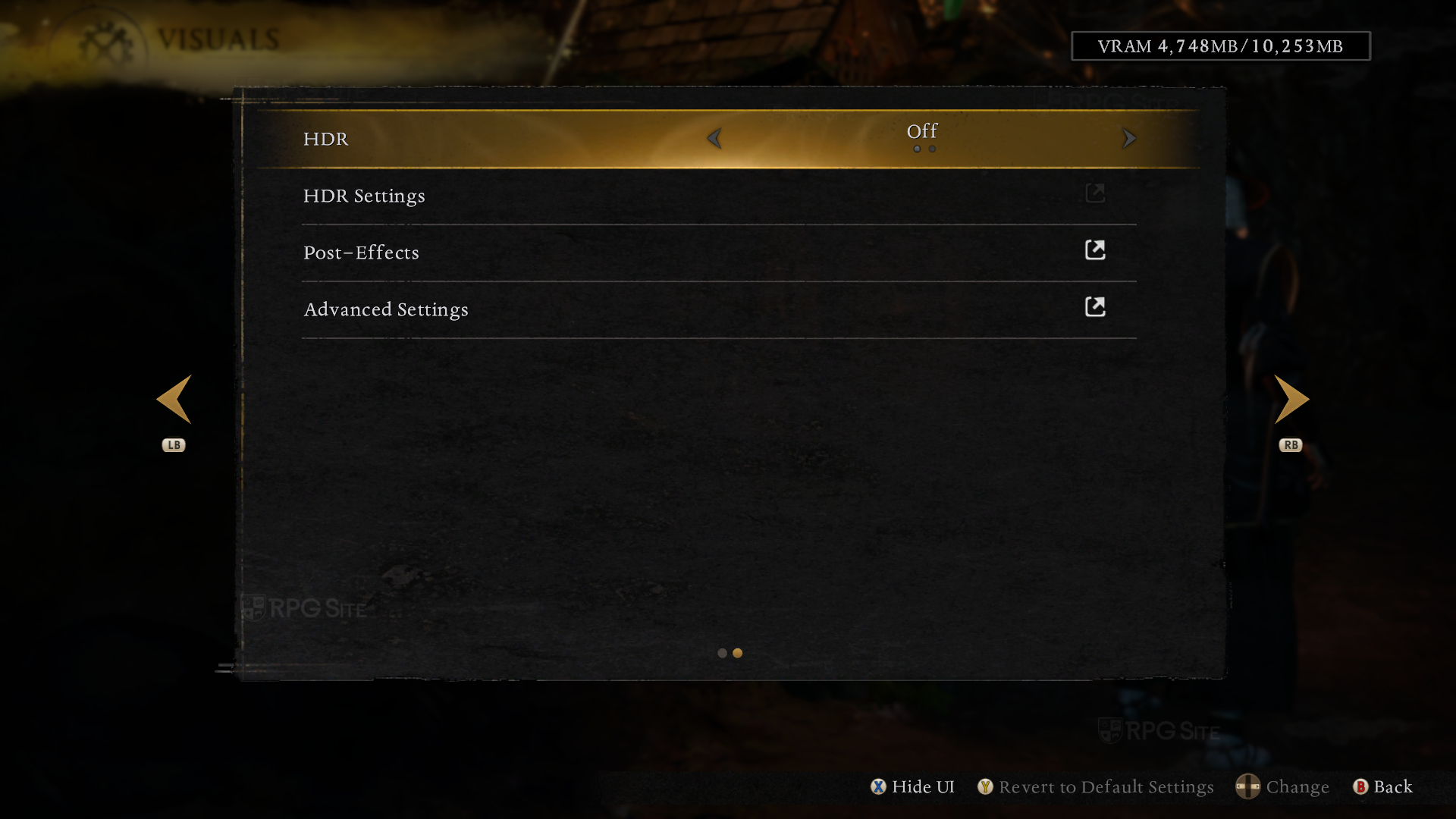
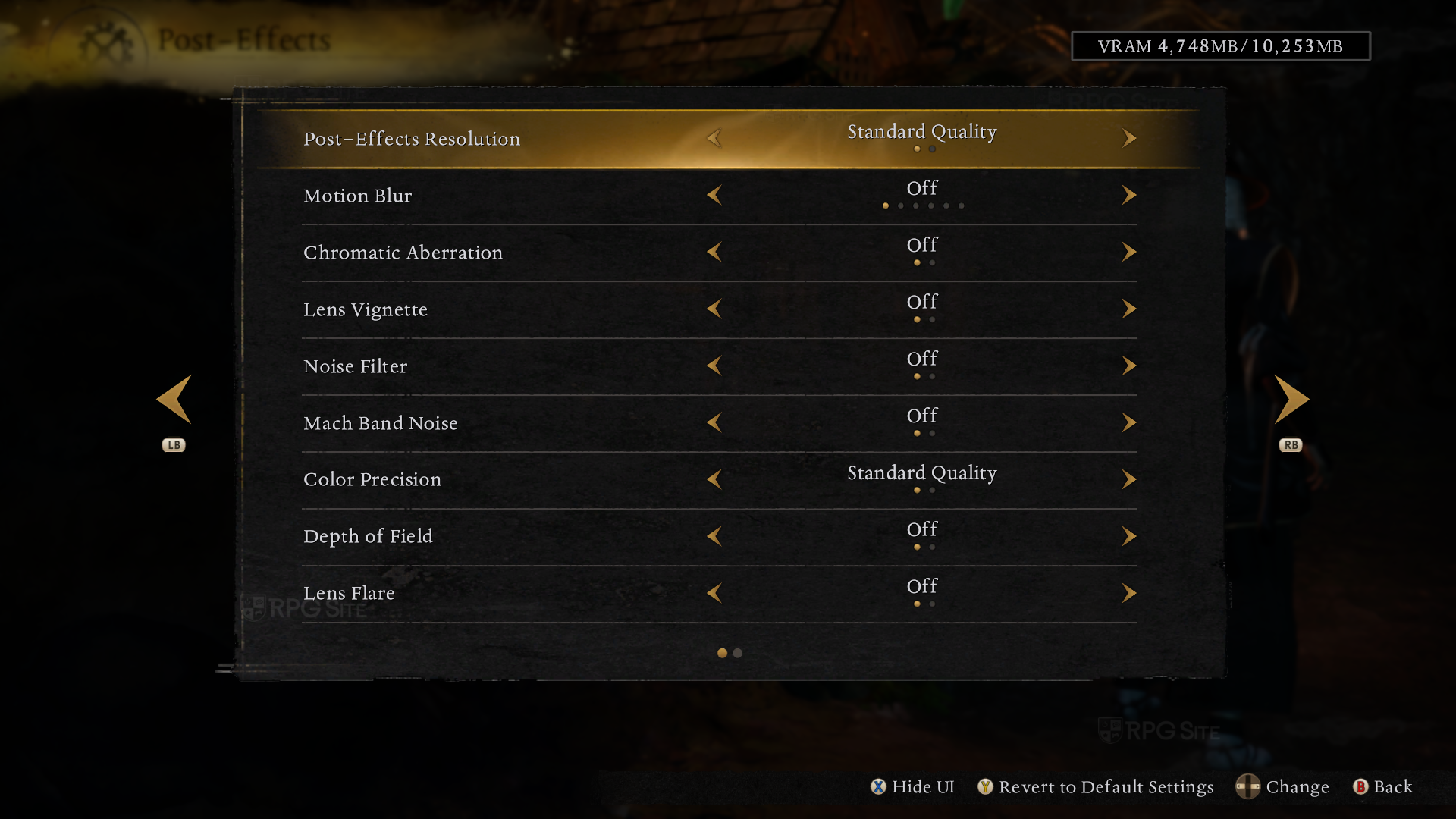
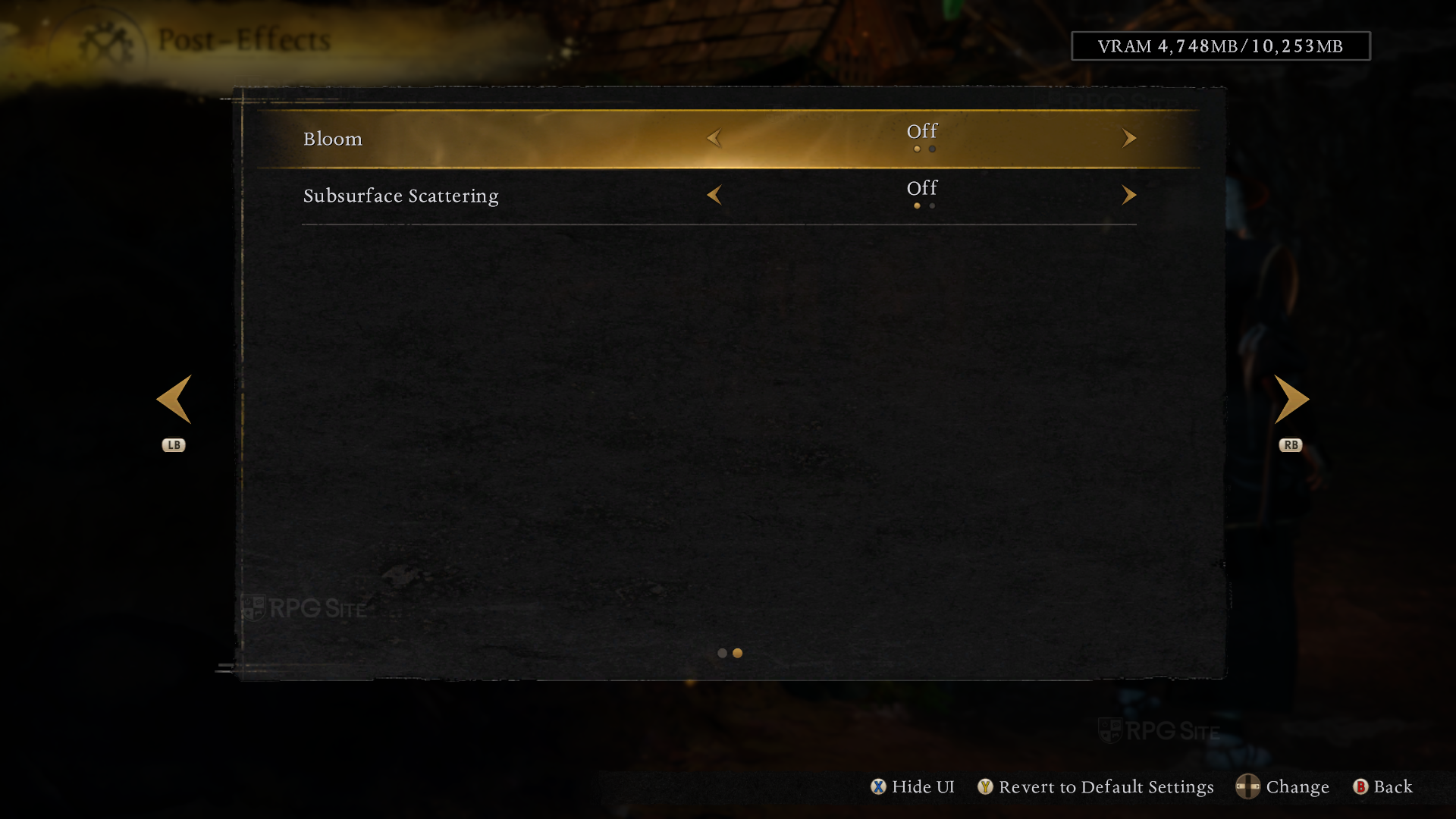
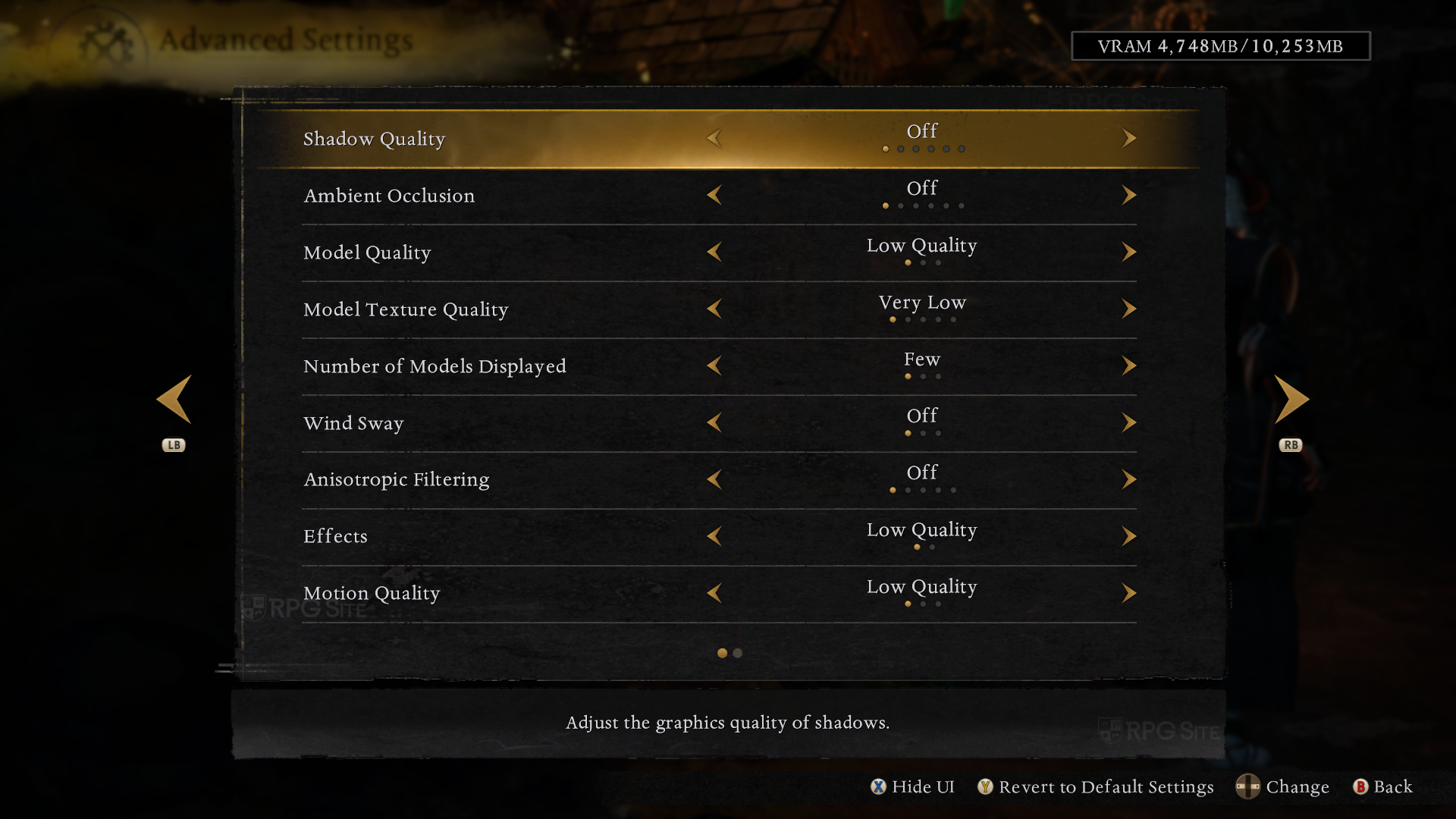
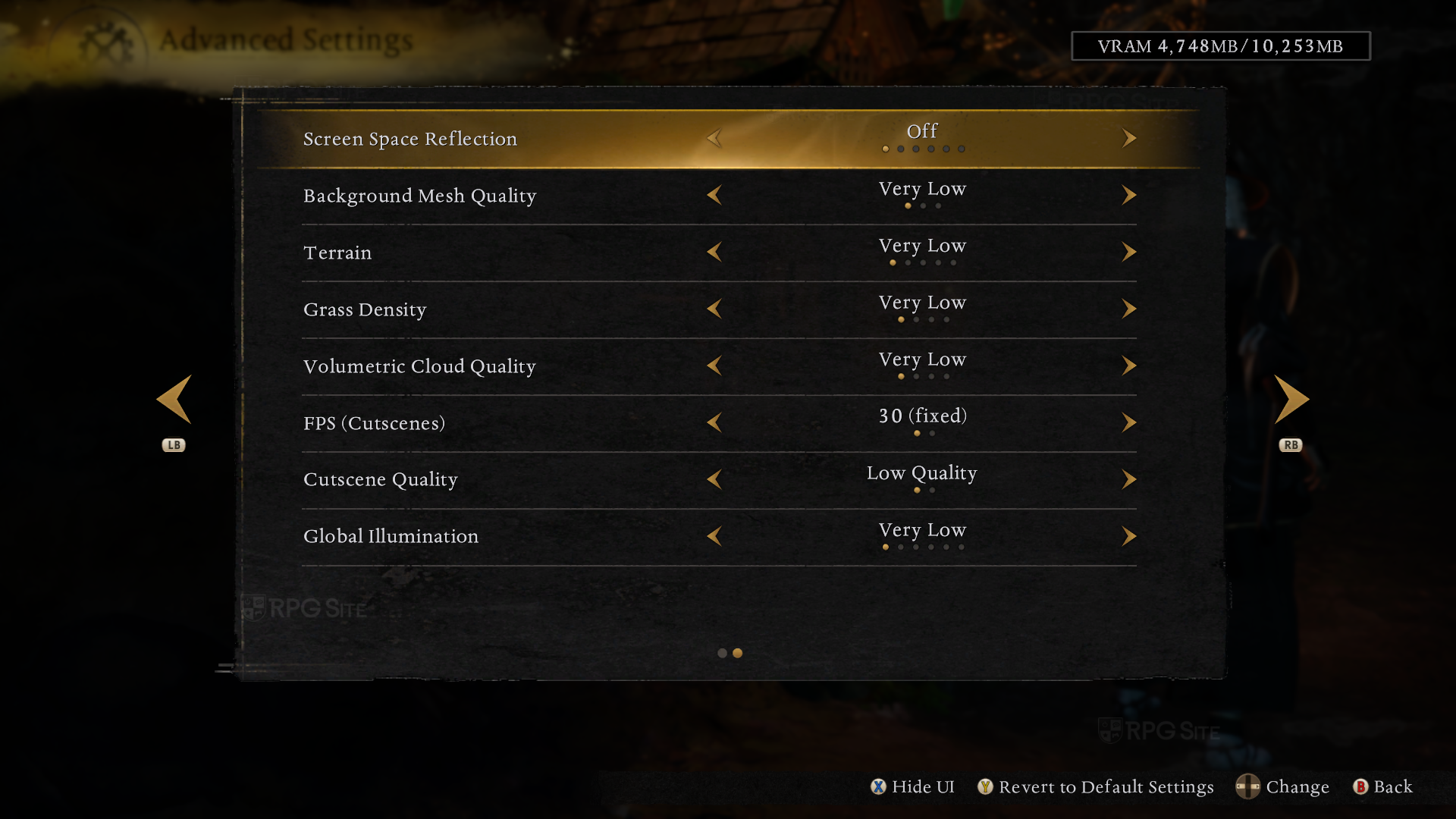
Nioh 3 offers a lot of options to customize how the game looks. You can change the resolution from 720p to 4K, and it supports ultrawide monitors (21:9 and 32:9). You can also choose different upscaling technologies like FSR 3.1, XeSS 2.0, and DLSS 4.0 to improve performance, and fine-tune the image sharpness. The game also has features like dynamic resolution scaling to keep the frame rate smooth, and options to enable frame generation technologies like DLSS Multi Frame Generation.
The Post-Effects menu allows you to change visual enhancements like blur, color distortion, and lighting effects such as bloom and shadows. The Advanced Settings menu lets you fine-tune the overall visual fidelity by adjusting details like shadow quality, texture resolution, the number of objects displayed, and the quality of effects like clouds and reflections. You can also control performance by adjusting settings like the frame rate and quality of cut-scenes.
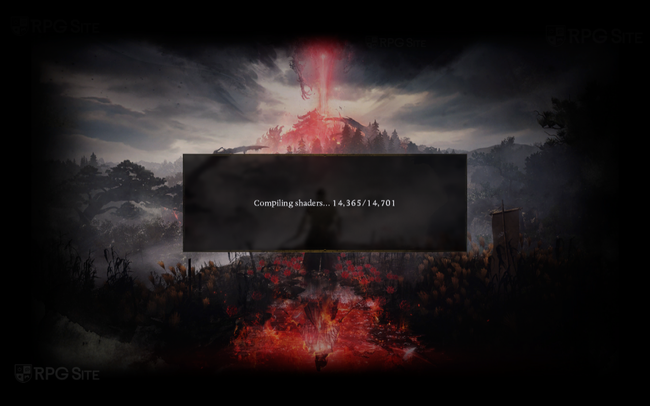
Nioh 3 takes a little while to prepare its graphics when you first launch it, and does this again each time you start the game, but it’s quick after the initial load. Although I wasn’t playing on a standard gaming PC, I didn’t experience the typical stuttering problems related to graphics processing while playing on the ROG Ally.
Nioh 3 Steam Deck full game impressions
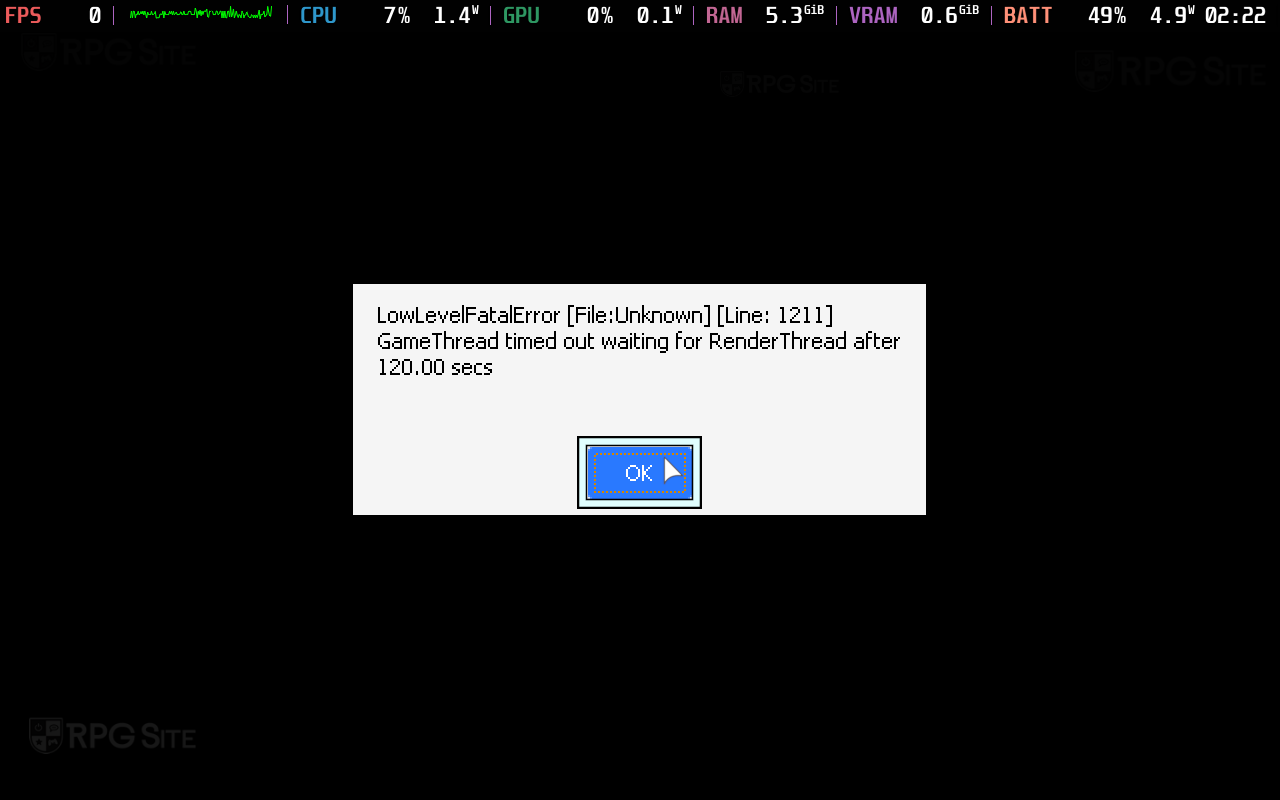
Before you start playing on Steam Deck, avoid turning on frame generation – it will cause the game to crash and become unplayable. Fixing this requires deleting a file, which is tricky on the Deck, or reinstalling the game (though that didn’t work for me on one of my devices). Unfortunately, Nioh 3 isn’t really playable on Steam Deck at all. While it does start up, it struggles to reach even 30 frames per second, even in the very first area. Given this performance, I don’t recommend trying to play it natively on the Steam Deck. Streaming it from a PC is an option, but overall, I wouldn’t bother running this game on the Deck right now.
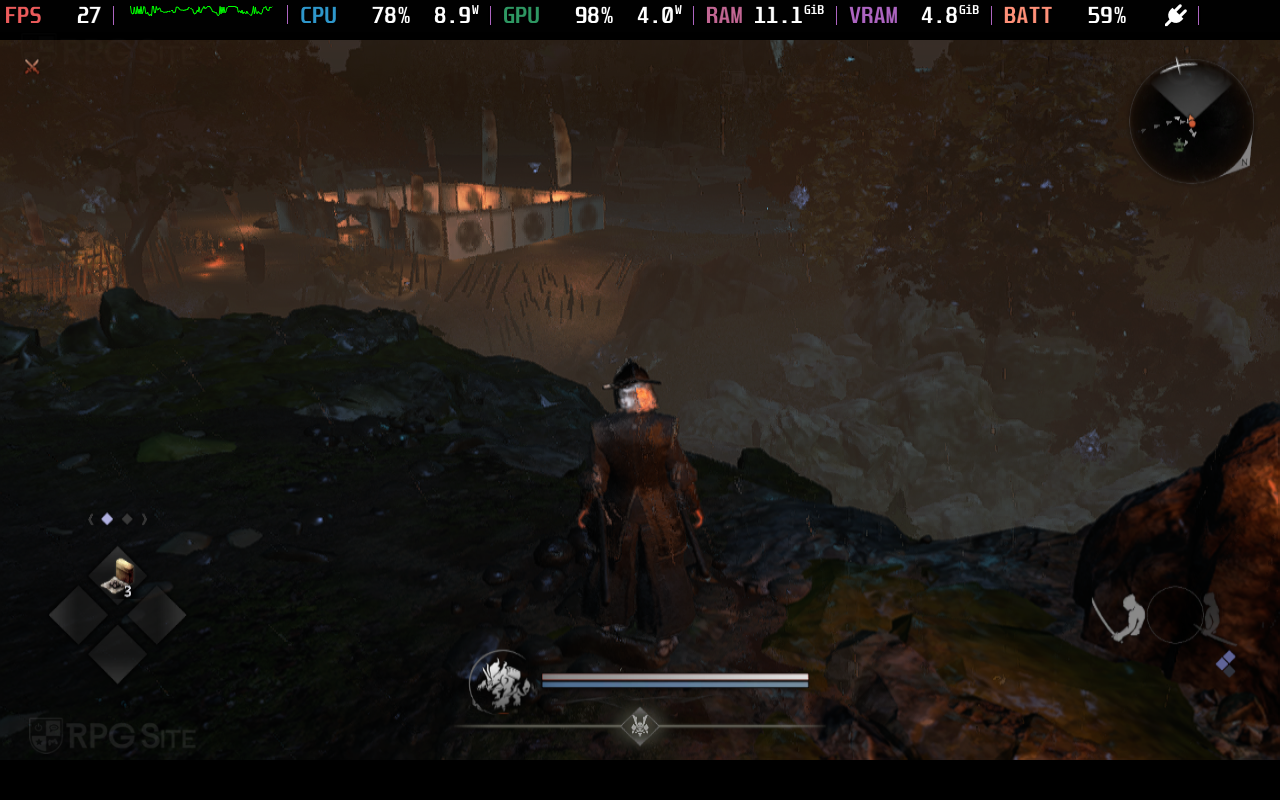
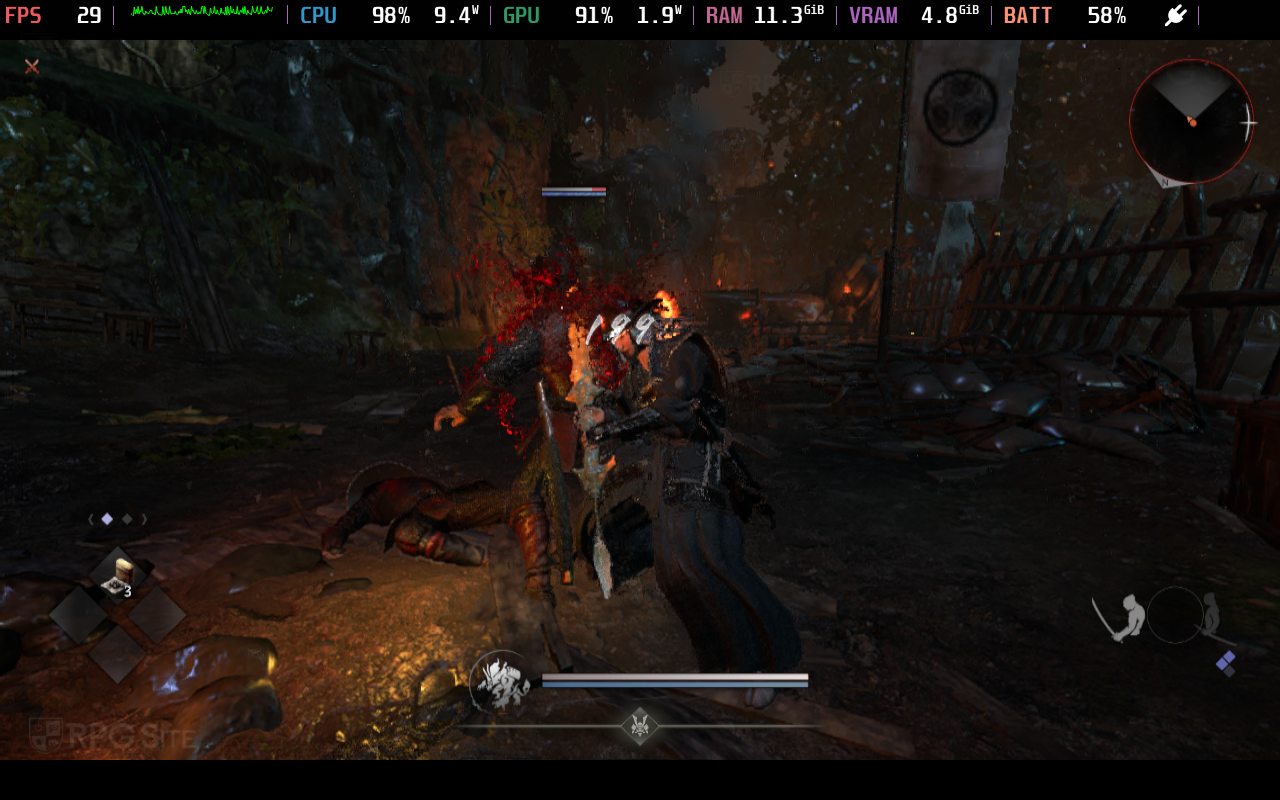
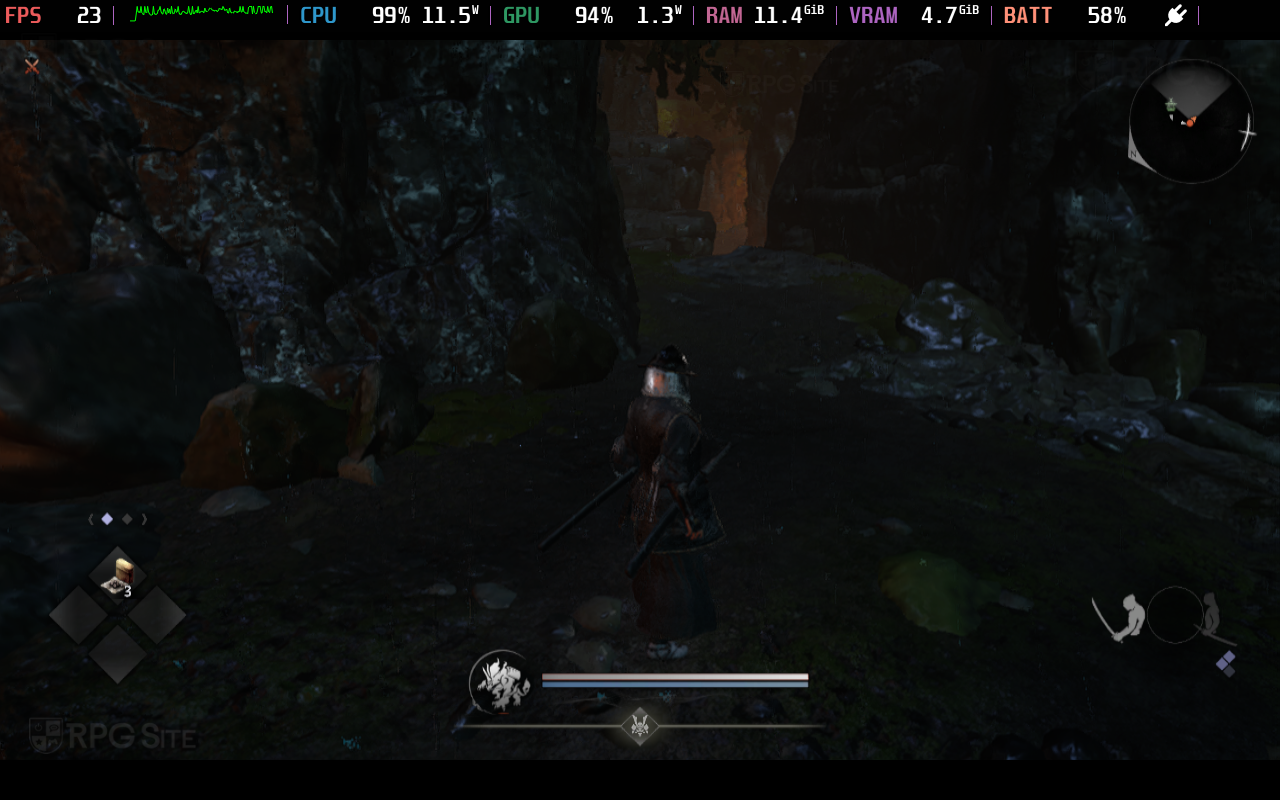
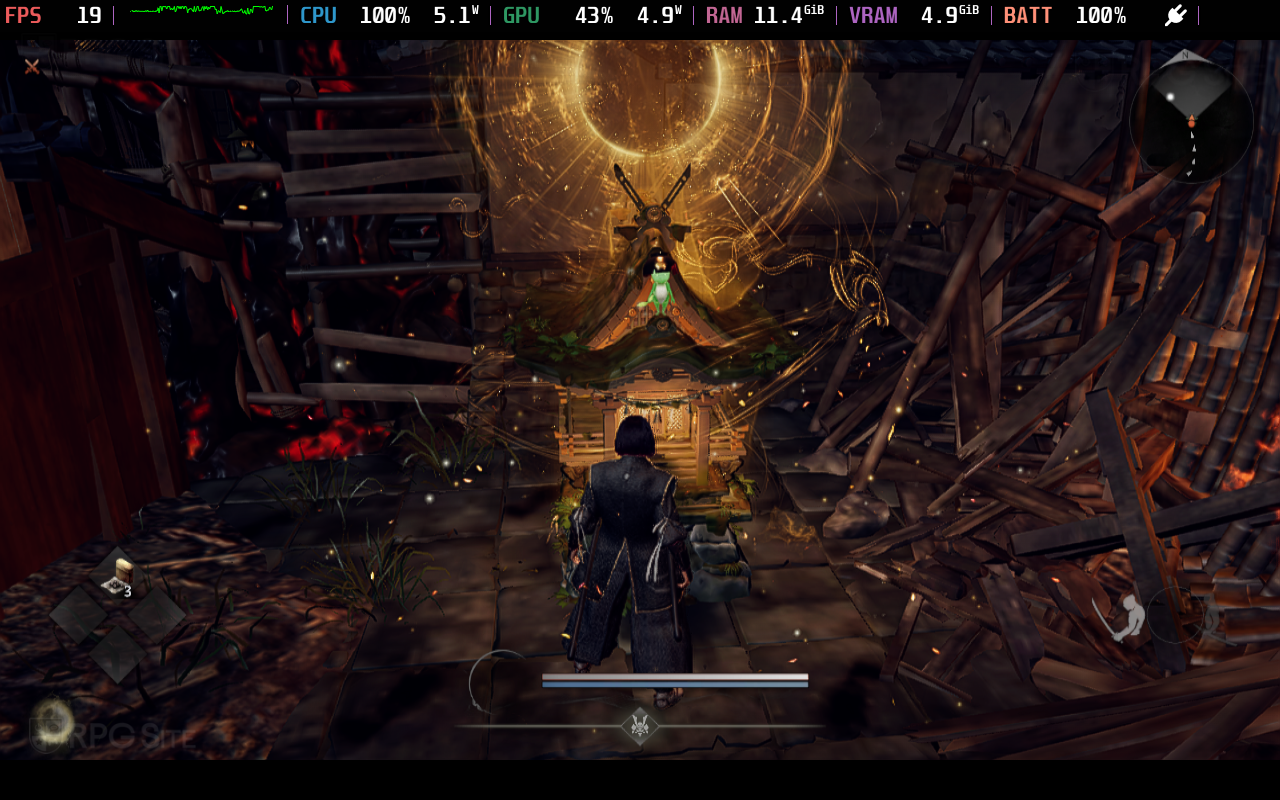
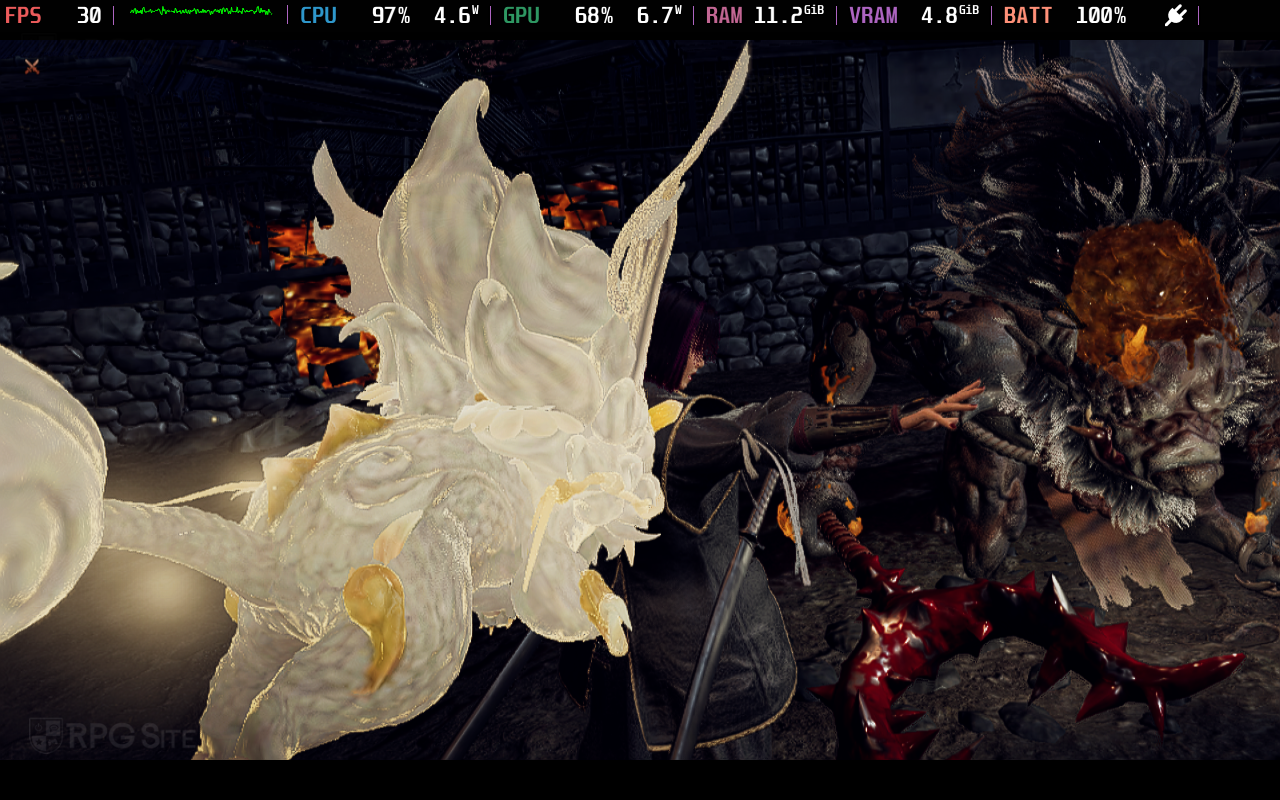
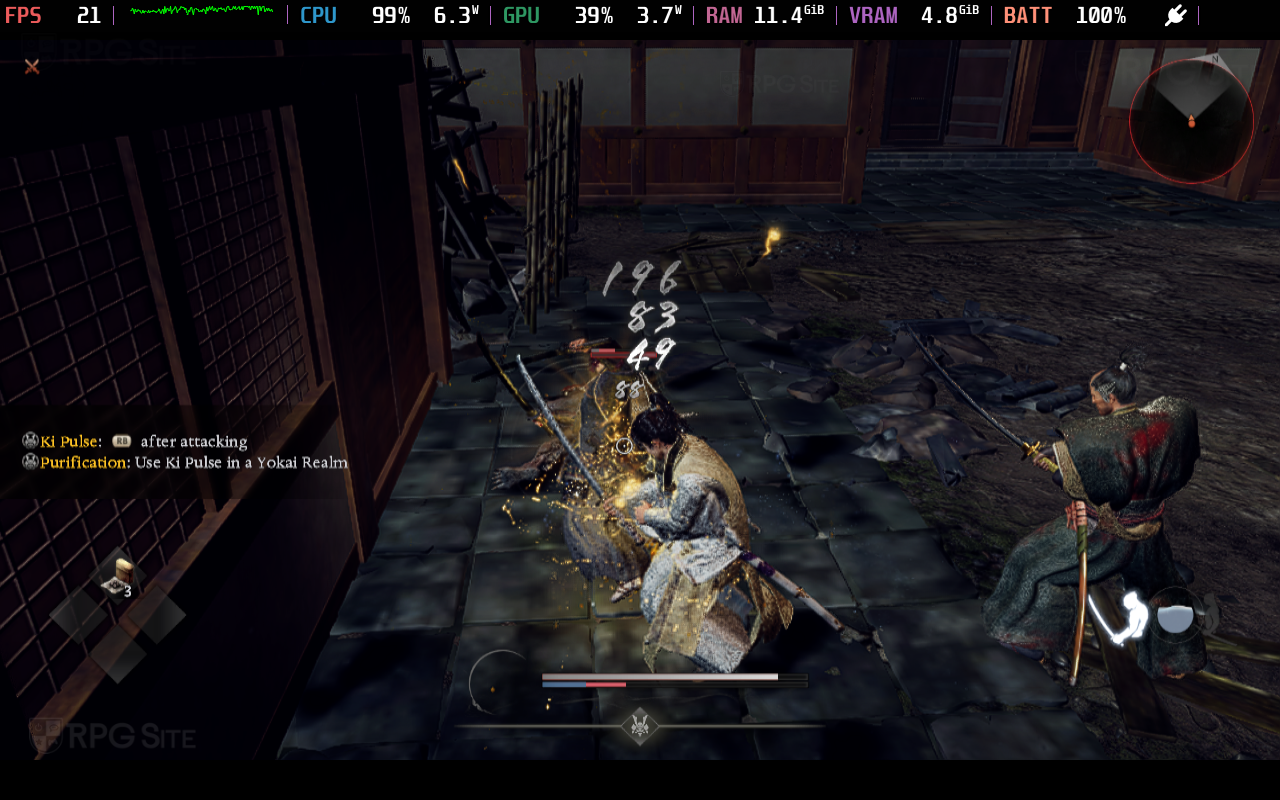
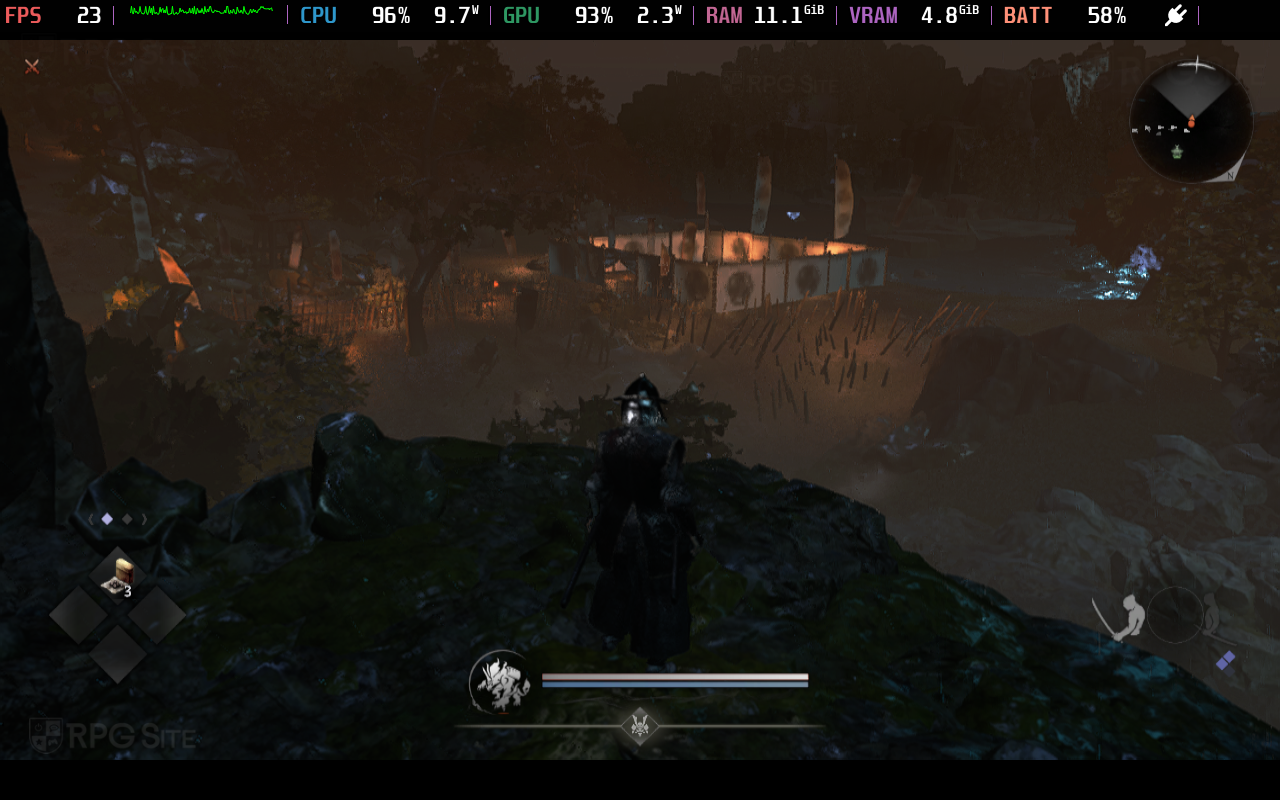
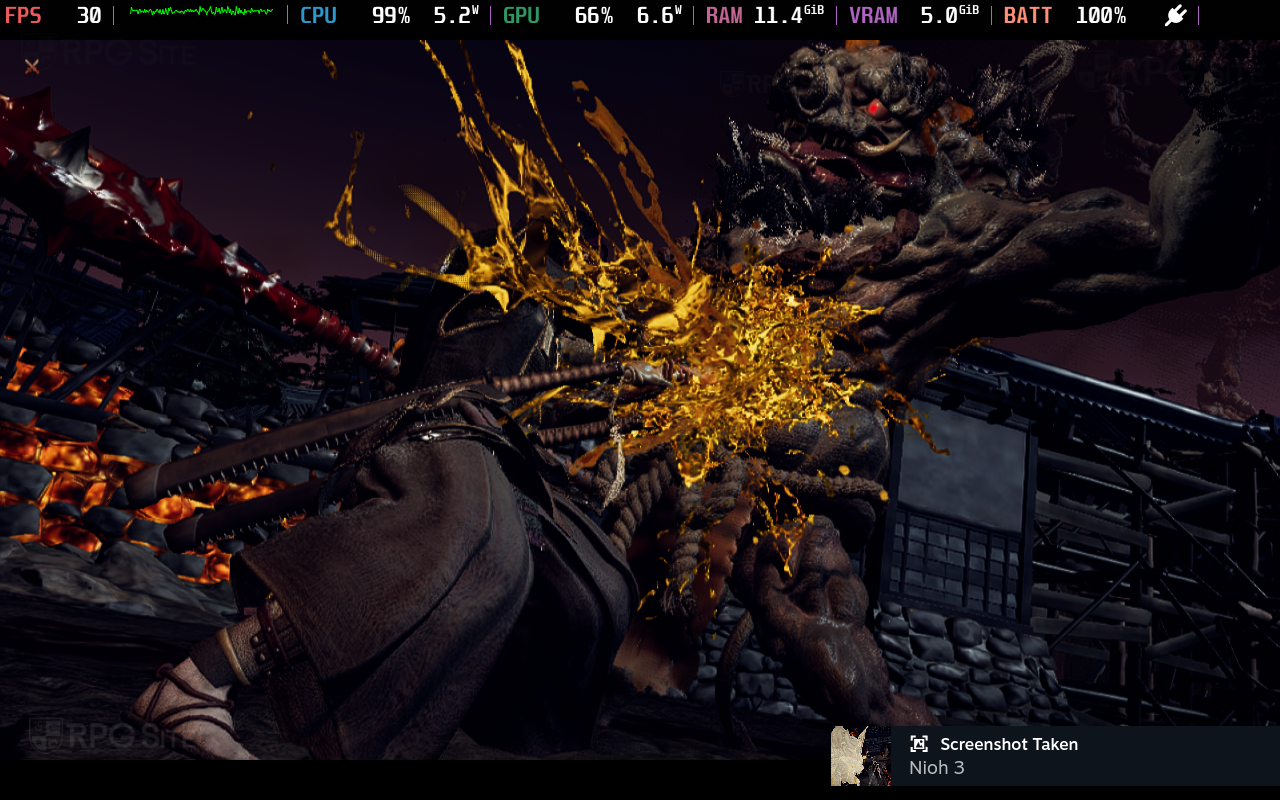
A significant problem with Nioh 3 is that the game’s speed will decrease if it can’t maintain your chosen frame rate. For example, if you select 30 frames per second but the game actually runs around 20fps, the gameplay will slow down. I’ve found this also happens at 60fps – if your computer struggles and the game drops closer to 30fps, the speed will noticeably decrease.
Considering the game’s demanding PC requirements, I was hoping for at least 30 frames per second with upscaling, but it doesn’t even get close. I also won’t use frame generation because it’s not effective when the base frame rate is already so low.
Nioh 3 Steam Deck full game recommended settings
I currently advise against playing Nioh 3 on the Steam Deck. It’s not a good experience right now. I’ll revisit this recommendation if the game receives updates that improve performance on the device, but until then, it’s best to avoid it.
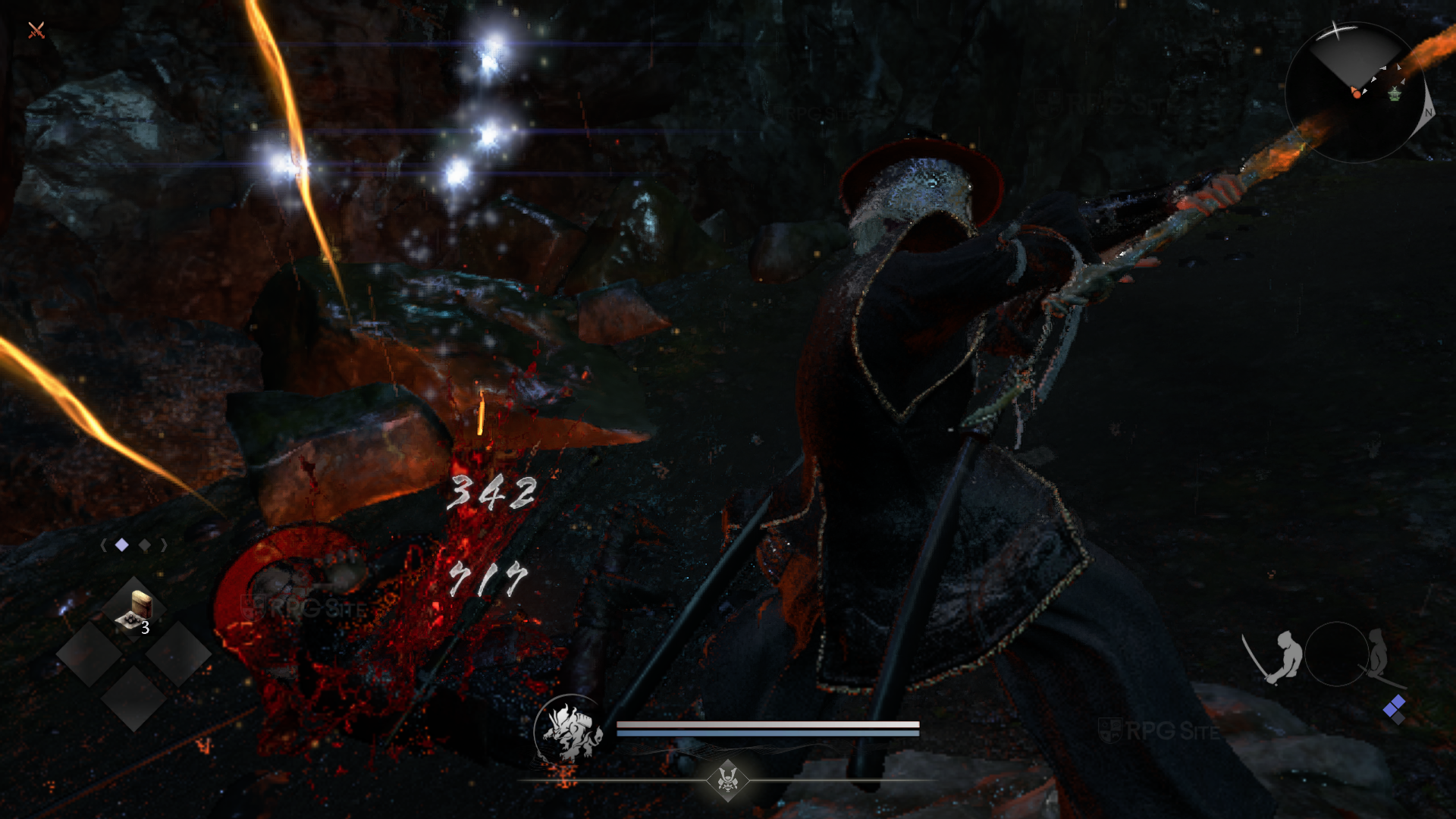
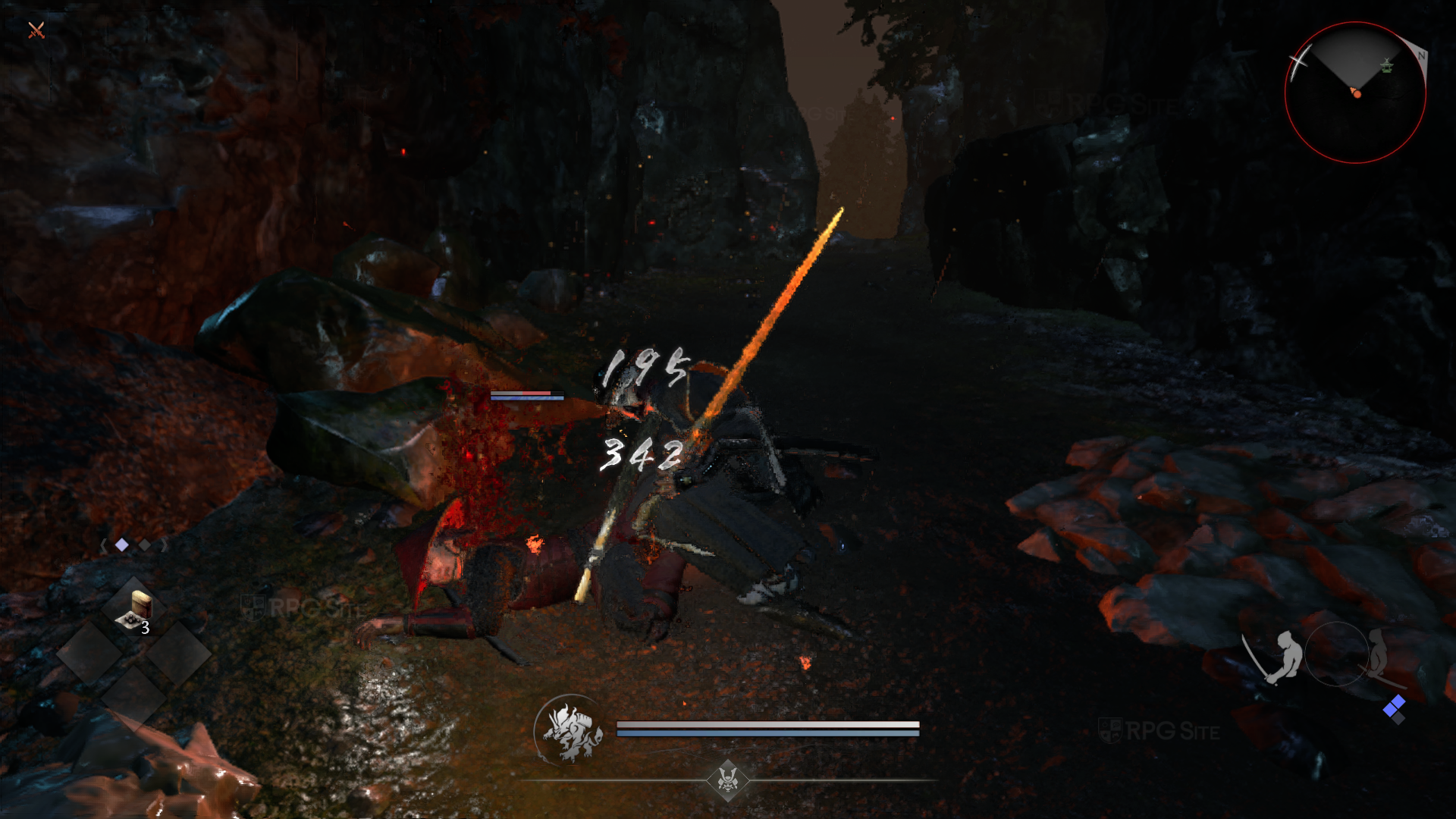
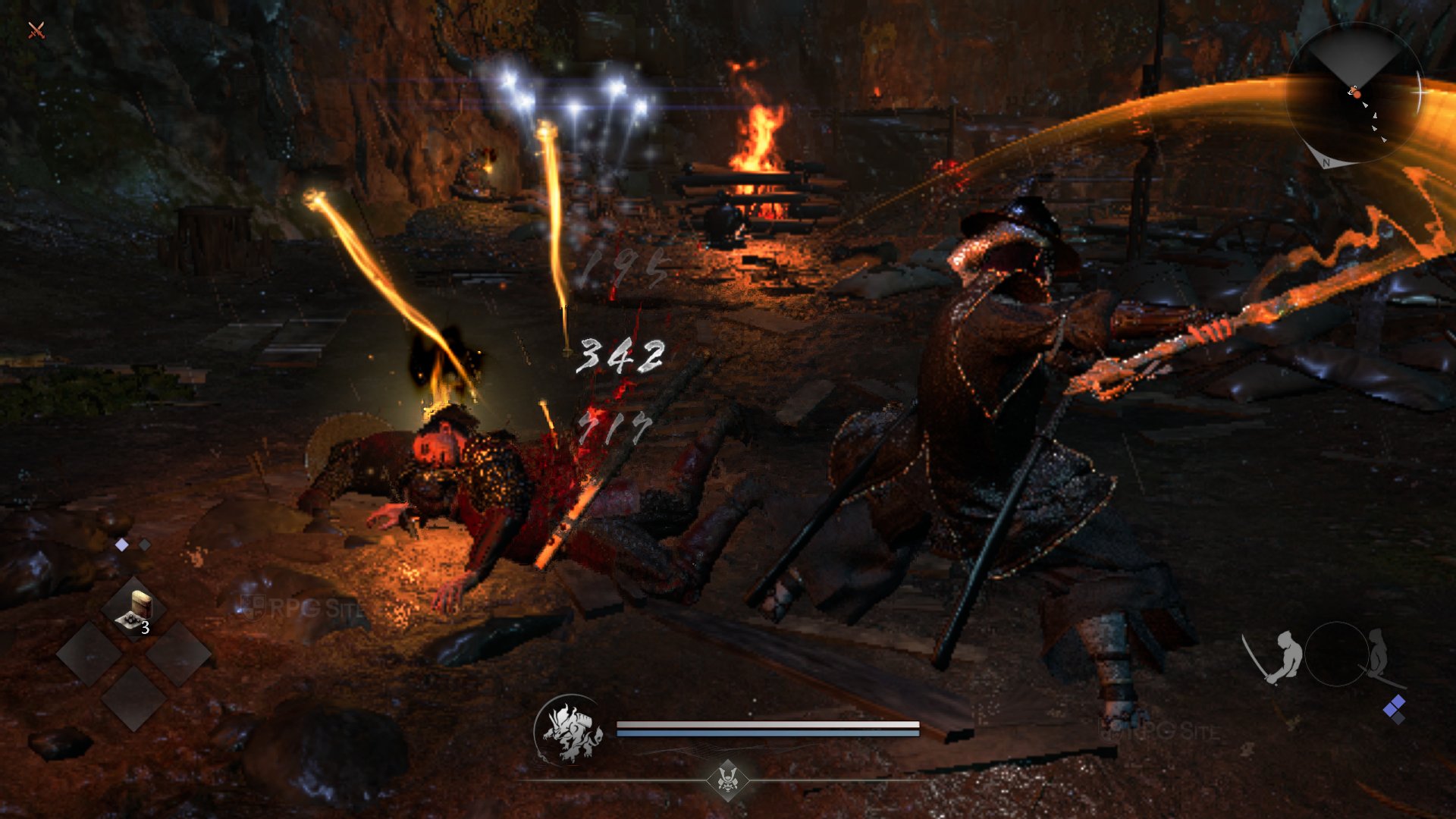
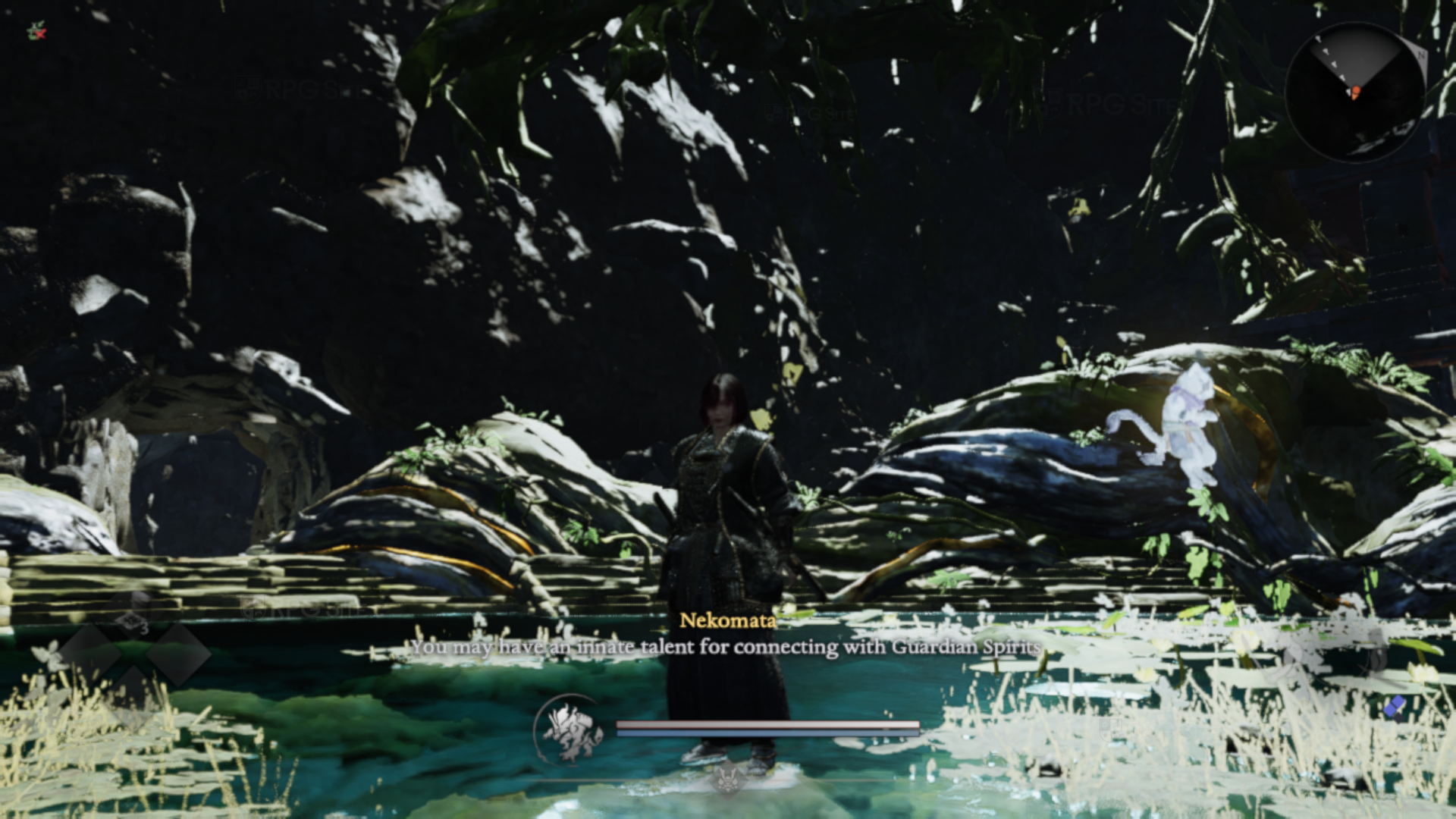
Nioh 3 ROG Ally full game impressions — more playable than Steam Deck
Playing Nioh 3 on my ROG Ally Z1 Extreme is noticeably smoother than on the Steam Deck right away. Initially, I was getting between 40 and 50 frames per second, but I prioritized a consistent experience and limited the frame rate to 30fps. I used the 25W Turbo Mode and allocated 6GB of memory to the graphics card, matching the game’s minimum requirements. For the best performance, I recommend setting a fixed 30fps frame rate, playing at 1080p resolution with FSR 3.1 enabled, and using dynamic resolution with a range of 25% to 100%. I also turned all advanced settings and post-effects down to their lowest options. After about eight hours of testing, this setup provides a consistently stable frame rate, although the lighting quality is reduced. I didn’t bother testing the 15W power mode because even with the 25W mode and these low settings, achieving a stable 30fps with acceptable visuals was already a challenge.
If you’re thinking of playing Nioh 3 on your ROG Ally Z1 Extreme, I suggest downloading the free demo first. Try my settings to see if the graphics look good to you. Keep in mind the game gets more challenging after the initial tutorial, so don’t make a final decision until you reach the first open area. You’ll get a notification after the first boss explaining the co-op features, and that’s a good point to see how well the game is actually running. Before then, it’s not as demanding.
Nioh 3 PS5 full game impressions
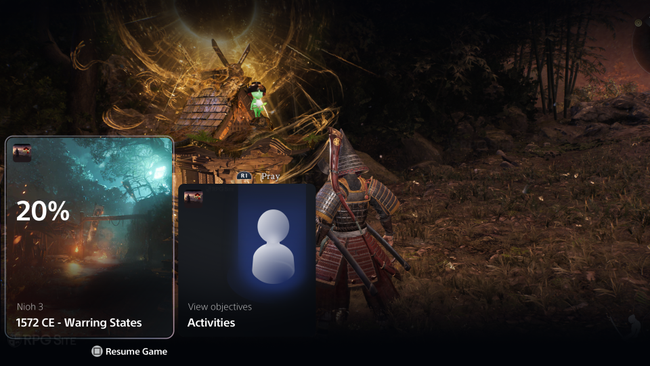
Playing Nioh 3 on the standard PS5 was a significant improvement over my experience on PC handhelds. The game ran smoothly in performance mode during my playtime, and the DualSense controller’s haptics added a lot to the experience. Loading times were also very fast. The PS5 version offers a choice between prioritizing frame rate and visual quality, and I consistently used the frame rate option. While the frame rate was good, some visual details were reduced, like the animation of characters in the distance. I played on a 1440p monitor, and the image quality was decent, though not spectacular. Considering the game’s large open areas and the engine it uses, this wasn’t entirely unexpected. I appreciate that Team Ninja focused on achieving a smooth frame rate with this setting.
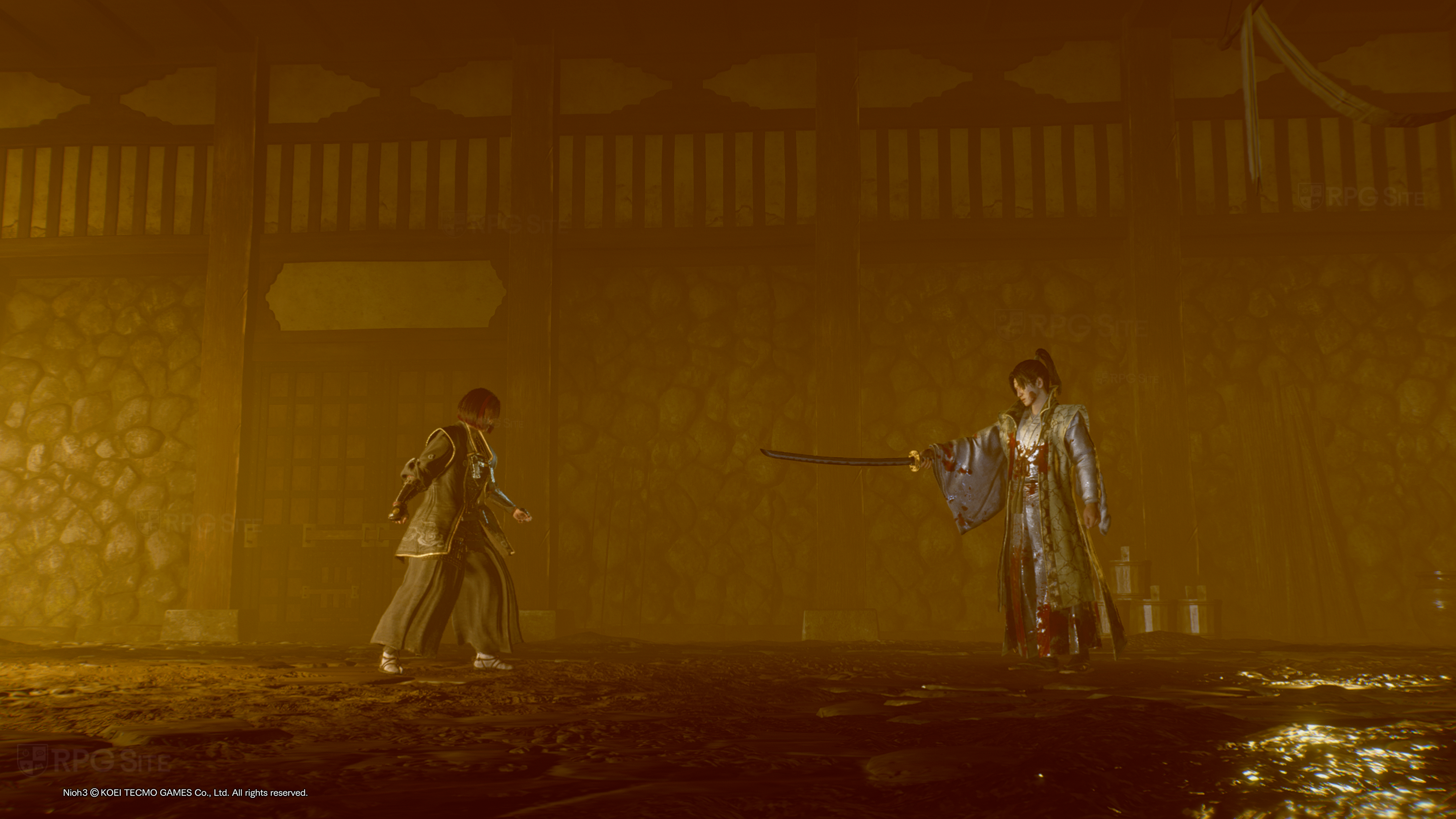
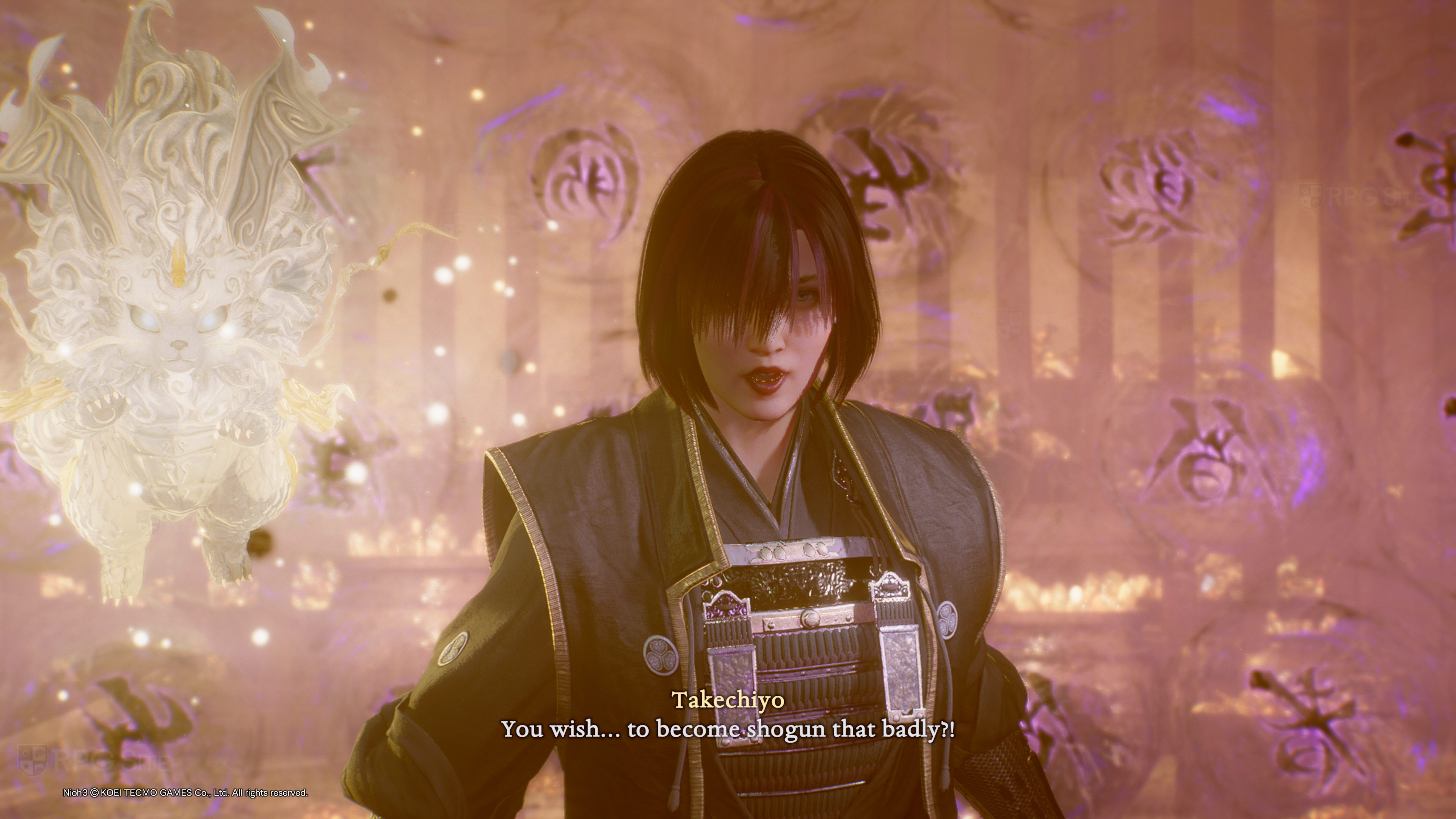

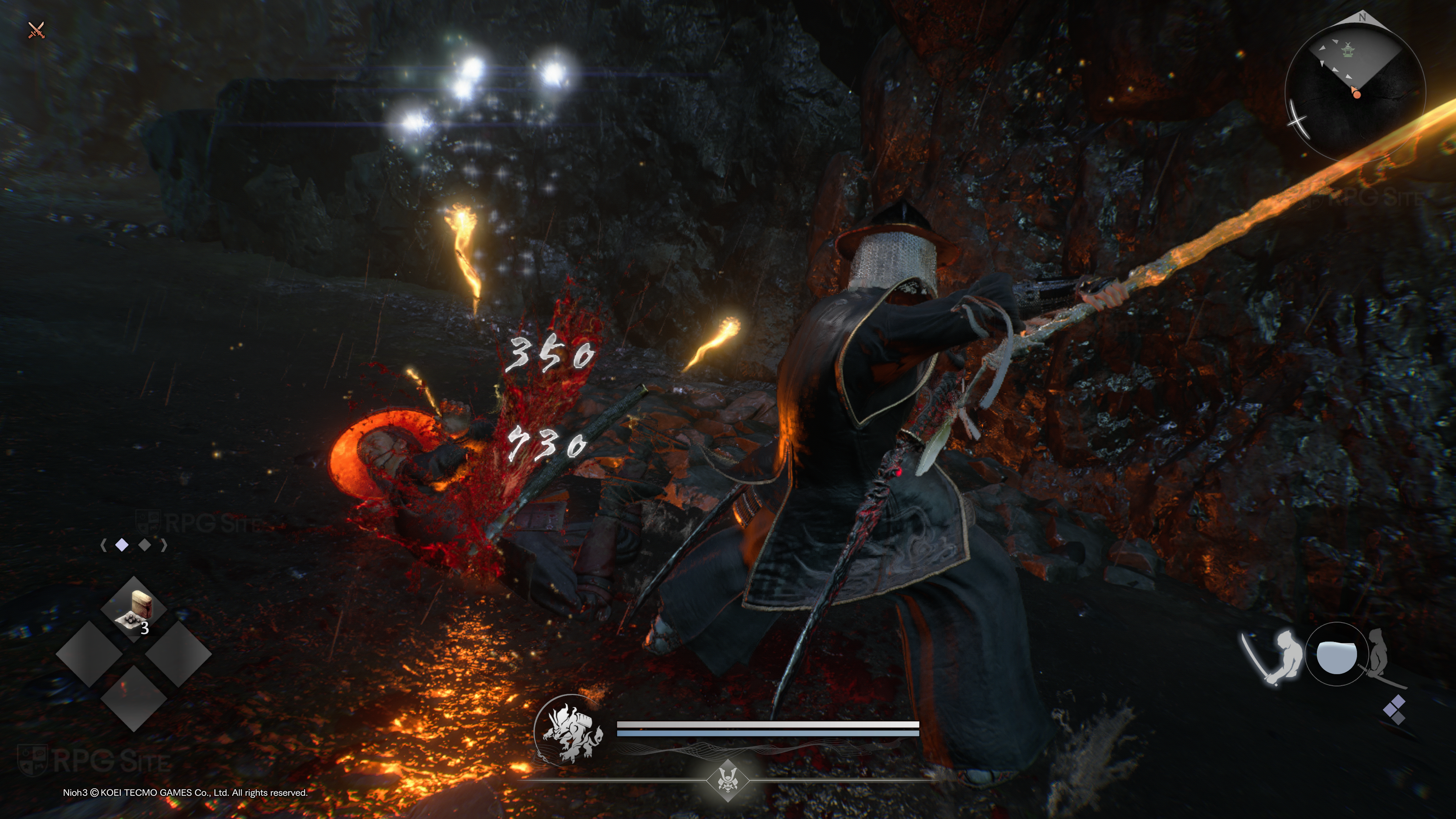
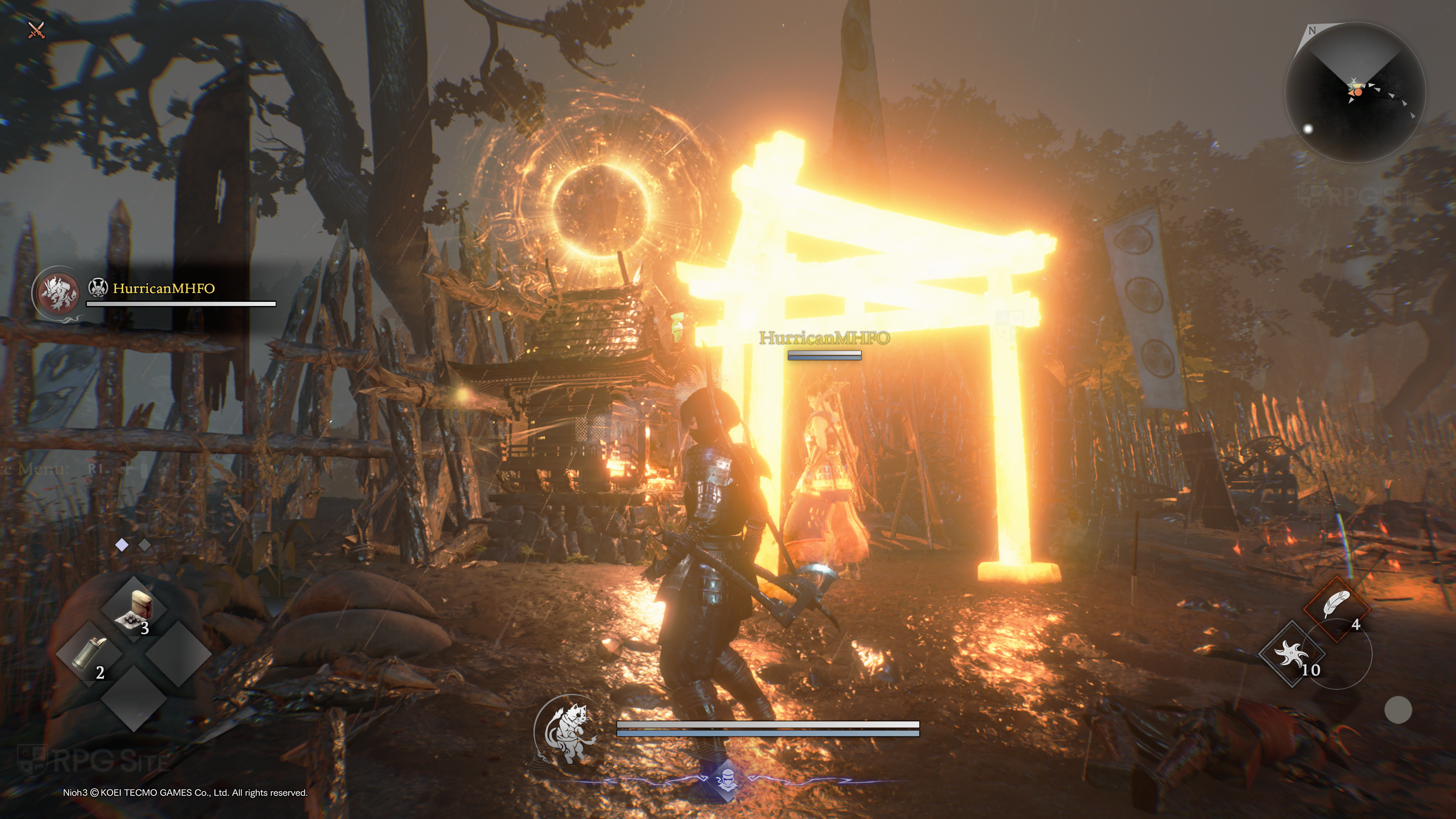
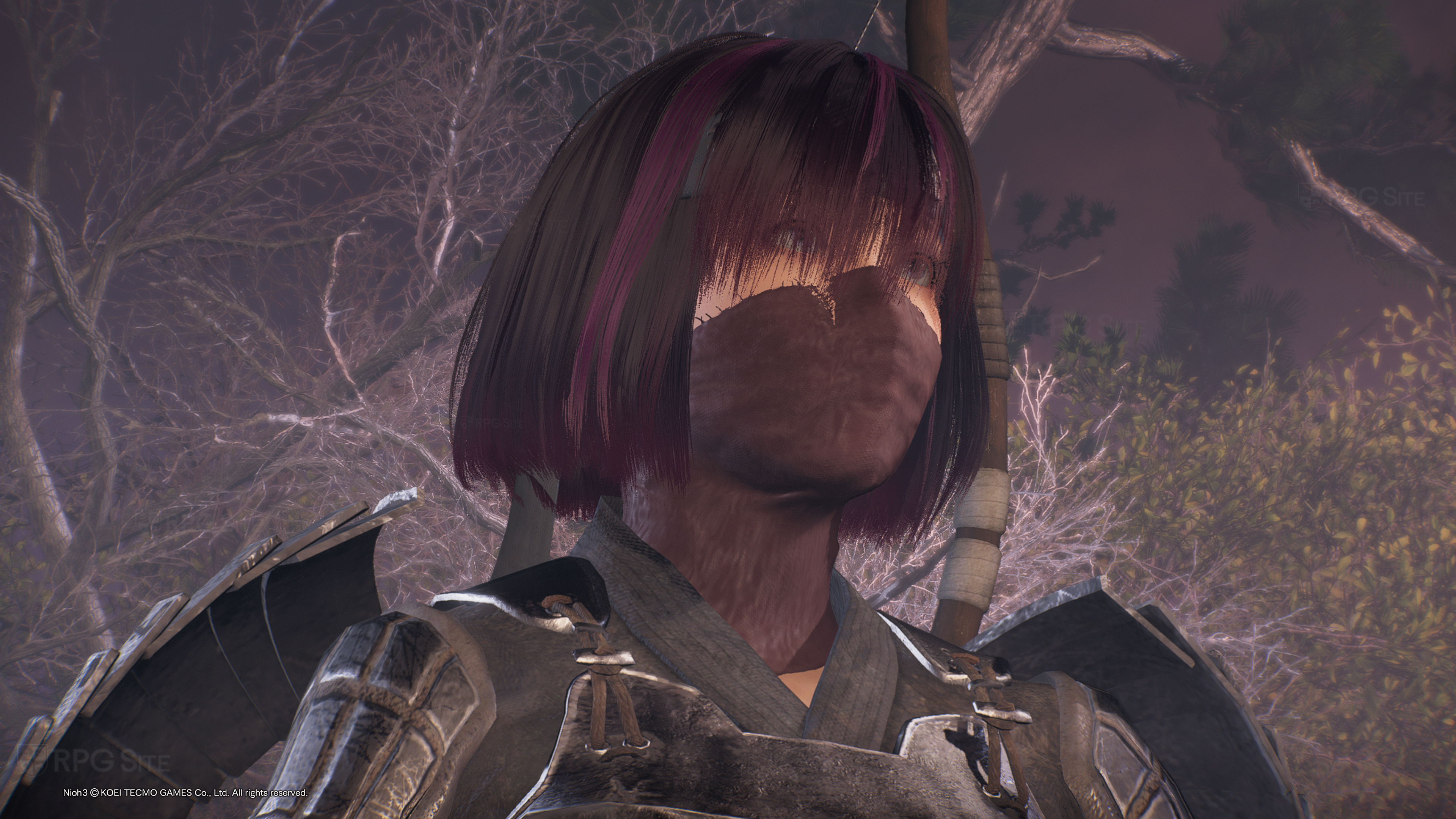
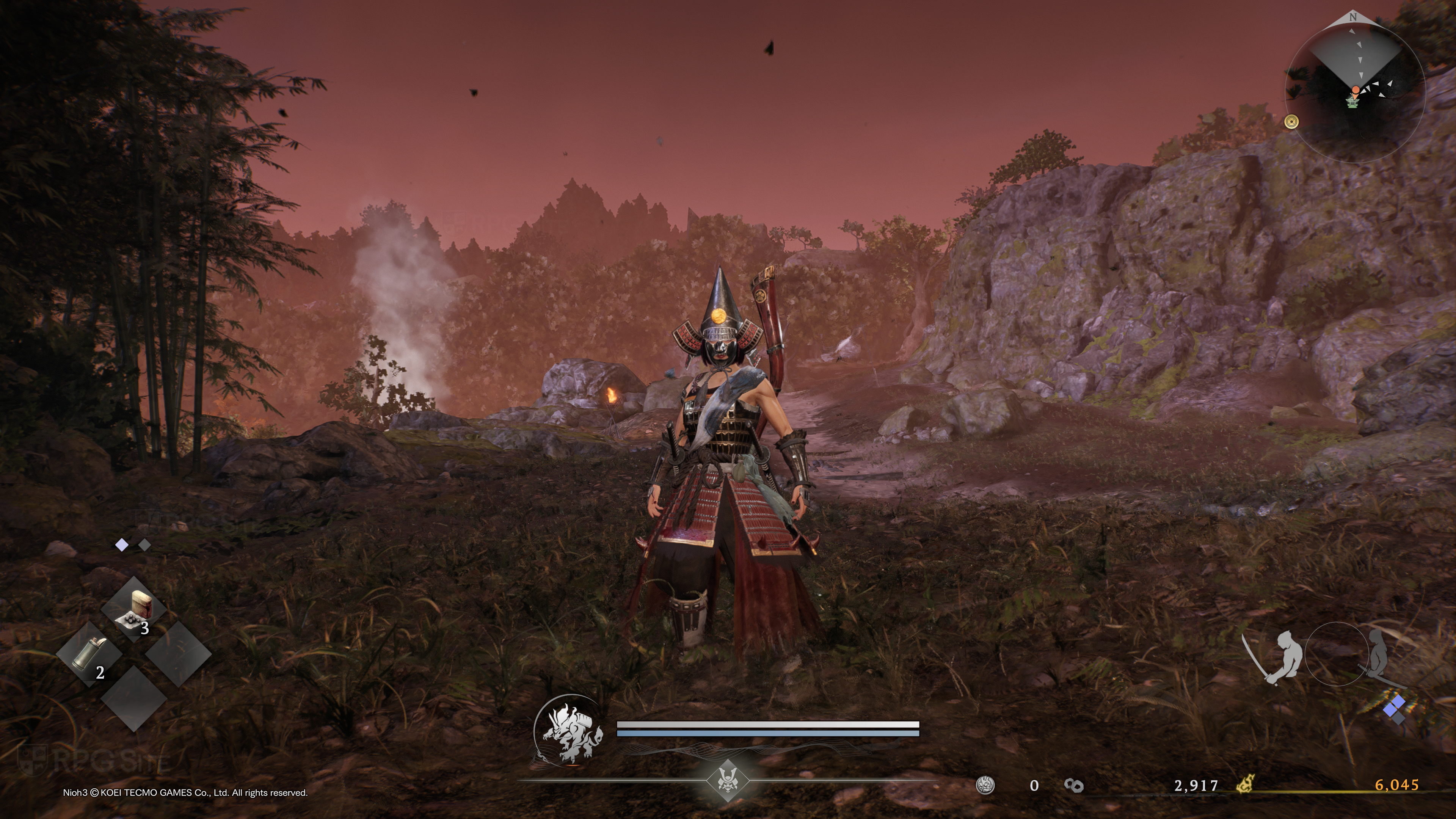
Nioh 3 also has a PS5 demo and if you are curious about the visual difference on your own display, I recommend downloading it to see how you find each mode before deciding if you want to play it on console or potentially on PC. I also want to note that the load times are super fast on PS5. Team Ninja added good haptics when The Nioh Collection was released on PS5 and I’m glad it carries over into this new entry as well. I hope future patches can improve the animation culling in the performance mode though. It is a bit too strong right now on base PS5.
Read More
- United Airlines can now kick passengers off flights and ban them for not using headphones
- Crimson Desert: Disconnected Truth Puzzle Guide
- All 9 Coalition Heroes In Invincible Season 4 & Their Powers
- Mewgenics vinyl limited editions now available to pre-order
- Assassin’s Creed Shadows will get upgraded PSSR support on PS5 Pro with Title Update 1.1.9 launching April 7
- Invincible Season 4 Episode 6 Release Date, Time, Where to Watch
- Grok’s ‘Ask’ feature no longer free as X moves it behind paywall
- The Boys Season 5 Spoilers: Every Major Character Death If the Show Follows the Comics
- Grey’s Anatomy Season 23 Confirmed for 2026-2027 Broadcast Season
- Viral Letterboxd keychain lets cinephiles show off their favorite movies on the go
2026-02-04 17:16